
How to Add Trays in OMS
Trays are essential tools in warehouse operations for organizing and fulfilling customer orders efficiently. In BetterCommerce OMS, trays are used within tray groups to support batch picking and improve tracking of items throughout the fulfillment process.
What Is a Tray?
A tray represents a physical or logical container used by warehouse staff to collect items during the picking process. Trays are usually assigned per order or per picker, depending on your fulfillment strategy.
They help to:
- Separate orders during picking
- Improve accuracy in multi-order batches
- Track inventory movement from pick to pack
- Enhance productivity for warehouse staff
Steps to Add New Tray in OMS
-
Navigate to Delivery Centers
Go to the Delivery Centers module in OMS.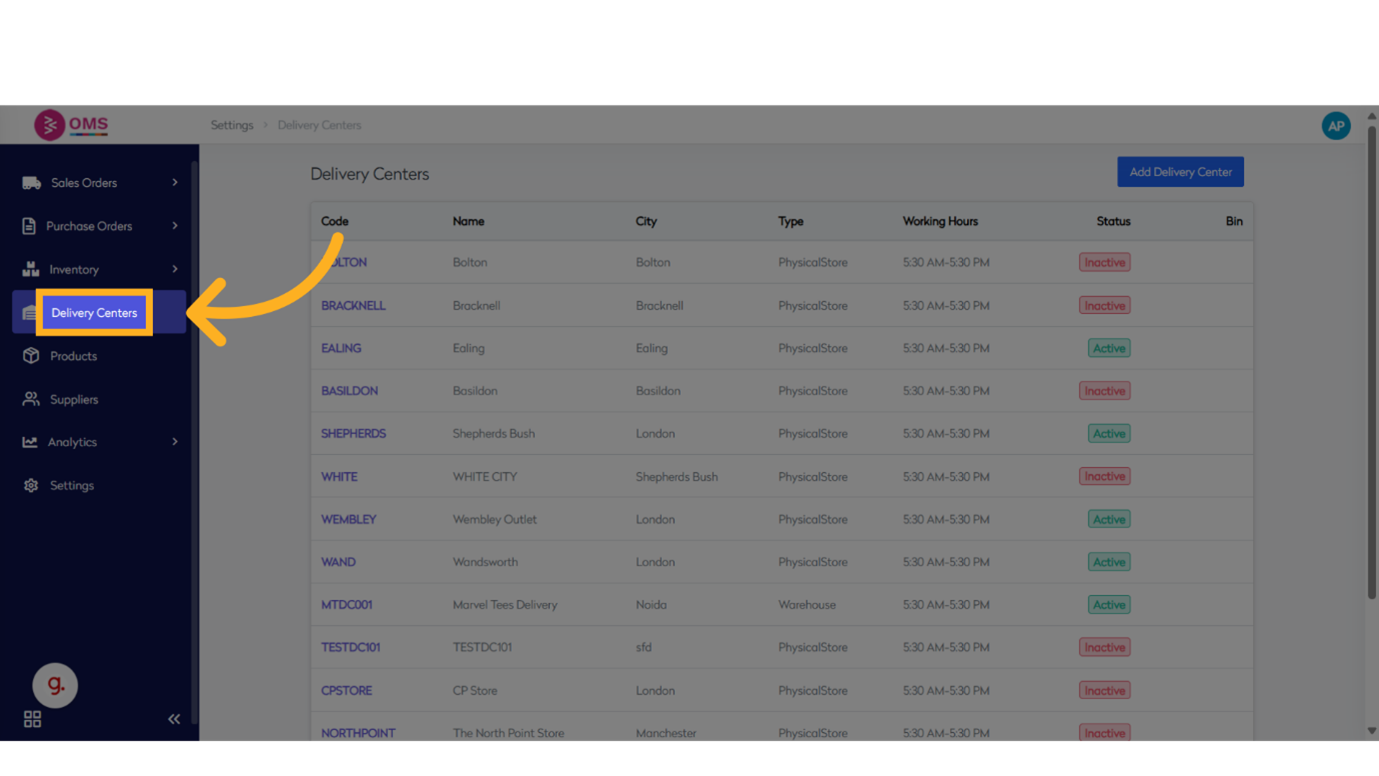
-
Select a Delivery Center
Choose the location (e.g., warehouse or store) where you want to create bins.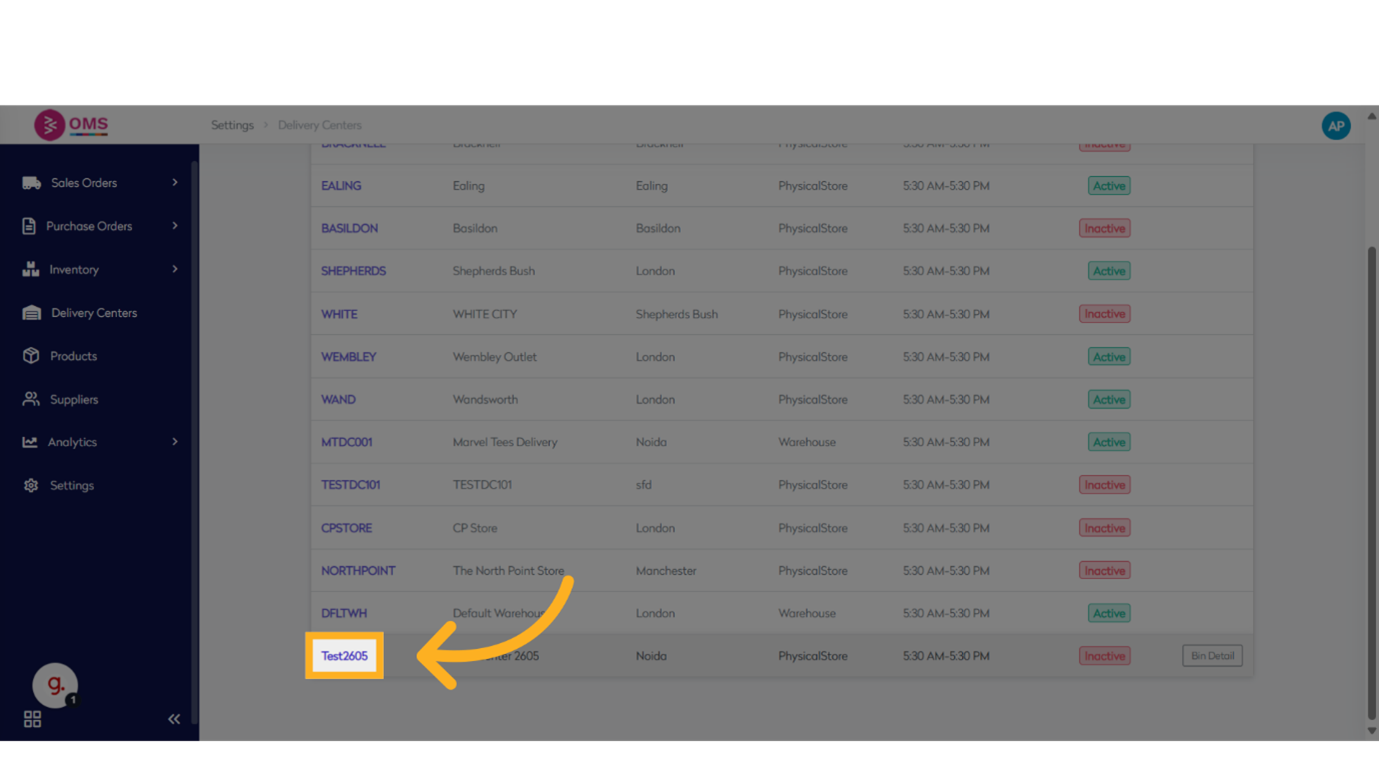
-
Go to View All Tray Groups
Access the list of existing tray groups.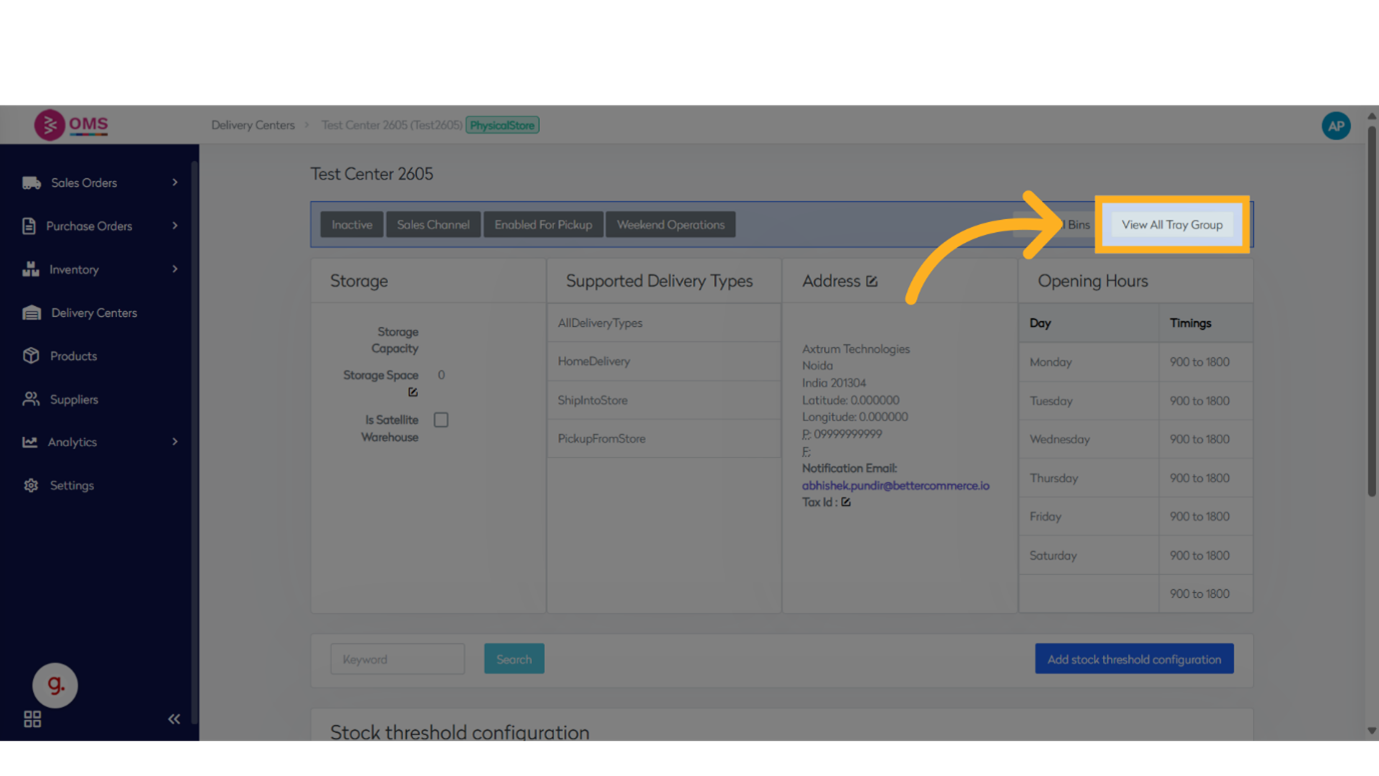
-
Click “Add New”
Start creating a new tray group by clicking the Add New button.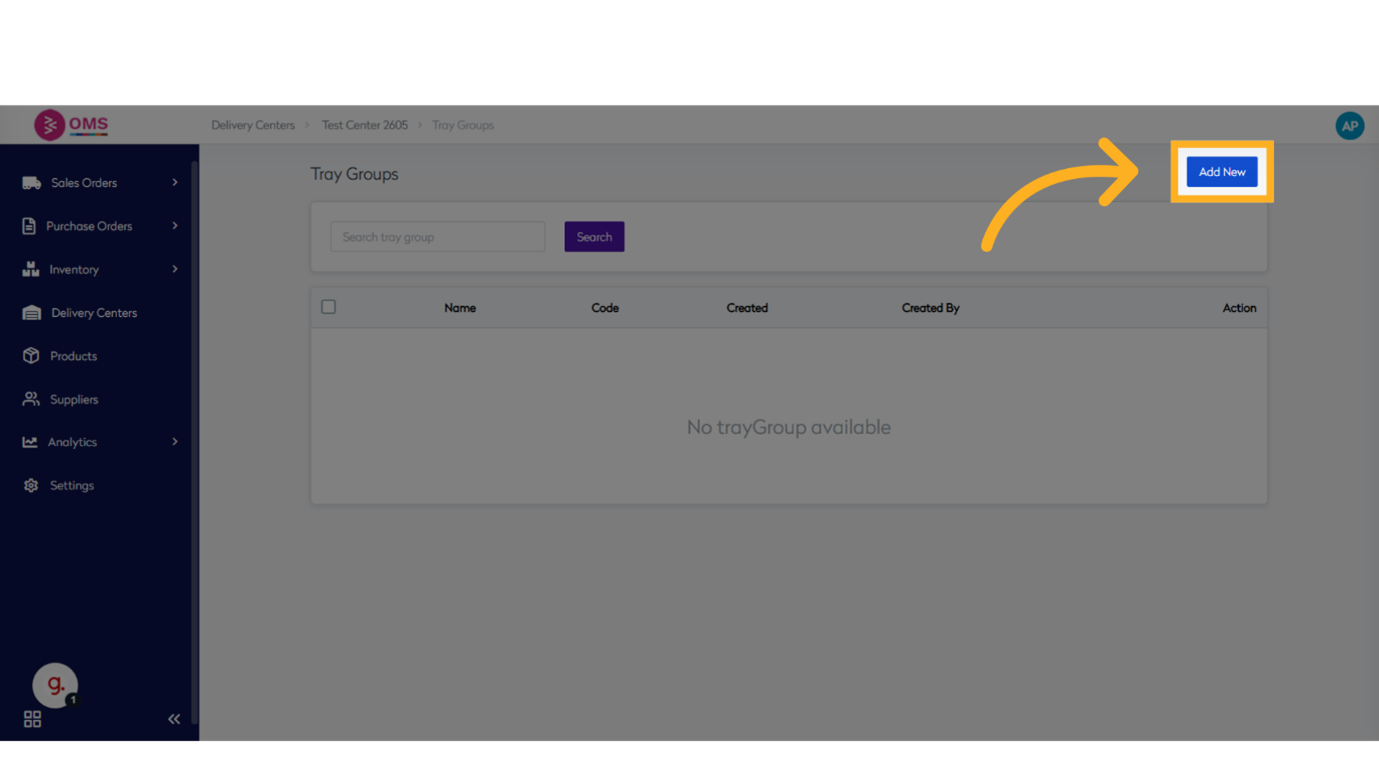
-
Enter Tray Group Name
Provide a meaningful name for the group.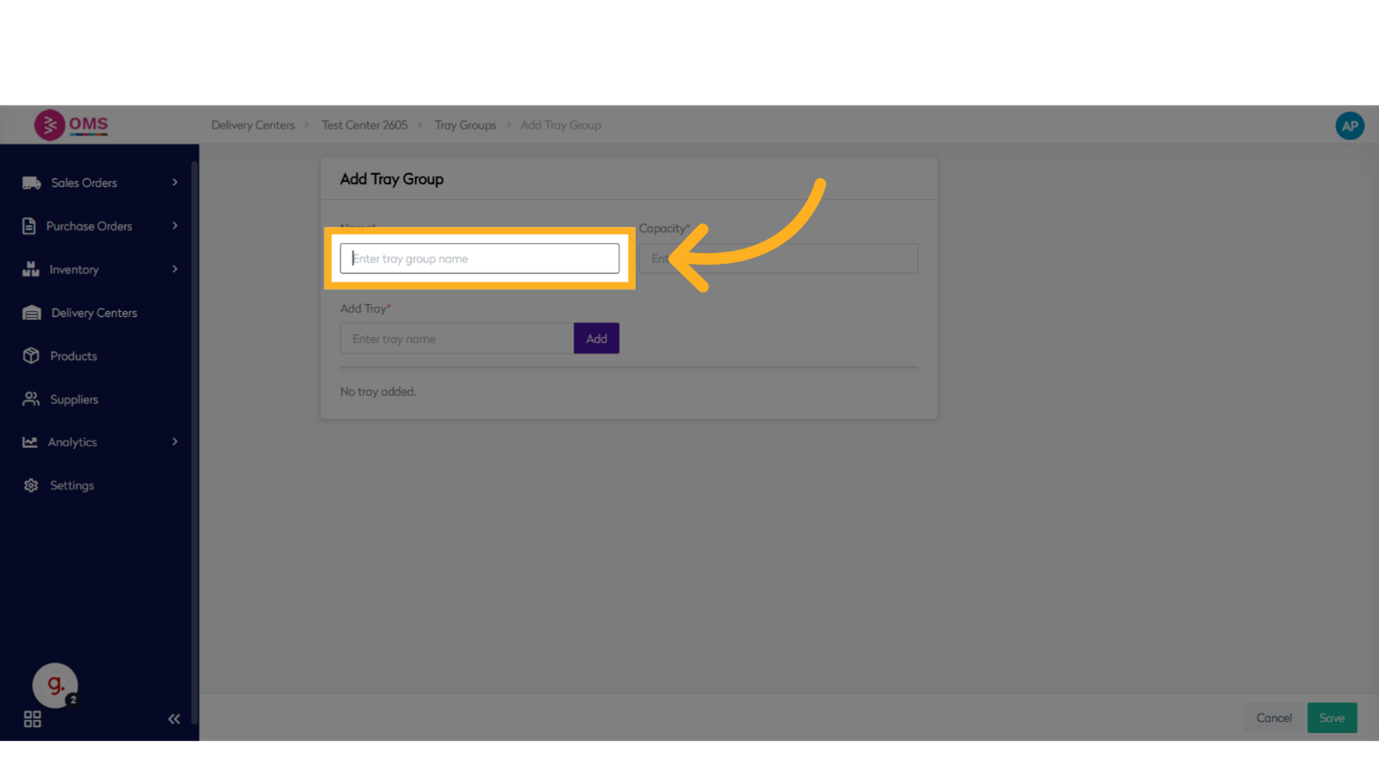
-
Set Capacity
Define the maximum number of trays the group can contain.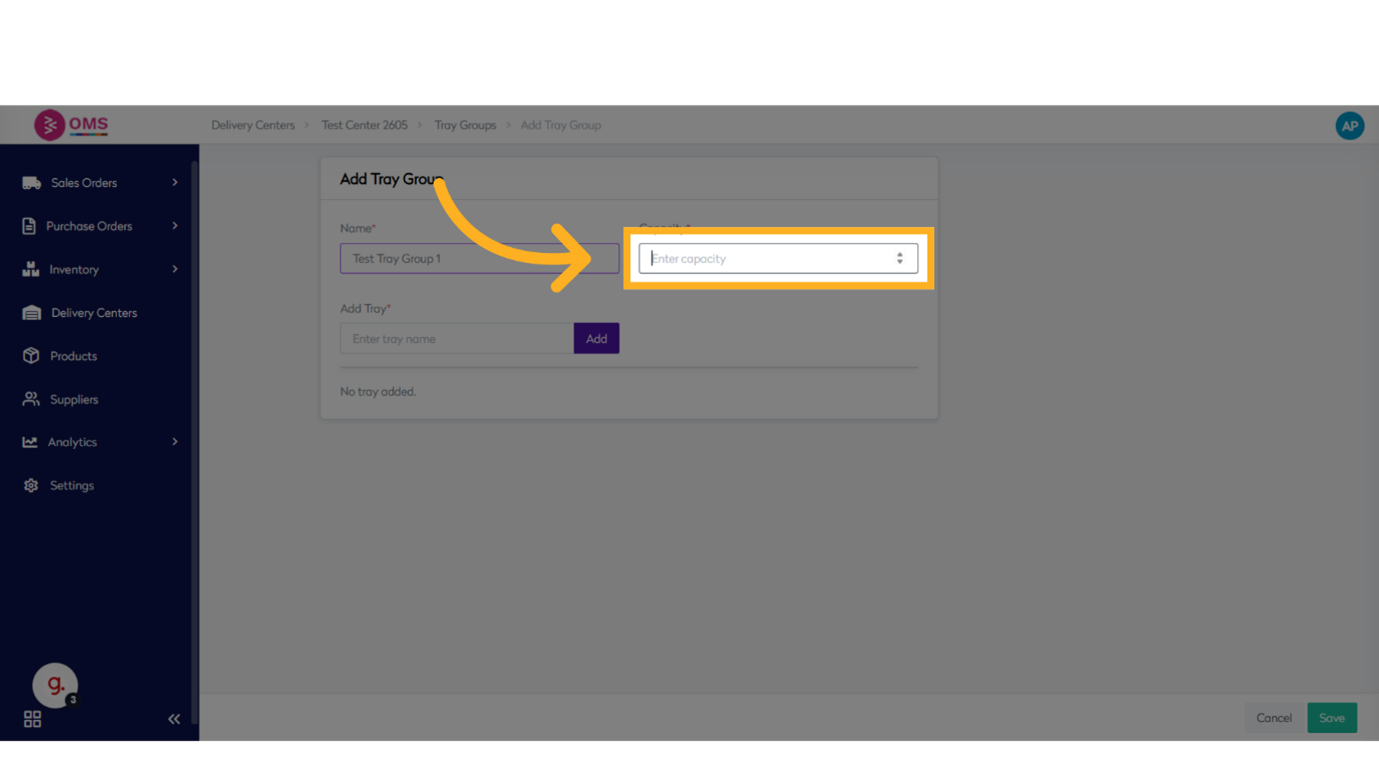
-
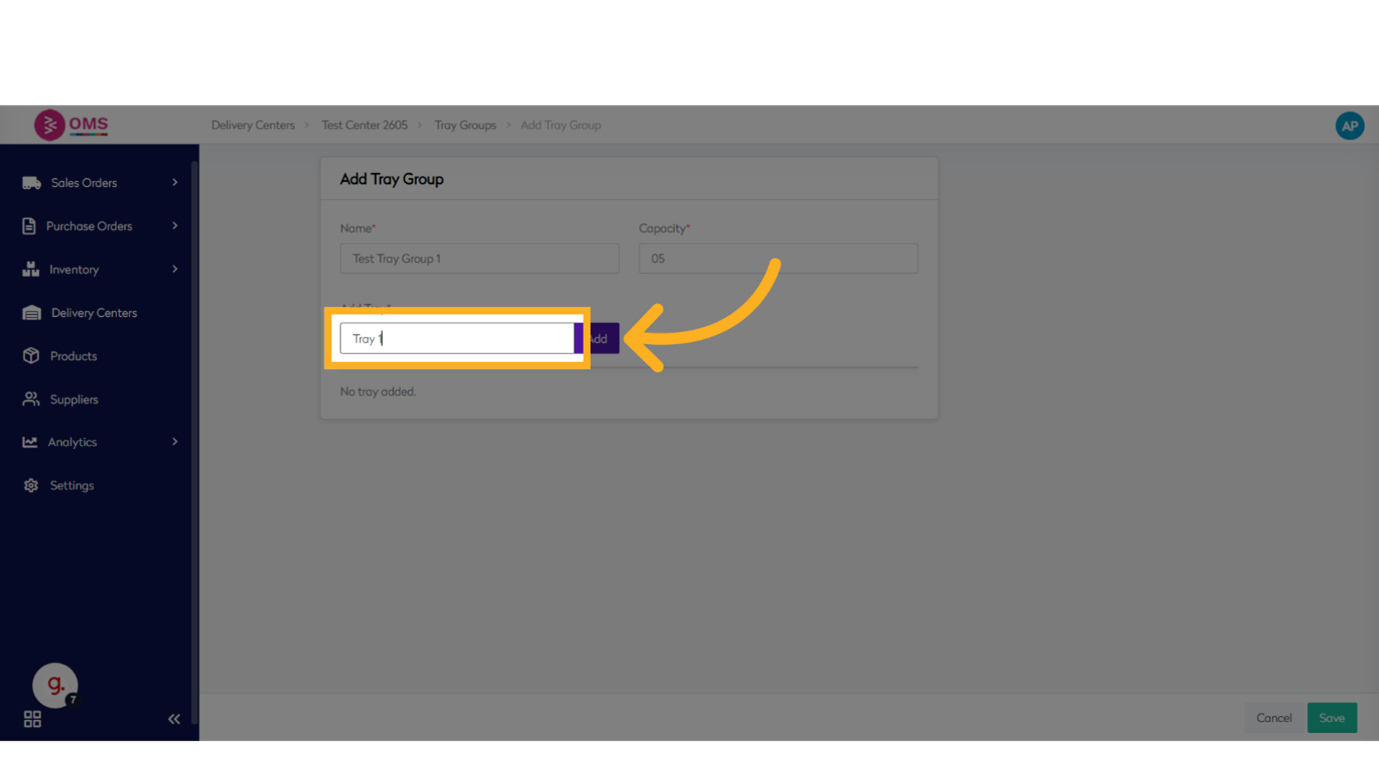
Add Trays to the Group
- Enter a unique name for each tray
- Assign each tray to a slot or position
- Click Add after each tray entry
-
Save the Tray Group
Once all trays are added and named, click Save to finalize the tray group.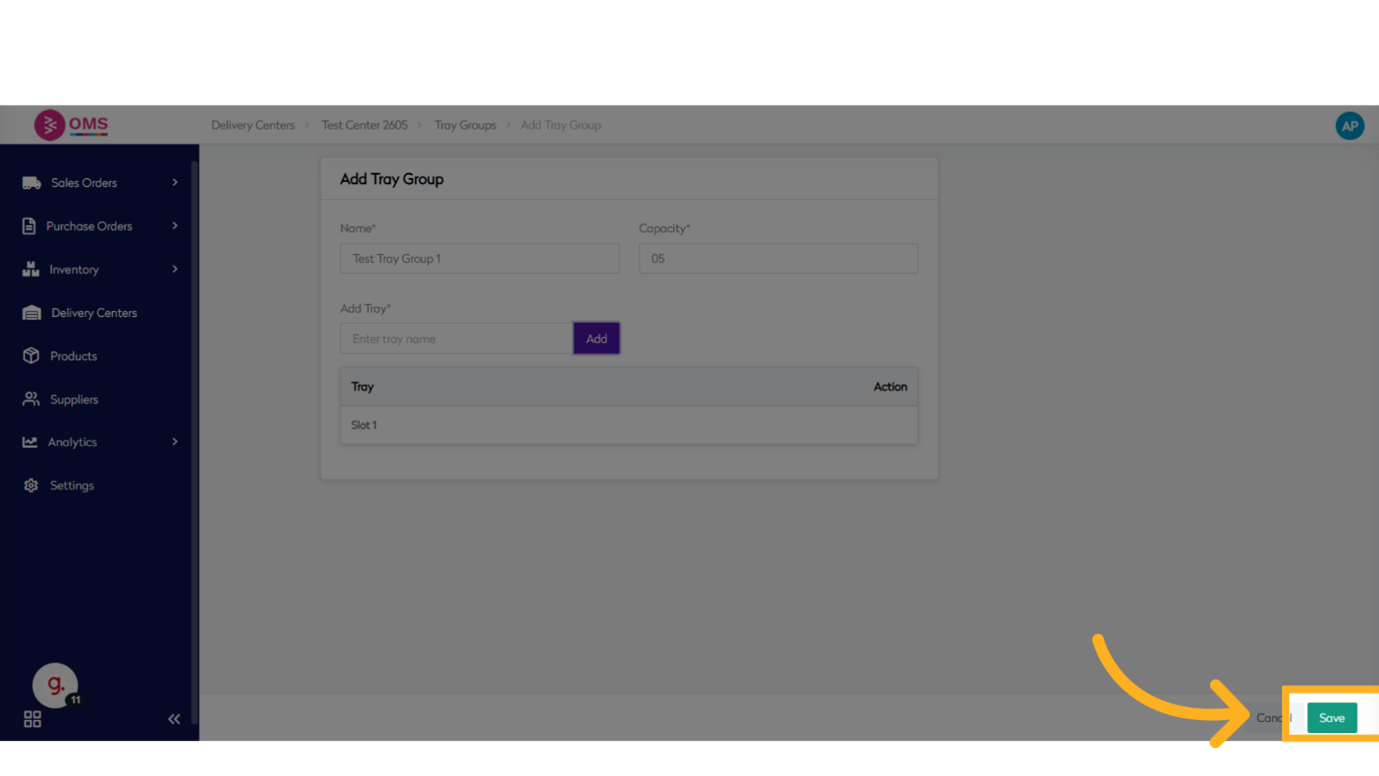
Best Practices for Adding Trays
- Use clear naming conventions like
Tray 1,Tray 2, or by zone (e.g.,Zone A Tray) - Keep tray capacities aligned with your order volumes
- Label trays with barcodes for fast tracking
- Regularly audit tray assignments to ensure efficiency
Summary
Adding trays in BetterCommerce OMS allows you to structure your picking and packing processes more effectively. With clearly labeled trays, warehouse teams can handle multiple orders at once while minimizing errors and boosting operational speed.
Organize fulfillment like a pro — add trays for smarter picking in OMS.