
Tagging Rules Configuration
Overview
Tagging Rules in OMS allow automatic tagging of orders based on defined conditions. This helps in categorizing, filtering, and managing orders efficiently based on business-specific criteria.
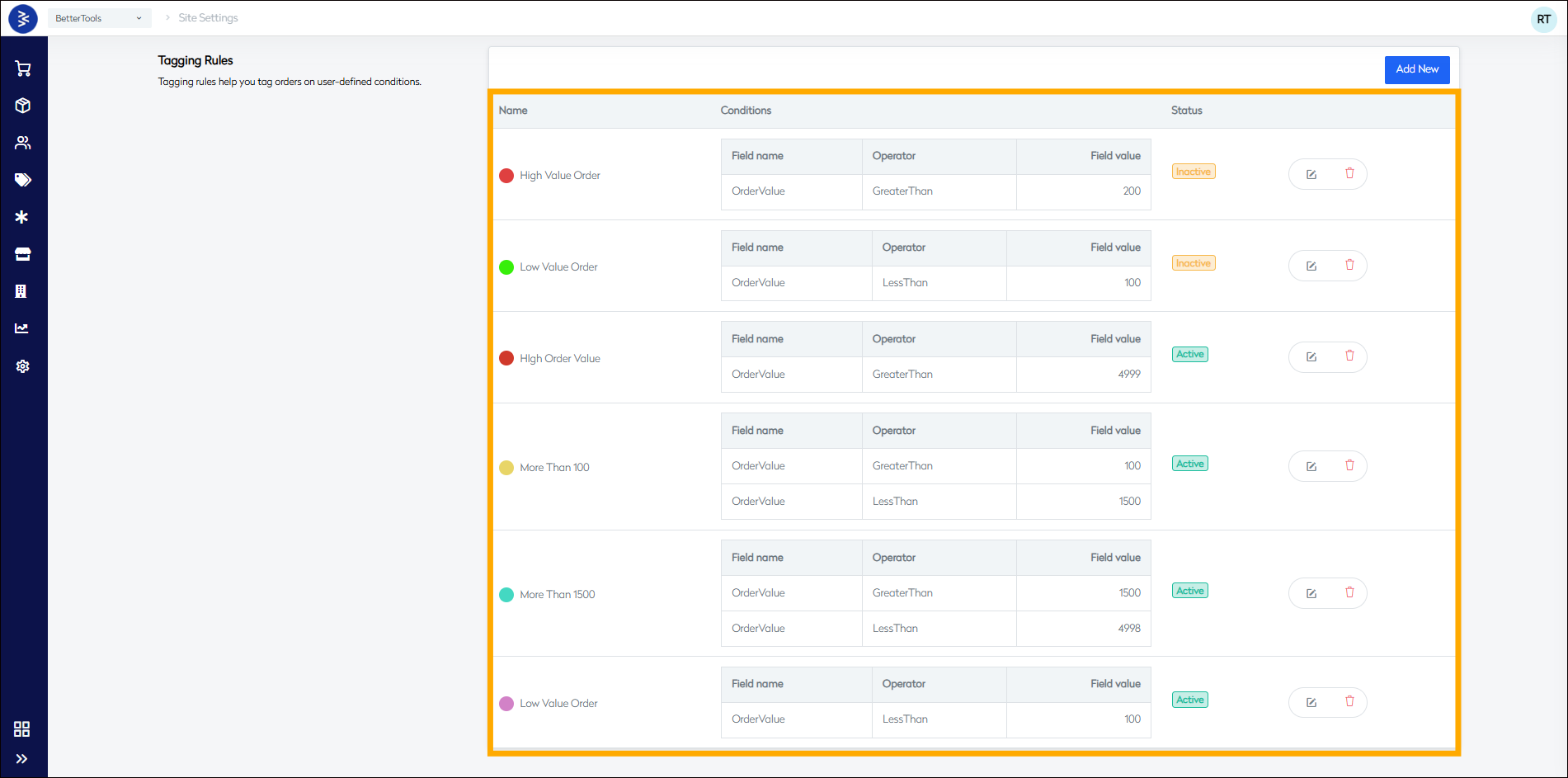
Below are the Field and their Descriptions displayed on the Tagging Rules Screen in OMS:
| Field Name | Description |
|---|---|
| Name | Unique identifier for the tagging rule (e.g., "High Value Order") |
| Field name | The order attribute to evaluate (e.g., "OrderValue") |
| Operator | Comparison operator for the condition (e.g., "GreaterThan", "LessThan") |
| Field value | The value to compare against (e.g., "200", "4999") |
| Status | Current state of the rule (Active/Inactive) |
Condition Types
The system supports multiple condition types for tagging:
| Condition Type | Description | Example Use Case |
|---|---|---|
| PostCode | Filter orders by postal code | Tag orders from specific regions |
| Date | Tag based on order date | Identify seasonal orders |
| Product | Filter by product attributes | Tag orders with specific items |
| Customer | Tag based on customer data | Identify VIP customer orders |
| OrderValue | Filter by order amount | Tag high-value purchases |
| Zone | Tag based on delivery zone | Regional order identification |
| Country | Filter by country | International order tagging |
| ShippingType | Tag by shipping method | Express delivery identification |
| OrderDiscountPercentage | Filter by discount level | Promotional order tracking |
| ProductSellPrice | Tag by product price | Premium product orders |
| OrderDuplicacyHour | Identify duplicate orders | Fraud prevention |
| PriceDifferencePercentage | Tag price variations | Margin analysis |
Rule Configuration Options
Basic Settings
| Field | Description |
|---|---|
| Rule Name | Unique identifier for the tagging rule. |
| Tag Color | Color assigned to the tag for easy visual identification in the UI. |
| Domain Selection | Select the applicable domain, e.g., BetterTools or BetterFixings. |
| Active Status Toggle | Enables or disables the tagging rule. |
Operator Types
| Operator | Description |
|---|---|
| In | Checks if the specified value exists within a given set. |
| NotIn | Checks if the specified value does not exist in the given set. |
Value-Based rules example:
High Value Orders:
- Condition: OrderValue > 4999
- Purpose: Premium order identification

Medium Value Orders:
- Condition: OrderValue > 100 AND < 1500
- Purpose: Standard order tracking

Low Value Orders:
- Condition: OrderValue < 100
- Purpose: Small order monitoring
How to setup tagging rules in CommerceHub
-
Navigate to
Settings > Tagging Rules.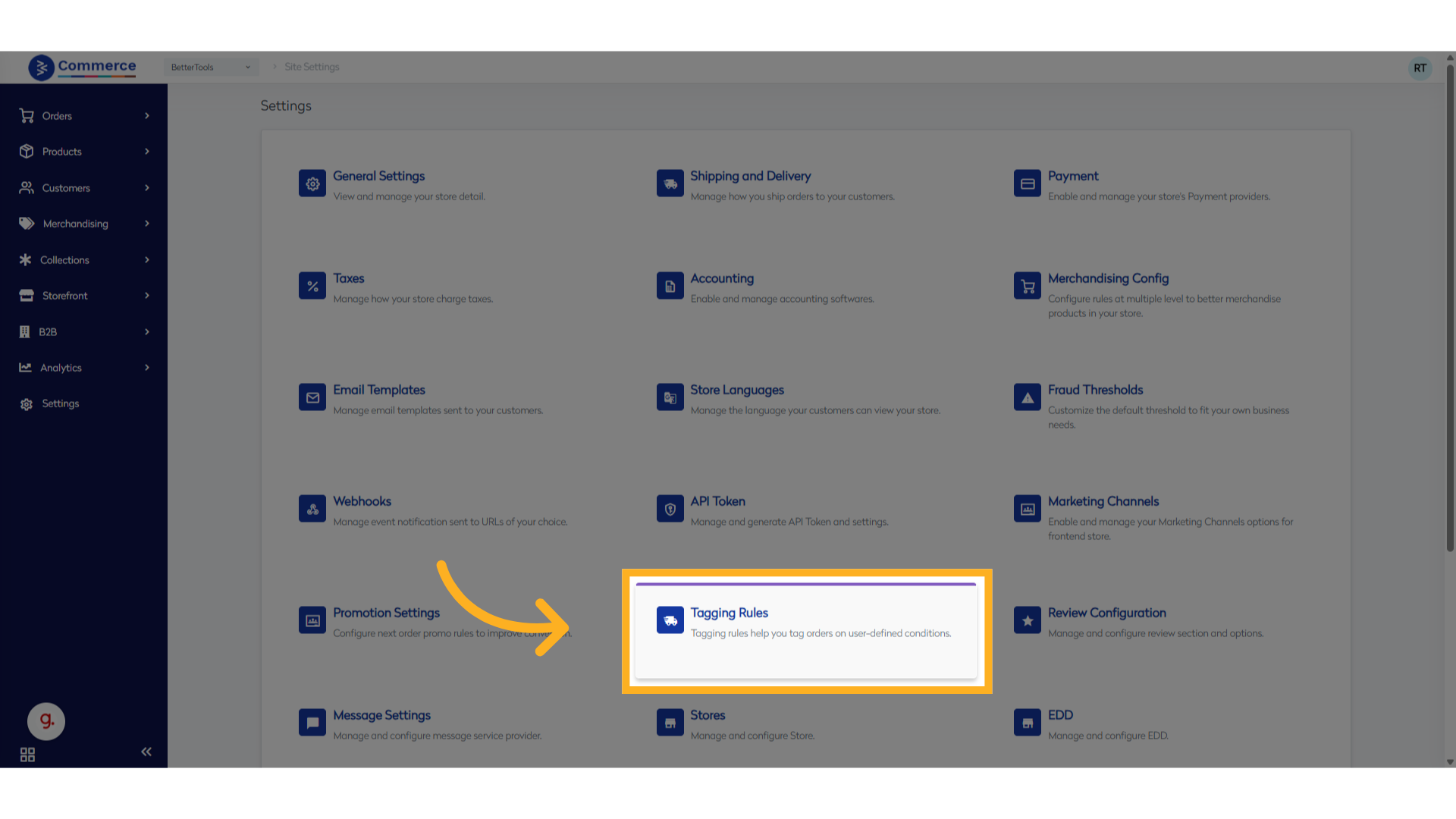
-
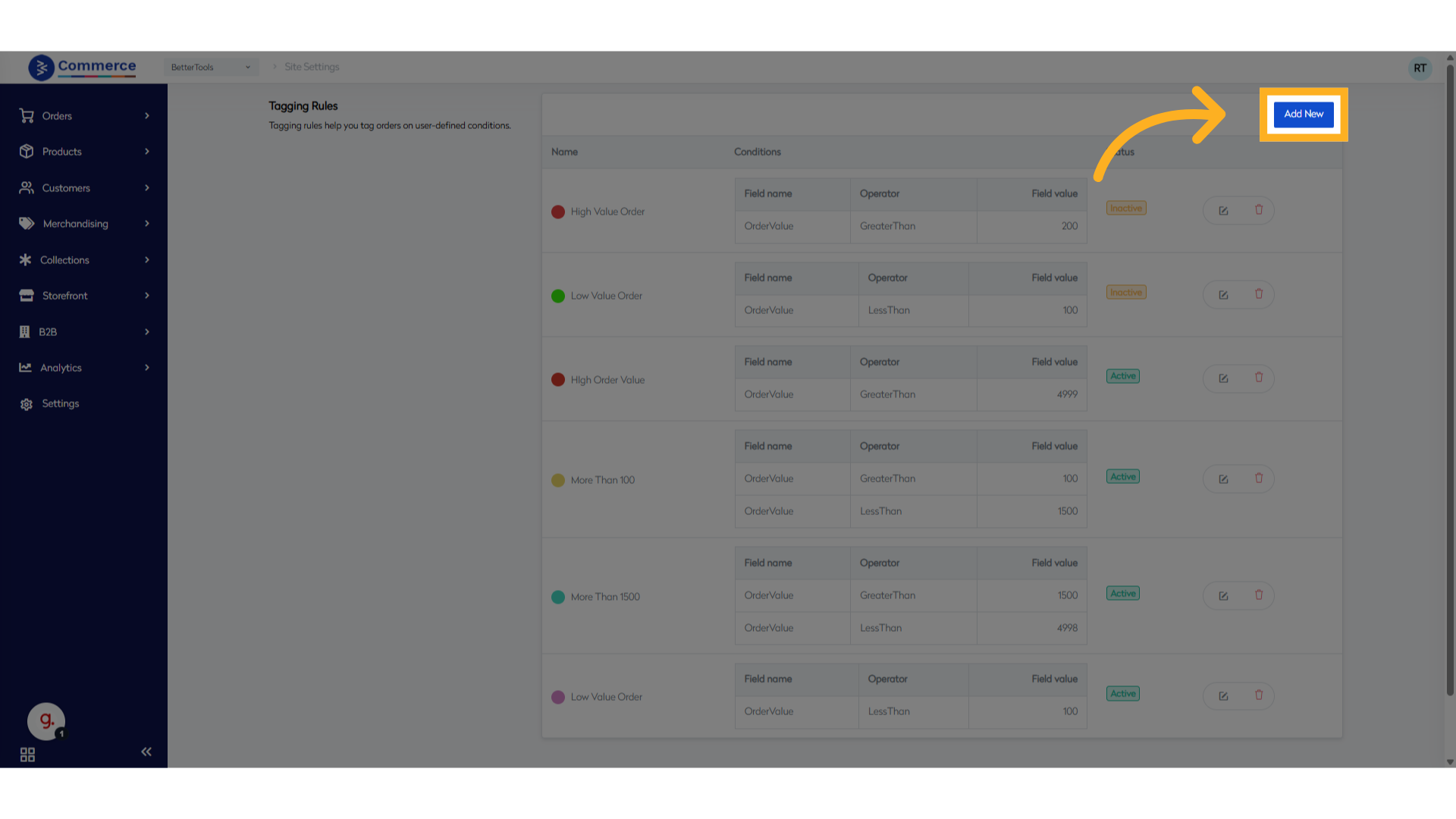
Click Add New to create a new tagging rule.
-
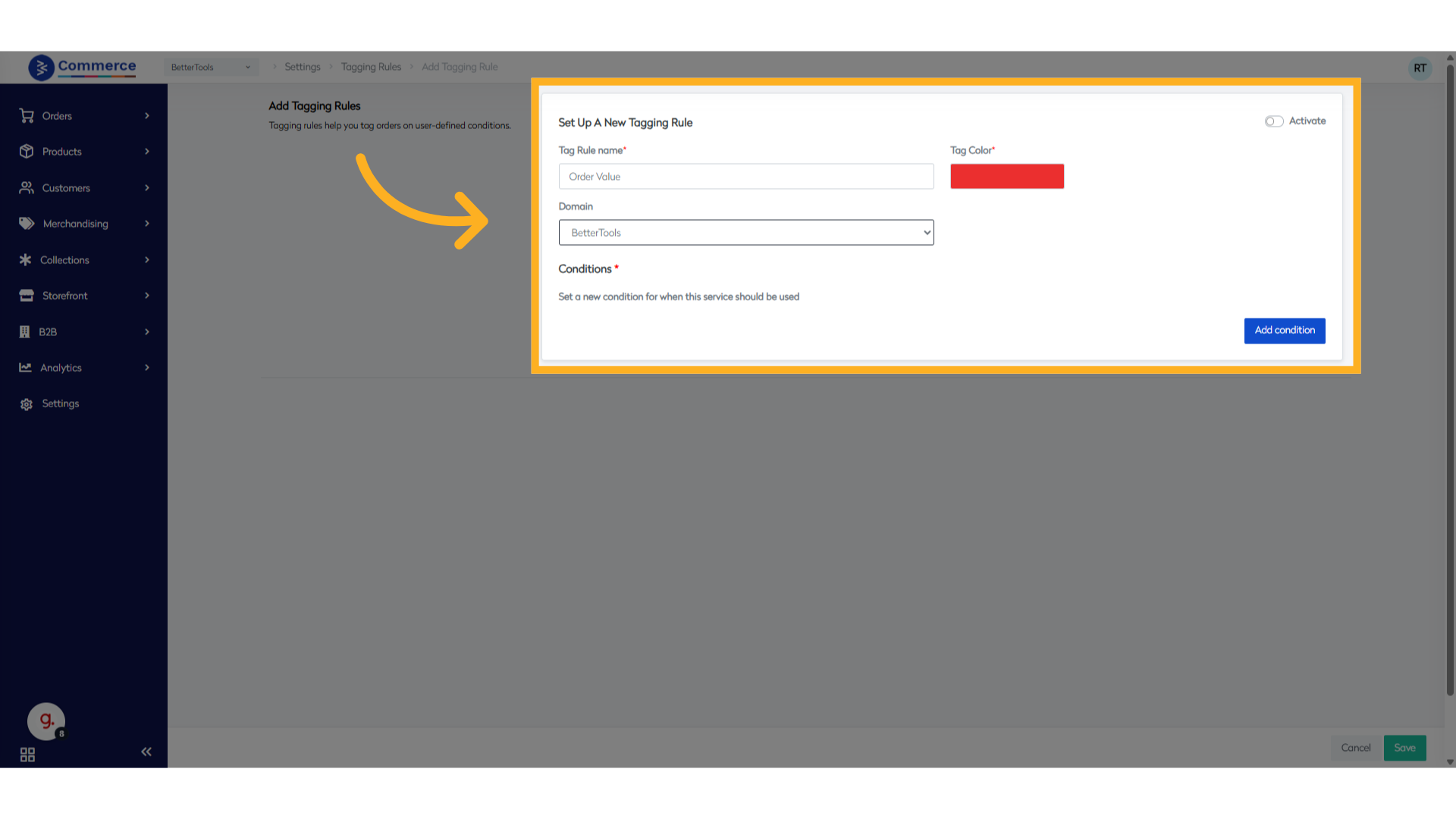
Fill in Basic Details
- Name: Enter a name for the tagging rule.
- Color: Choose a color to visually identify the tag .
- Domain: Select the applicable domain (if multiple domains are configured).
-
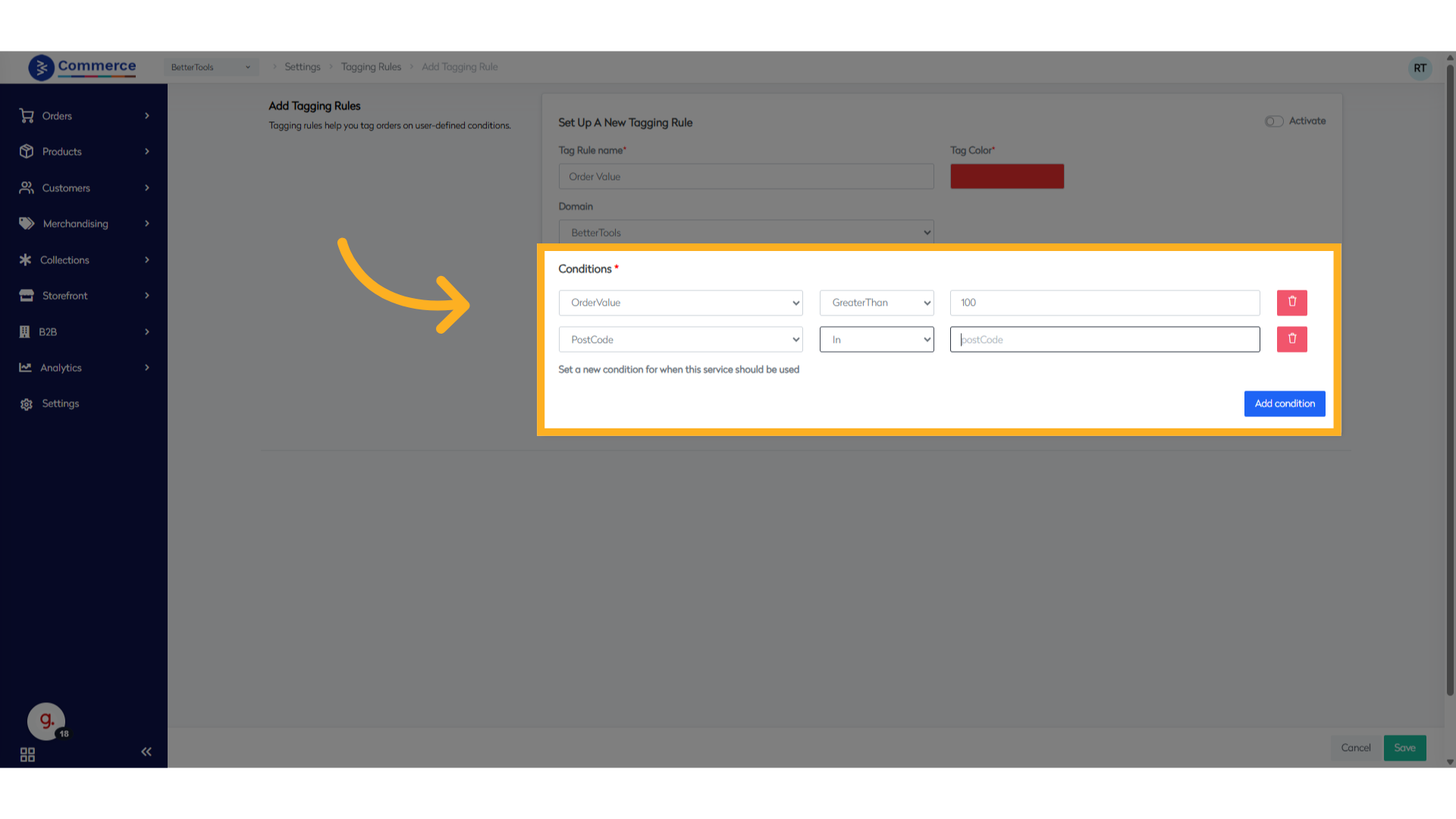
Click Add Condition and define the logic based on which the orders should be tagged. You can combine multiple conditions using AND logic.
-
Save and Activate
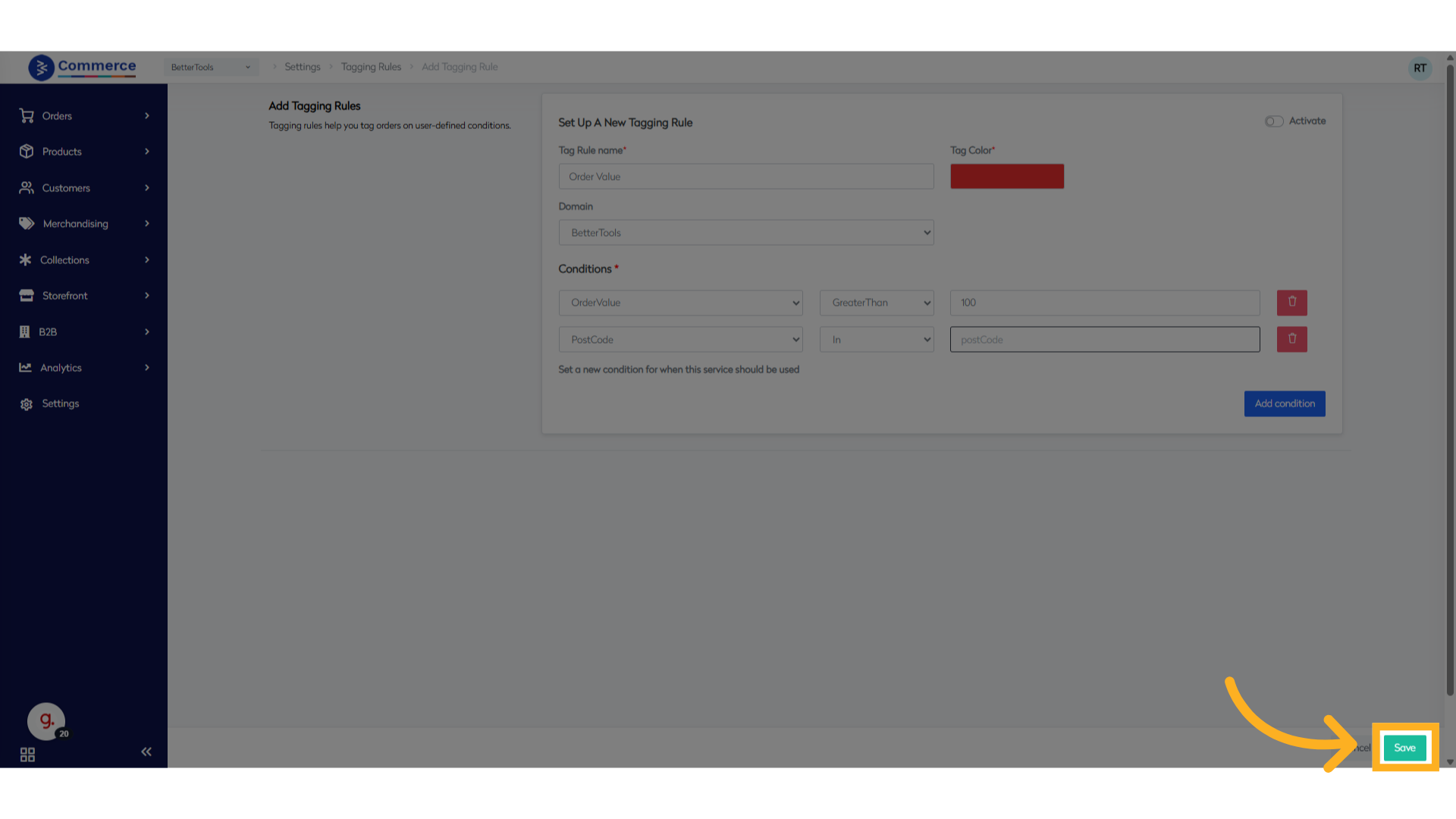
- Click Save to store the rule.
- Toggle the Activate switch to enable the tagging rule and start applying tags to matching orders.
Once activated, the system will automatically evaluate and tag orders that meet the rule criteria.