
Supplier Listing Screen
Overview
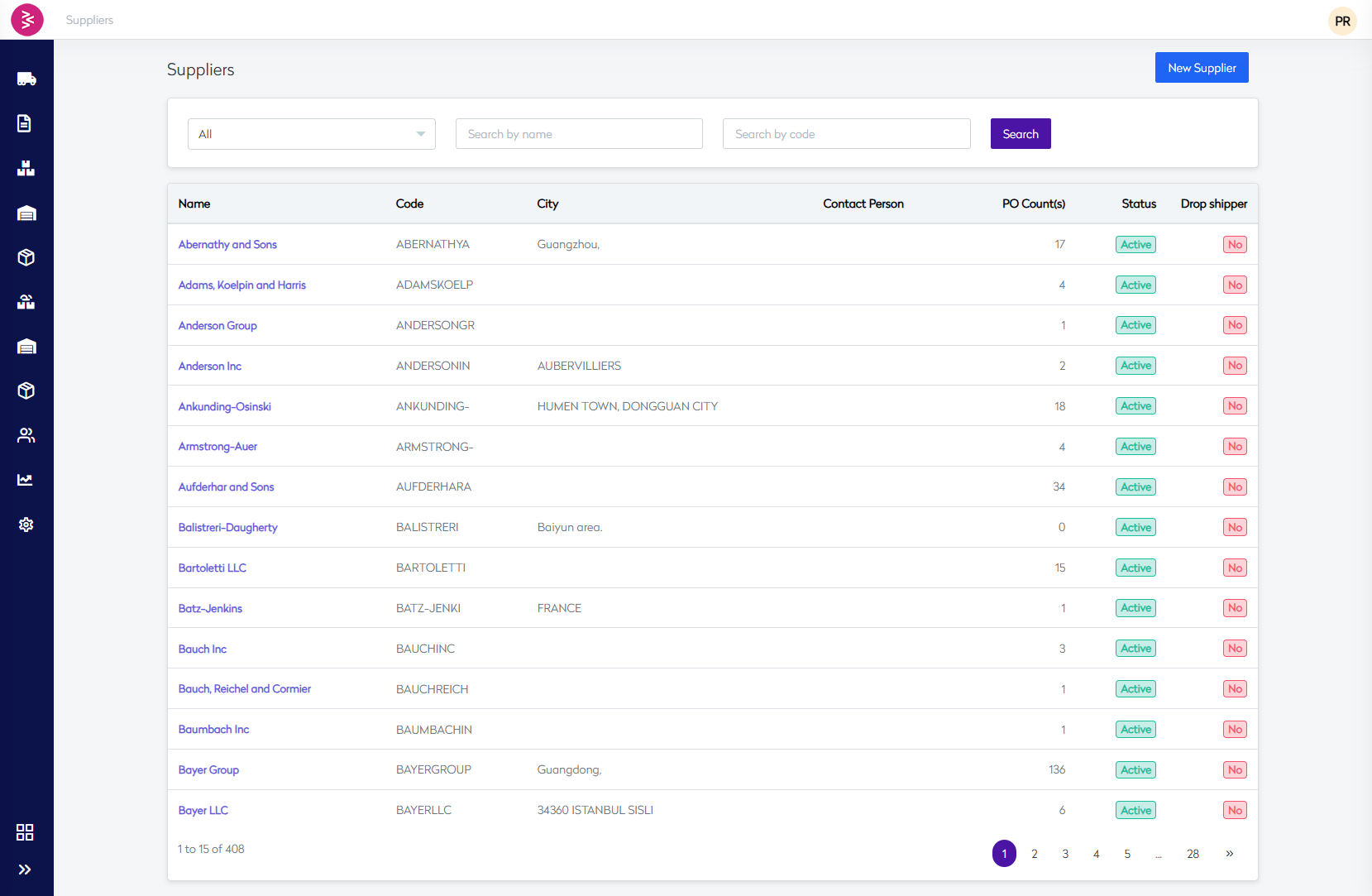
This is the main Suppliers page within the Fashion organization's OMS system, showing a comprehensive list of all suppliers with key information and management capabilities.
Search & Filter Functionality
The page includes three search/filter options:
- Status Filter: Dropdown set to "All" (likely includes Active, Inactive, etc.)
- Search by Name: Text input field for supplier name search
- Search by Code: Text input field for supplier code search
- Search Button: Purple "Search" button to execute the search
Supplier Data Table
The table displays suppliers with the following columns:
- Name: Supplier company name (clickable links to detail pages)
- Code: Unique supplier identifier/code
- City: Location of the supplier
- Contact Person: Primary contact (appears mostly empty in current view)
- PO Count(s): Number of Purchase Orders associated with each supplier
- Status: All shown suppliers are "Active" (displayed in green badges)
- Drop shipper: Indicates if supplier is a drop shipper (all showing "No" in red badges)
Current Data Display (Example)
The page shows 15 suppliers out of 408 total, with pagination controls at the bottom (pages 1-5 visible, with "..." indicating more pages up to page 28).
Sample Suppliers Listed
Some notable suppliers include:
- Abernathy and Sons (Guangzhou) - 17 POs
- Bayer Group (Guangdong) - 136 POs (highest count visible)
- Aufderhar and Sons - 34 POs
- Various other suppliers with PO counts ranging from 0-18
New Supplier Feature
The "New Supplier" button in the top-right corner allows users to:
- Add new suppliers to the system
- This would open a form to input supplier details like name, code, contact information, address, and configuration settings
Supplier Management
How to Add a New Supplier
Overview
The New Supplier form facilitates the creation and registration of supplier records within the system. It ensures accurate onboarding by collecting critical business, financial, and logistical details. This documentation provides step-by-step guidance to correctly fill out and submit the new supplier form.
Access Path
- Navigate to: Admin Panel > Procurement > Suppliers
- Click on: Add New Supplier
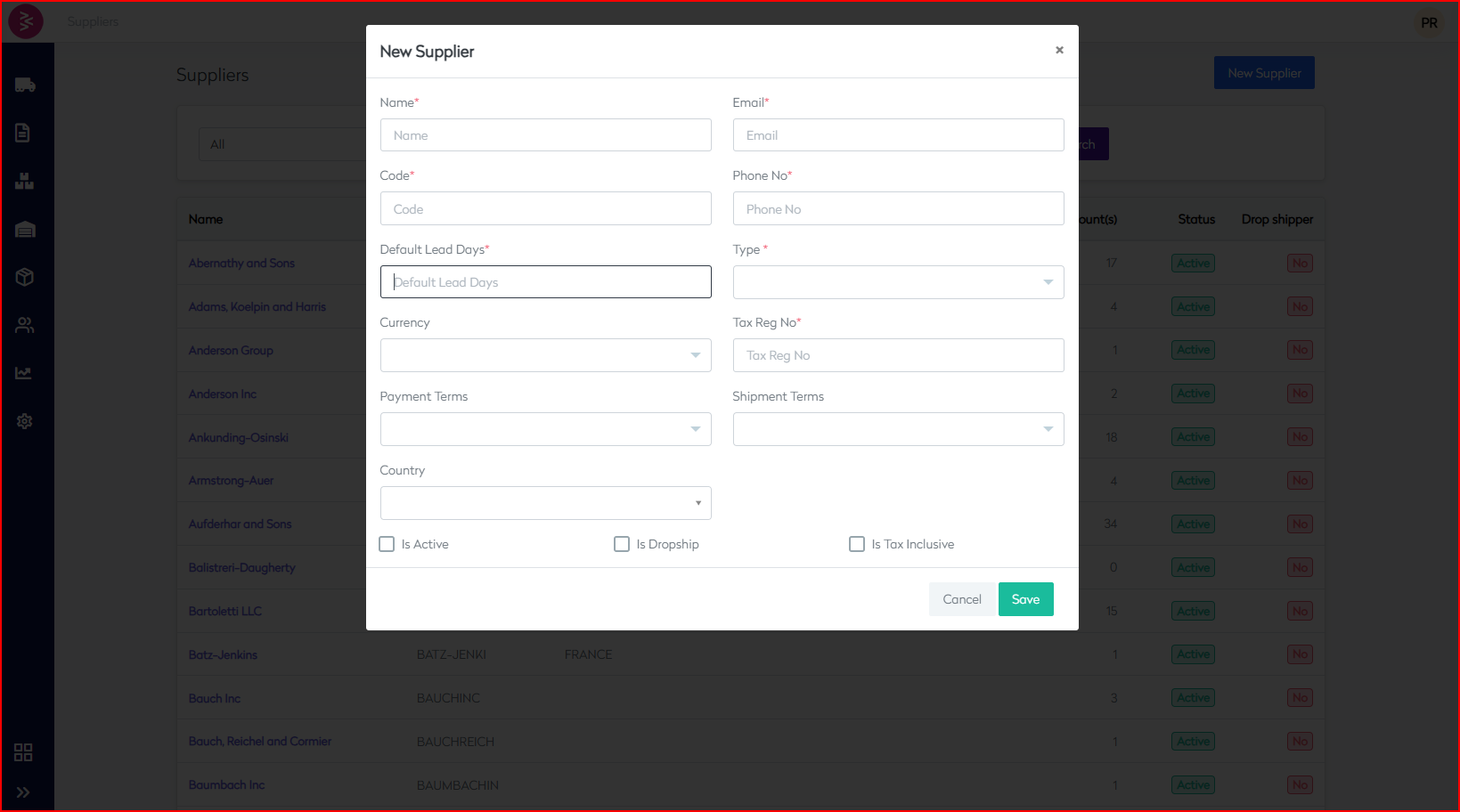
The system will open a modal dialog titled New Supplier.
Form Fields and Descriptions
| Field | Description | Mandatory | Input Type |
|---|---|---|---|
| Name | Enter the full legal name of the supplier. | ✅ Yes | Text field |
| Supplier's primary business email for communication. | ✅ Yes | Email format | |
| Code | Unique identifier or short code for internal tracking. | ✅ Yes | Alphanumeric |
| Phone No | Supplier's contact phone number. | ✅ Yes | Numeric/Text |
| Default Lead Days | Standard number of days the supplier takes to deliver goods. | ✅ Yes | Numeric |
| Type | Supplier category (e.g., Manufacturer, Wholesaler, Dropshipper). | ✅ Yes | Dropdown |
| Currency | Currency in which transactions will be carried out. | No | Dropdown |
| Tax Reg No | Supplier’s registered tax number or VAT number. | ✅ Yes | Text field |
| Payment Terms | Agreed payment cycle (e.g., Net 30, Net 45, COD). | No | Dropdown |
| Shipment Terms | Conditions under which goods are shipped (e.g., FOB, CIF). | No | Dropdown |
| Country | Country of the supplier’s operation or registration. | No | Dropdown |
| Is Active | Toggle to mark supplier as active or inactive in the system. | No | Checkbox |
| Is Dropship | Indicates whether the supplier supports dropshipping. | No | Checkbox |
| Is Tax Inclusive | Specifies whether the product prices include tax. | No | Checkbox |
Step-by-Step Instructions
-
Open the Supplier Creation Form
Navigate to the Suppliers section and click on the New Supplier button. -
Fill in Mandatory Fields
Enter details for the following required fields:- Name
- Code
- Phone No
- Default Lead Days
- Type
- Tax Reg No
-
Configure Optional Details
- Select values for Currency, Payment Terms, Shipment Terms, and Country as applicable.
- Toggle checkboxes for Is Active, Is Dropship, and Is Tax Inclusive as needed.
-
Review and Submit
- Review the filled form for accuracy.
- Click Save to register the supplier.
- Click Cancel to exit without saving.
Best Practices
- Ensure supplier codes are unique and adhere to internal naming conventions.
- Use official and verifiable contact and tax information.
- Regularly update lead time, payment, and shipping terms to prevent procurement bottlenecks.
- Periodically audit and deactivate inactive suppliers.
Error Handling
- The system will block form submission if any mandatory fields are incomplete and will highlight the relevant sections.
- Maintain correct data formats (e.g., numeric, email) to avoid validation issues.
Audit Trail
All supplier entries are logged with creation and modification timestamps. Any updates should be traceable by user credentials and reason codes.
Key Insights
- Scale: The system manages 408 suppliers across 28 pages
- Geographic Diversity: Suppliers from various locations (China, France, Turkey, etc.)
- Business Volume: PO counts indicate active business relationships
- Status Management: All visible suppliers are currently active
- Drop Shipping: None of the visible suppliers are configured as drop shippers