
How to Add New Tray Groups in OMS
Tray groups play a vital role in managing warehouse operations efficiently. In BetterCommerce OMS, tray groups are used to organize picking trays—containers that help warehouse staff collect items for order fulfillment. Setting up tray groups allows better resource allocation, tracking, and batch order handling.
What Are Tray Groups?
A tray group is a collection of trays assigned to a picker or picking zone. Each tray within a group can represent a separate order or part of a larger batch pick. Tray groups make it easier to manage multiple orders simultaneously and improve warehouse productivity.
Steps to Add New Tray Groups in OMS
-
Navigate to Delivery Centers
Go to the Delivery Centers module in OMS.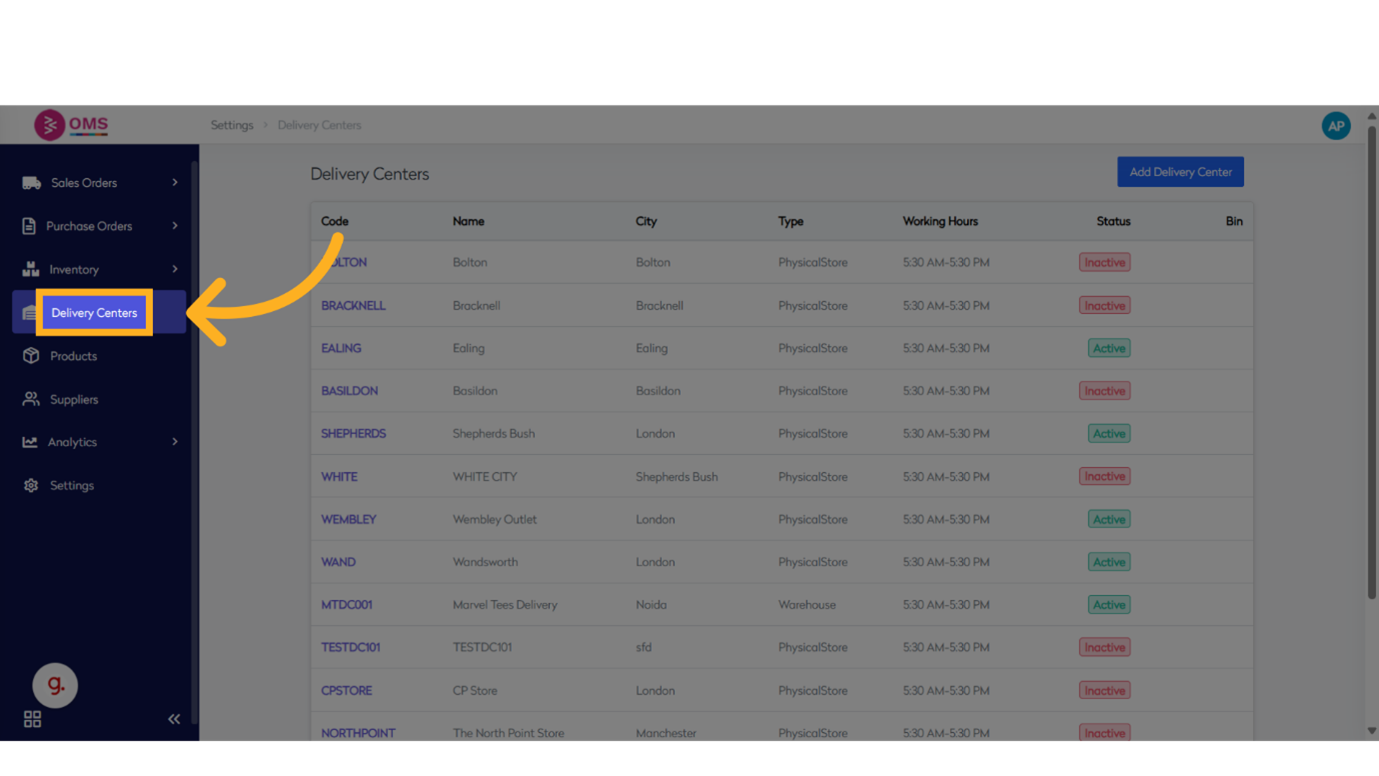
-
Select a Delivery Center
Choose the location (e.g., warehouse or store) where you want to create bins.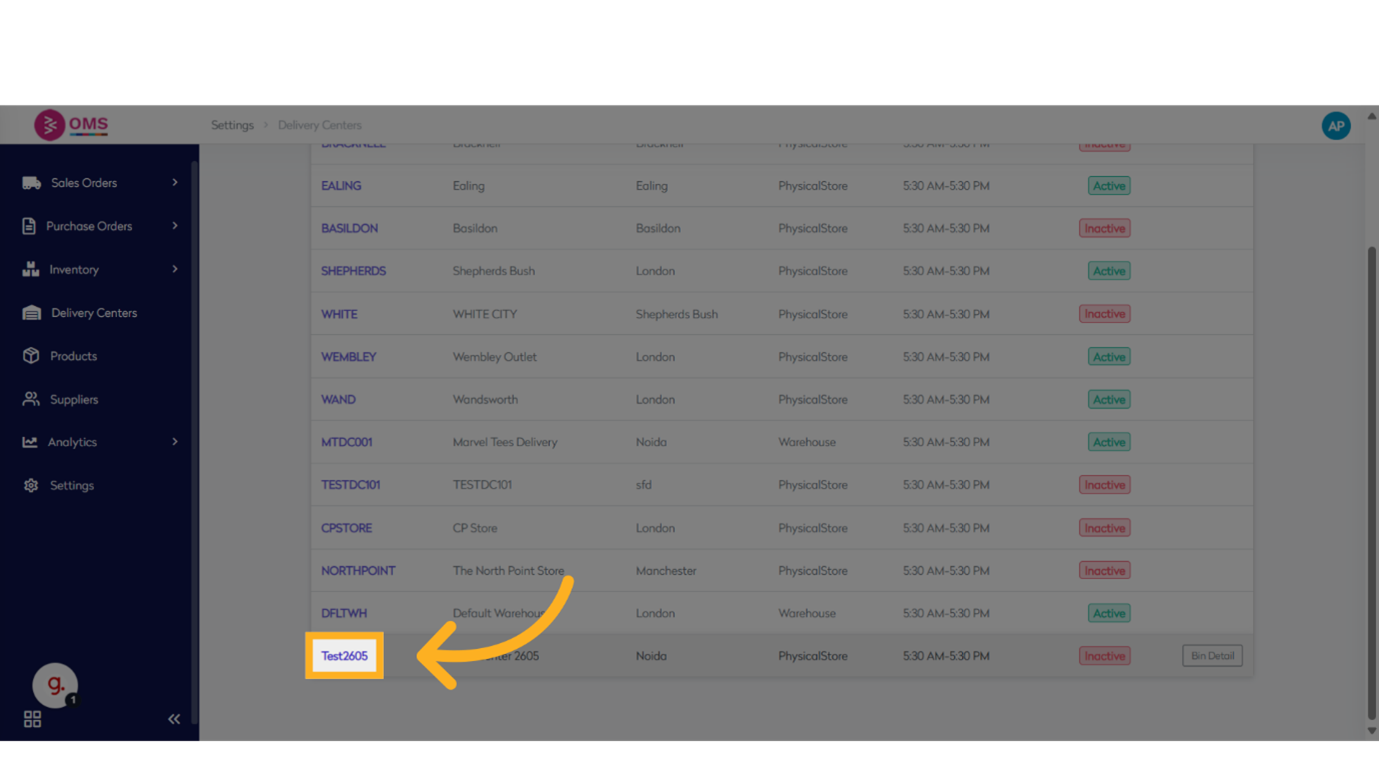
-
Go to View All Tray Groups
Access the list of existing tray groups.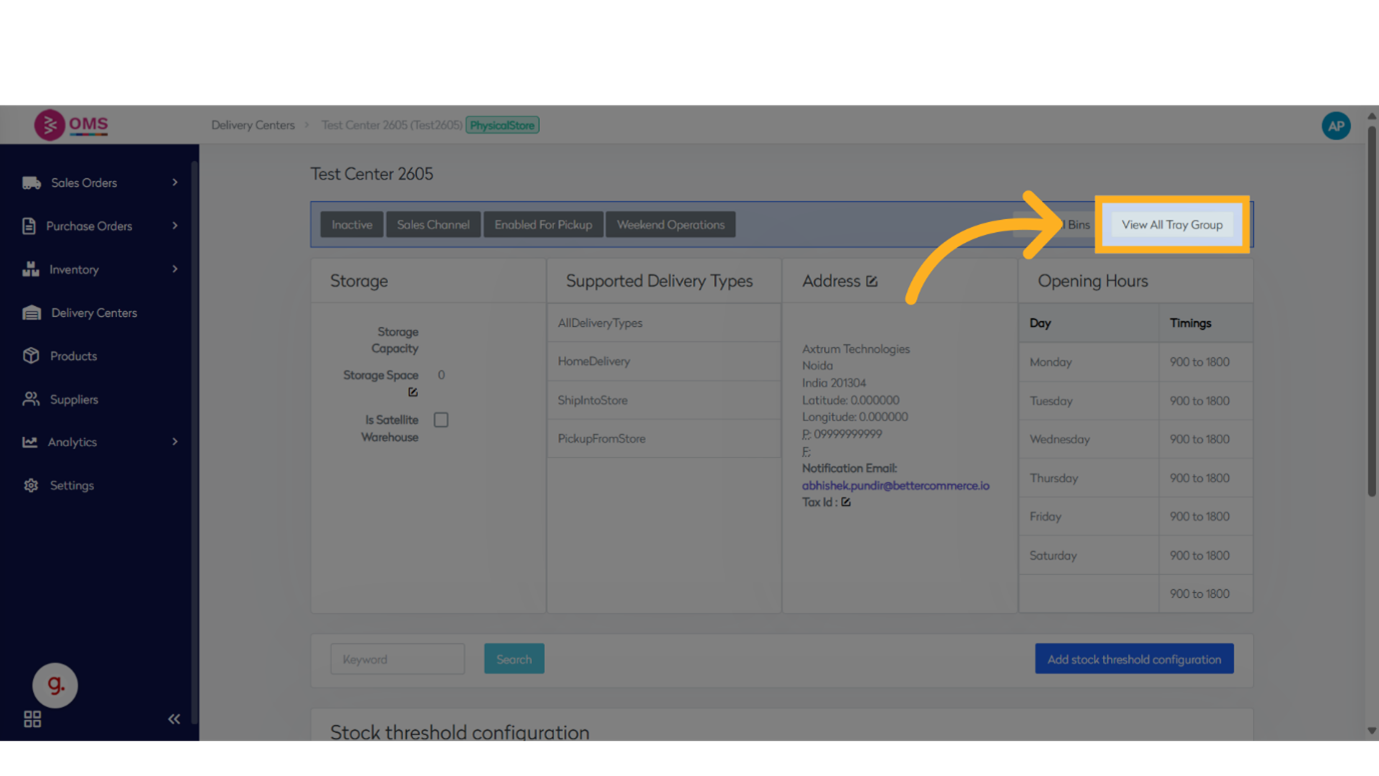
-
Click “Add New”
Start creating a new tray group by clicking the Add New button.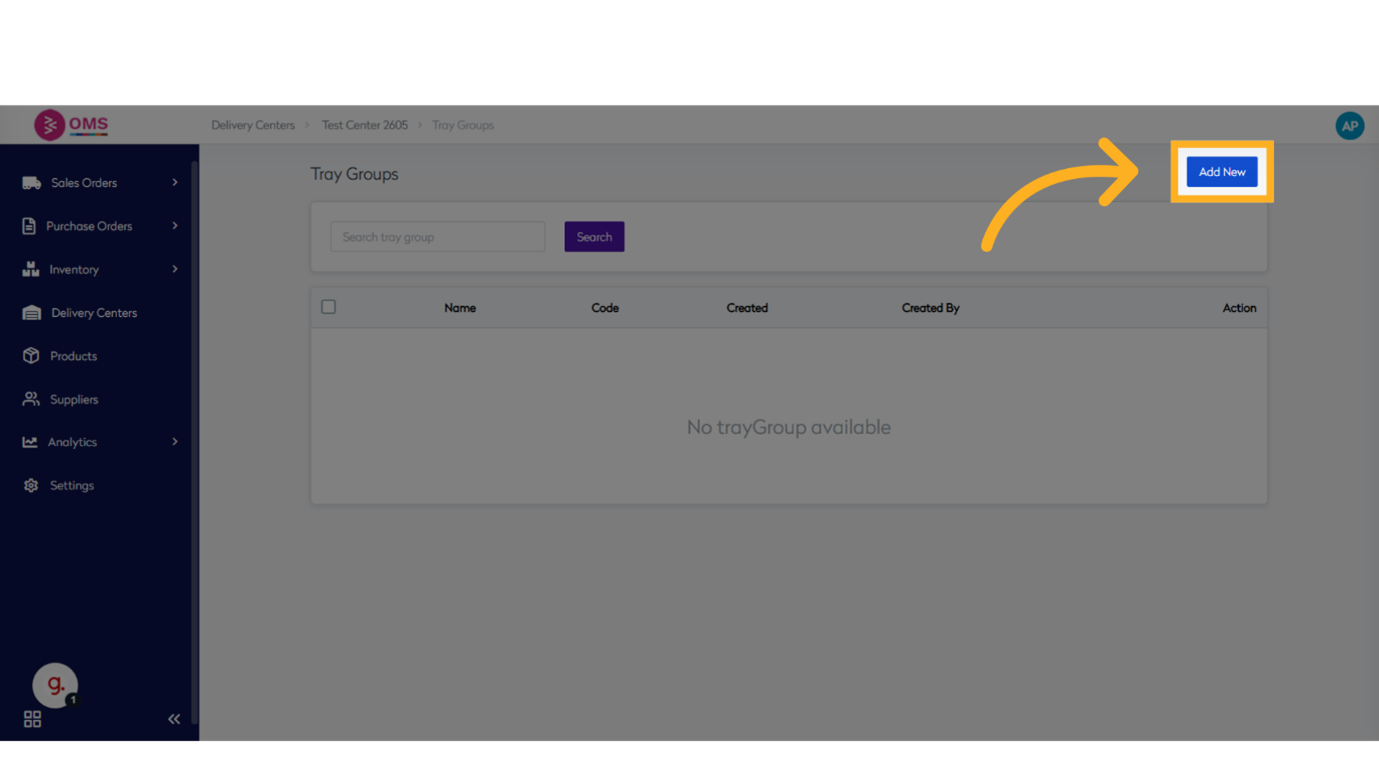
-
Enter Tray Group Name
Provide a meaningful name for the group.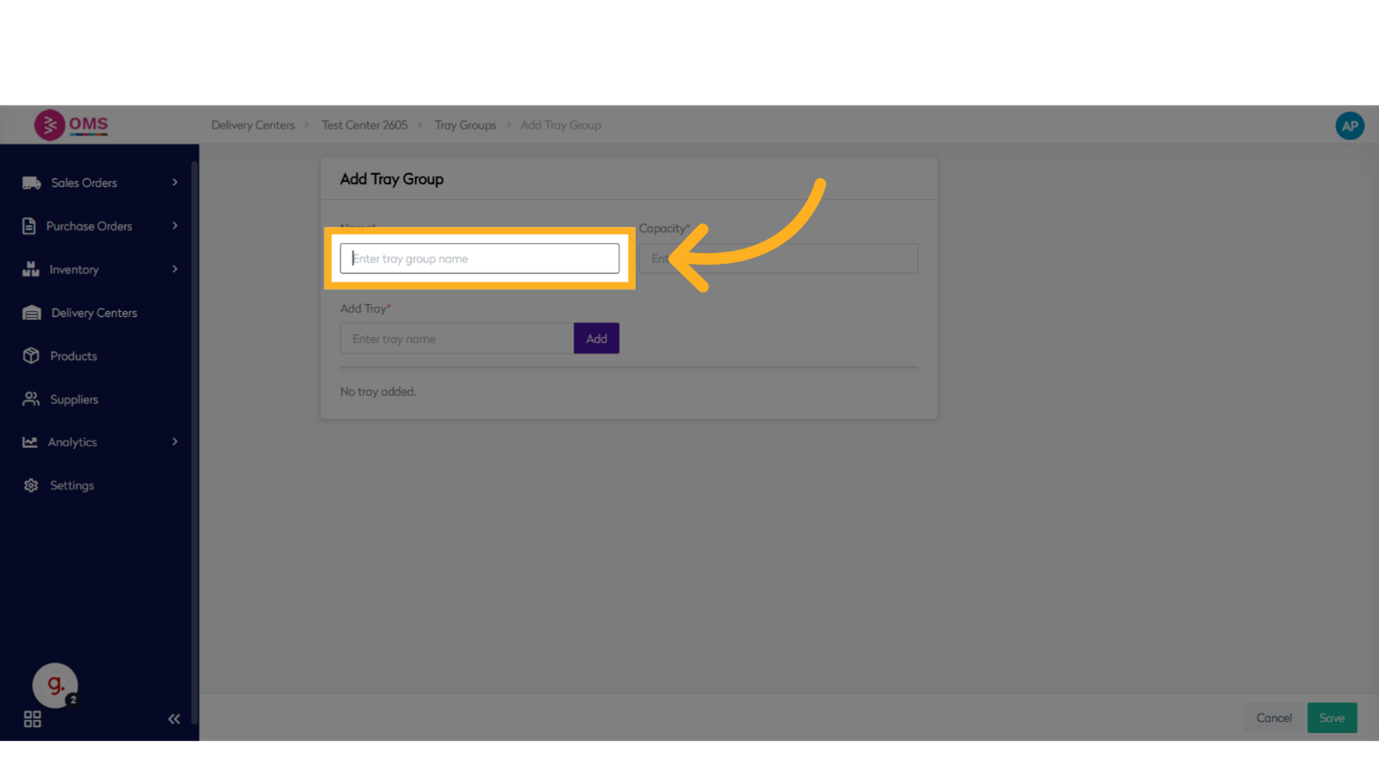
-
Set Capacity
Define the maximum number of trays the group can contain.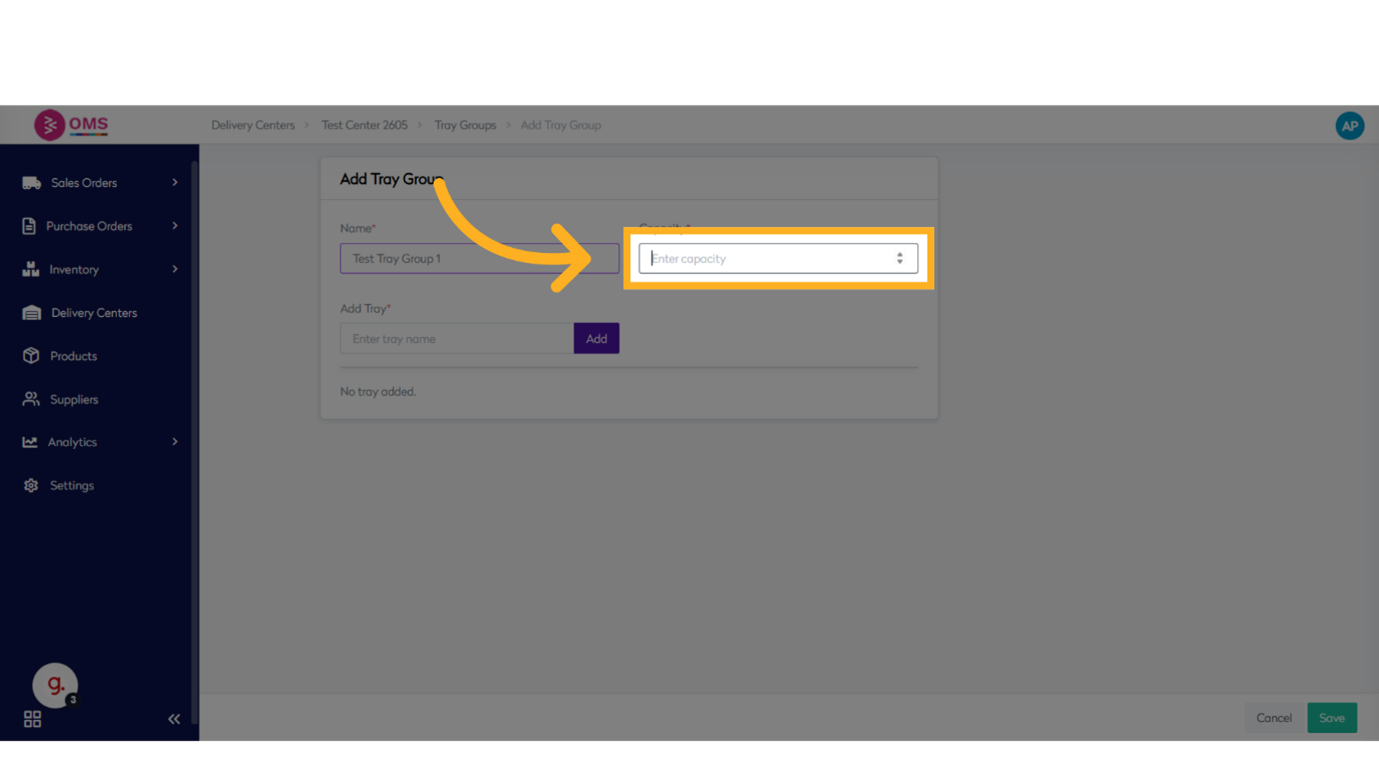
-
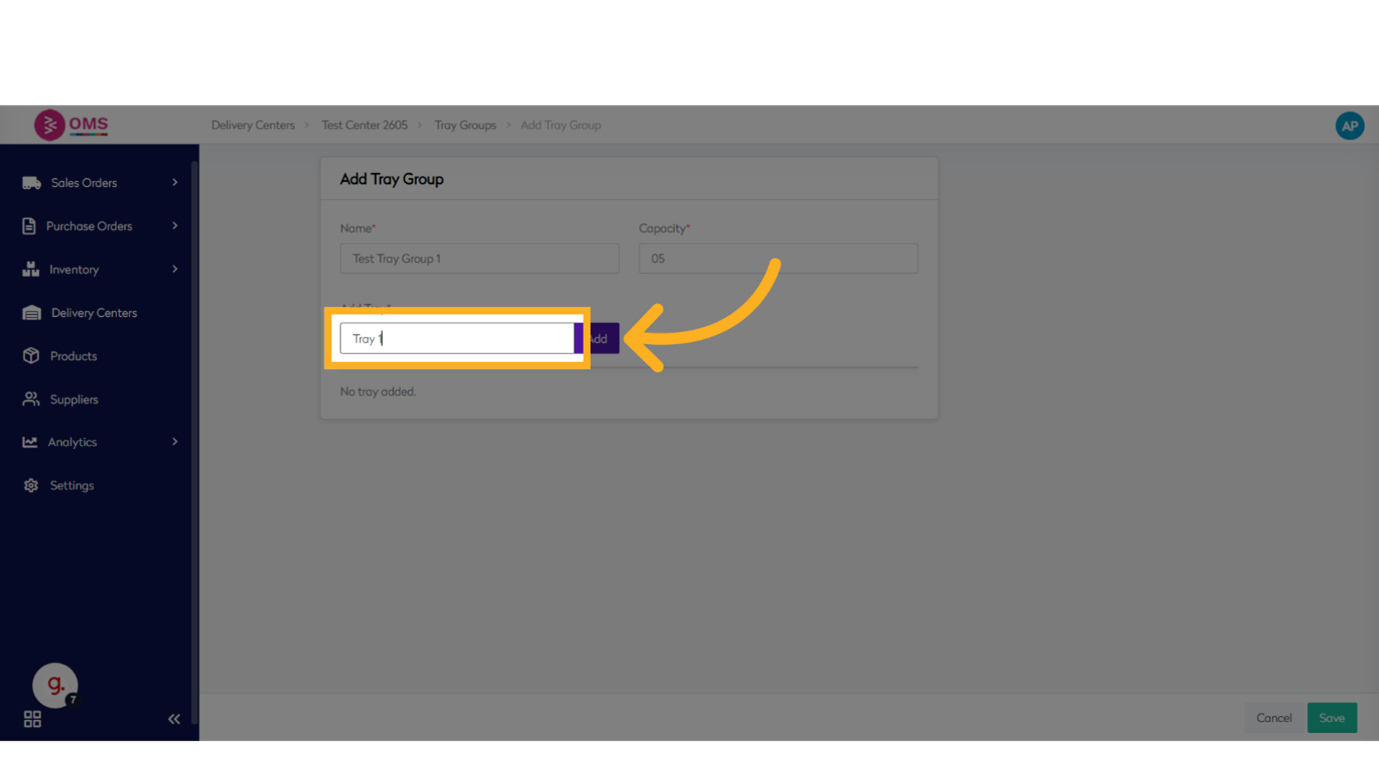
Add Trays to the Group
- Enter a unique name for each tray
- Assign each tray to a slot or position
- Click Add after each tray entry
-
Save the Tray Group
Once all trays are added and named, click Save to finalize the tray group.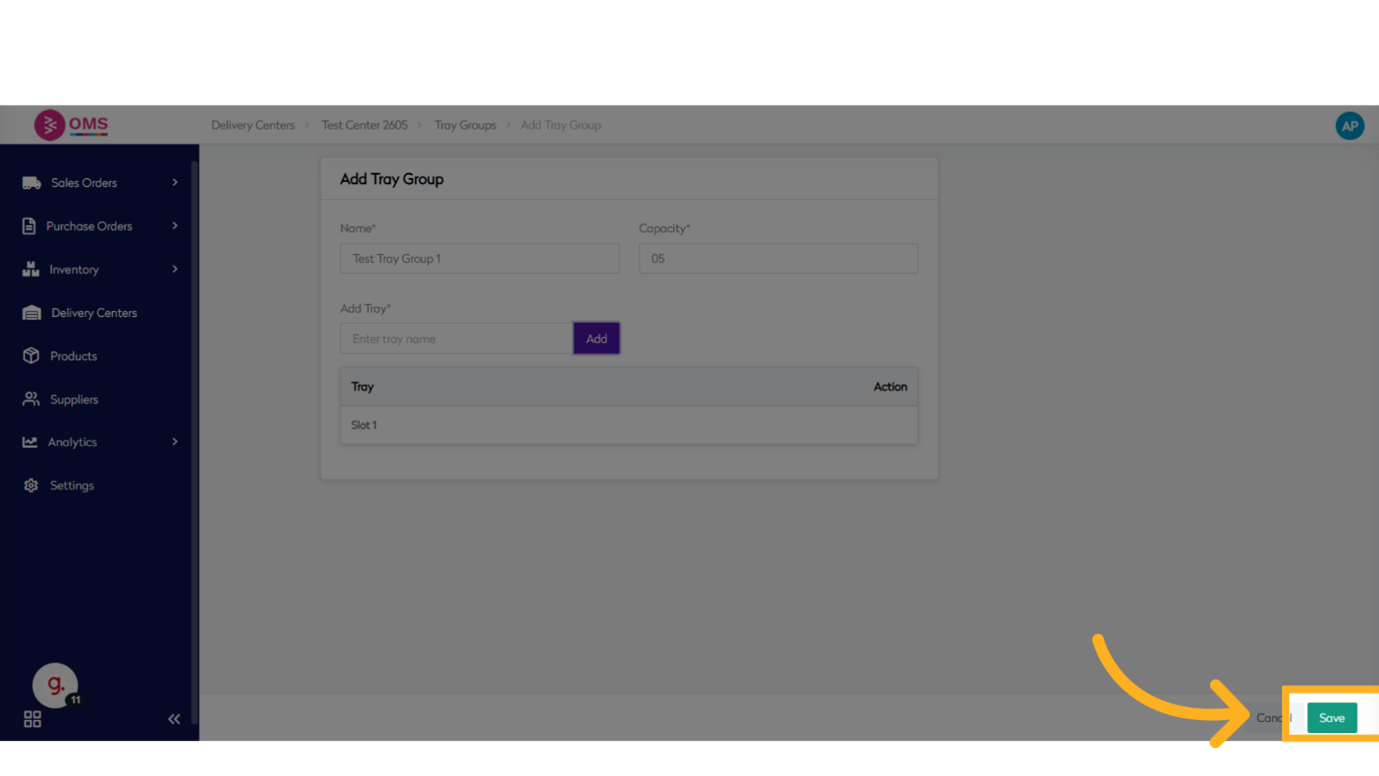
Benefits of Tray Groups
- Streamline picking operations with structured organization
- Improve order batching and accuracy
- Assign trays efficiently to pickers or zones
- Easily track and manage trays during fulfillment
- Scale warehouse efficiency during peak times
Summary
Adding tray groups in BetterCommerce OMS helps you take control of your warehouse flow. Whether you’re preparing for batch picking or organizing fulfillment by zone, tray groups make it easier to track trays, improve accuracy, and speed up dispatch operations.
Organize better, pick faster — streamline operations with Tray Groups in OMS.