
Edit Purchase Order
This guide walks you through editing a purchase order in BetterCommerce, detailing each necessary step to efficiently modify and save the required changes.
Steps
-
Introduction
Review the purpose of this guide and the actions you will perform on the Purchase Order detail screen.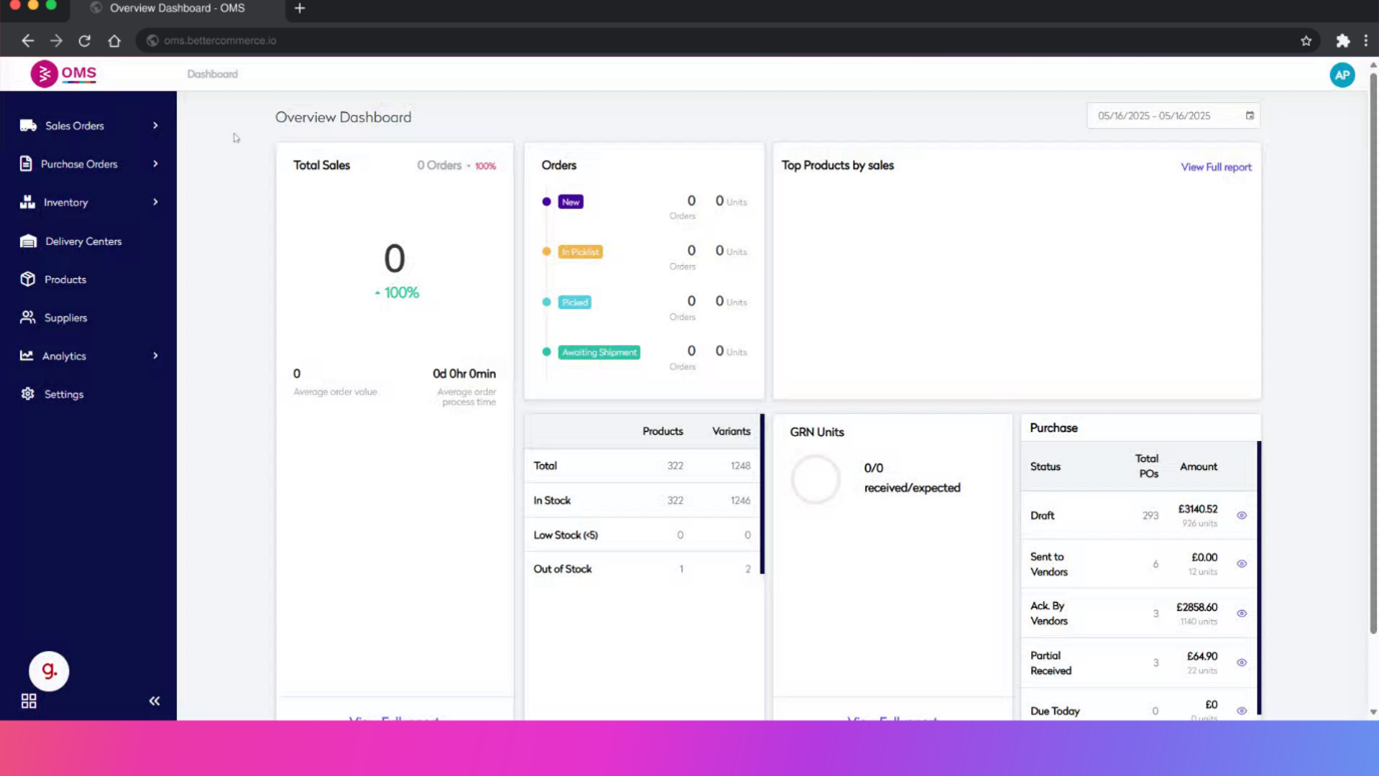
-
Click "Purchase Orders"
Opens the Purchase Orders section where all existing POs are listed.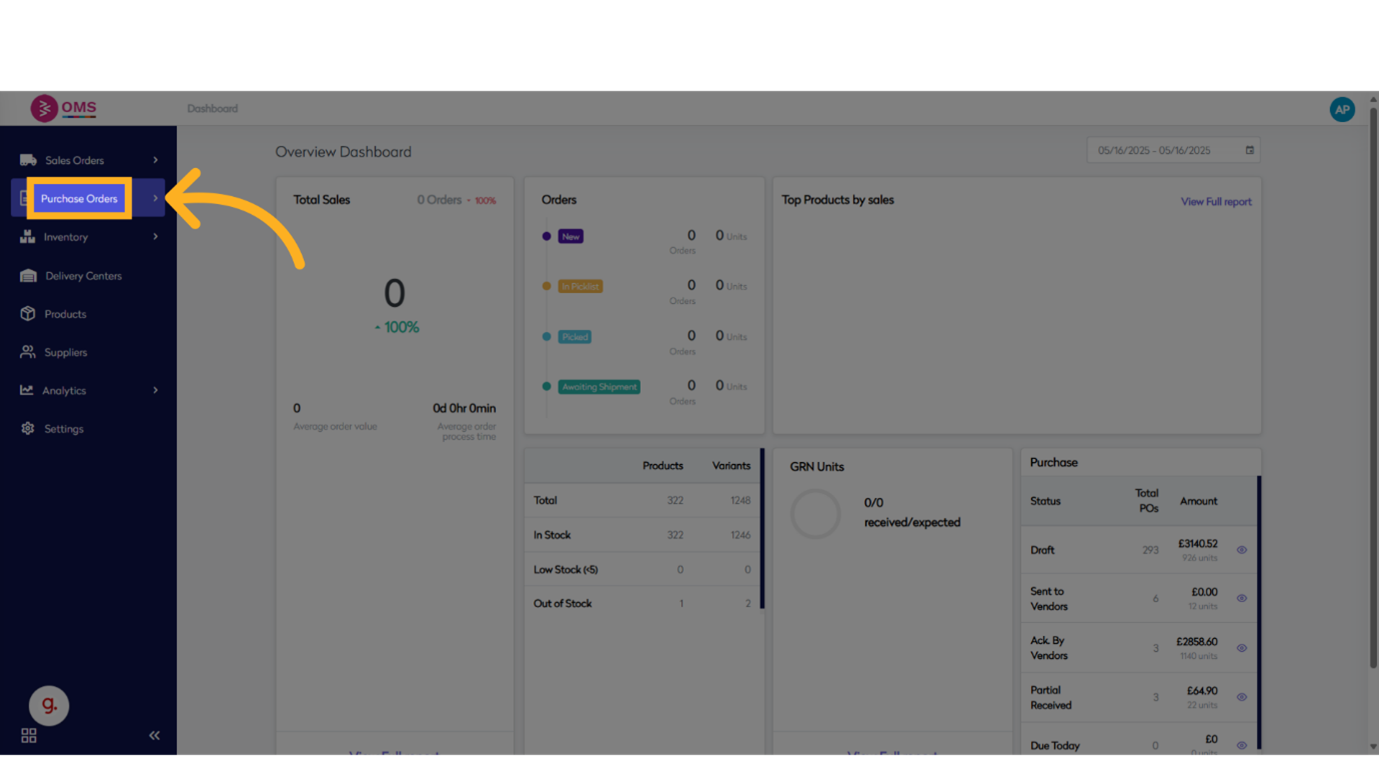
-
Click "View"
Selects the View option to list all purchase orders for editing.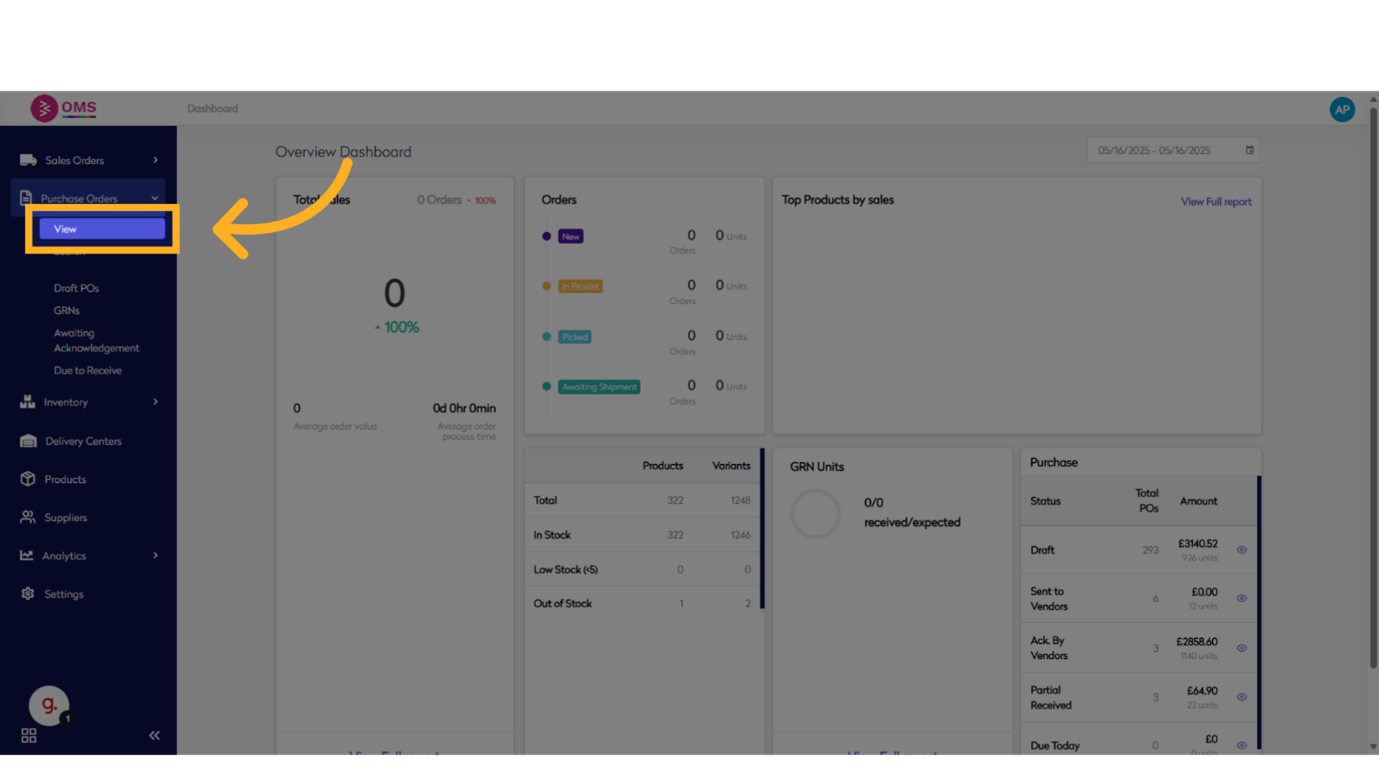
-
Select the purchase order
Opens the specific purchase order for editing.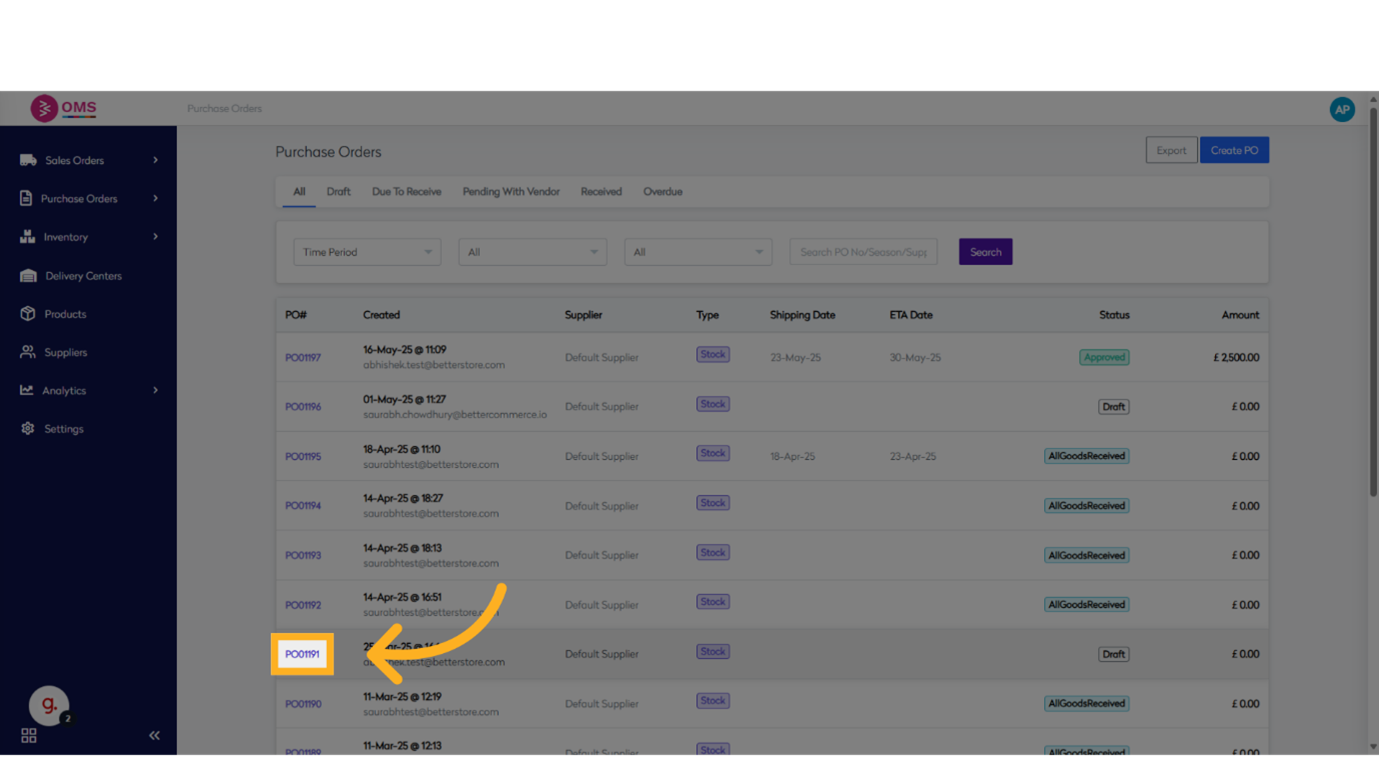
-
Click on edit button
Navigate to the editable fields area of the PO detail screen.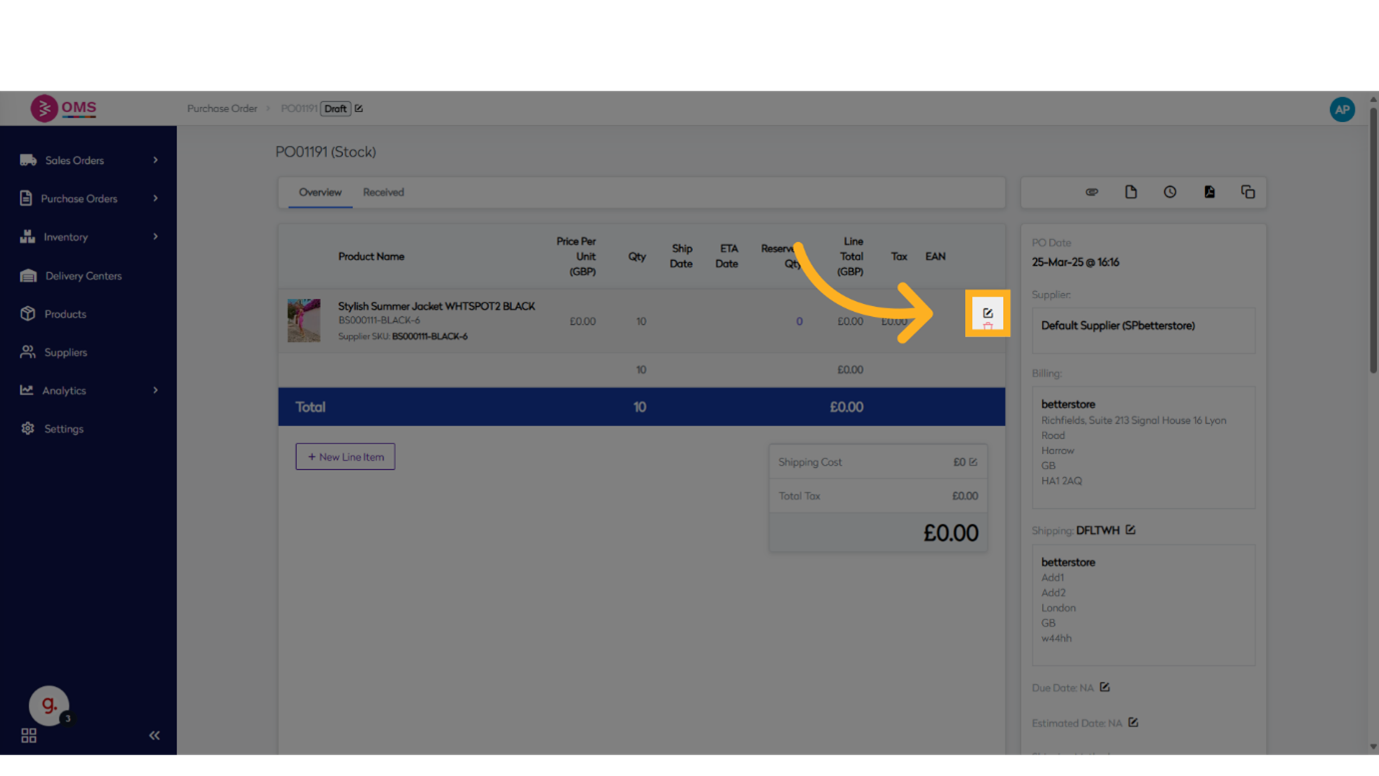
-
Update price for existing item
Focuses on the price field to update the existing line item.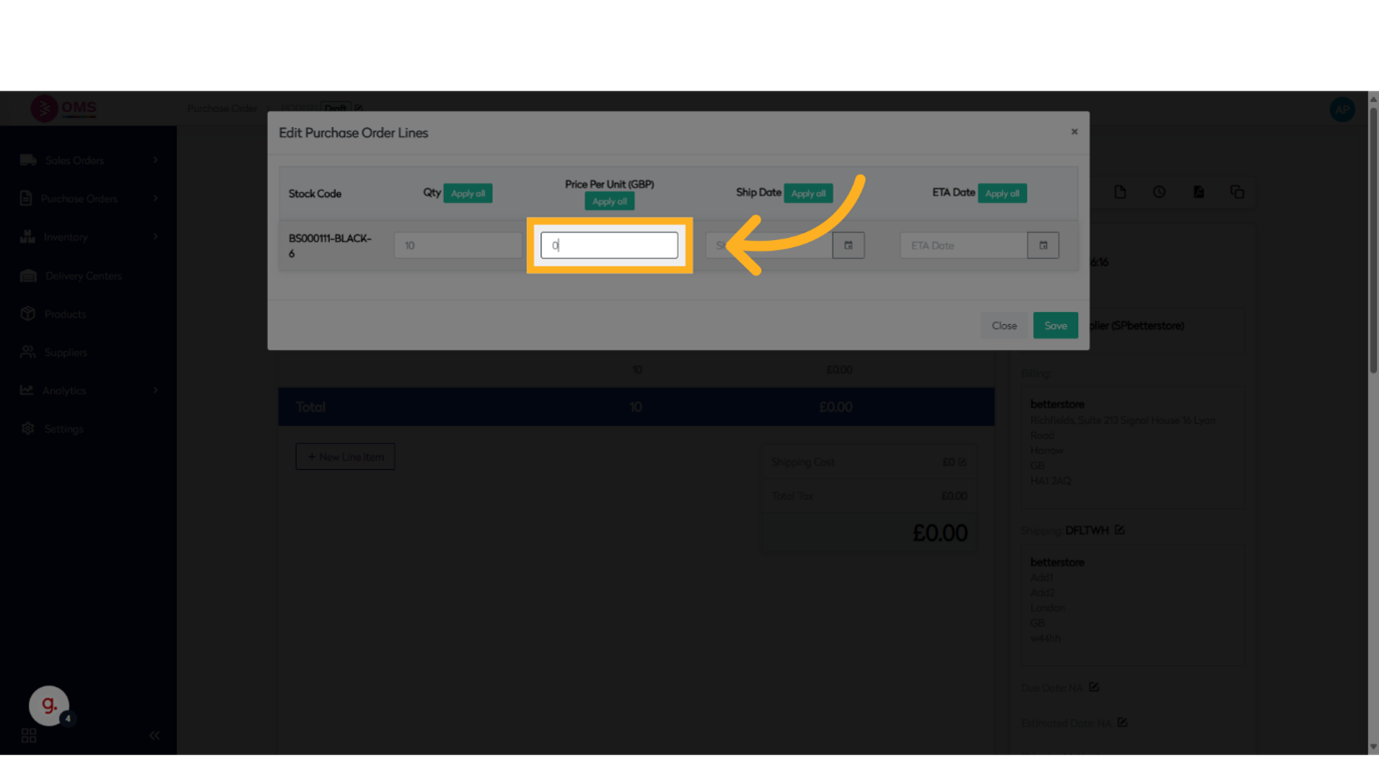
-
Update Shipping date
Move to the next editable field on the form to update shipping date.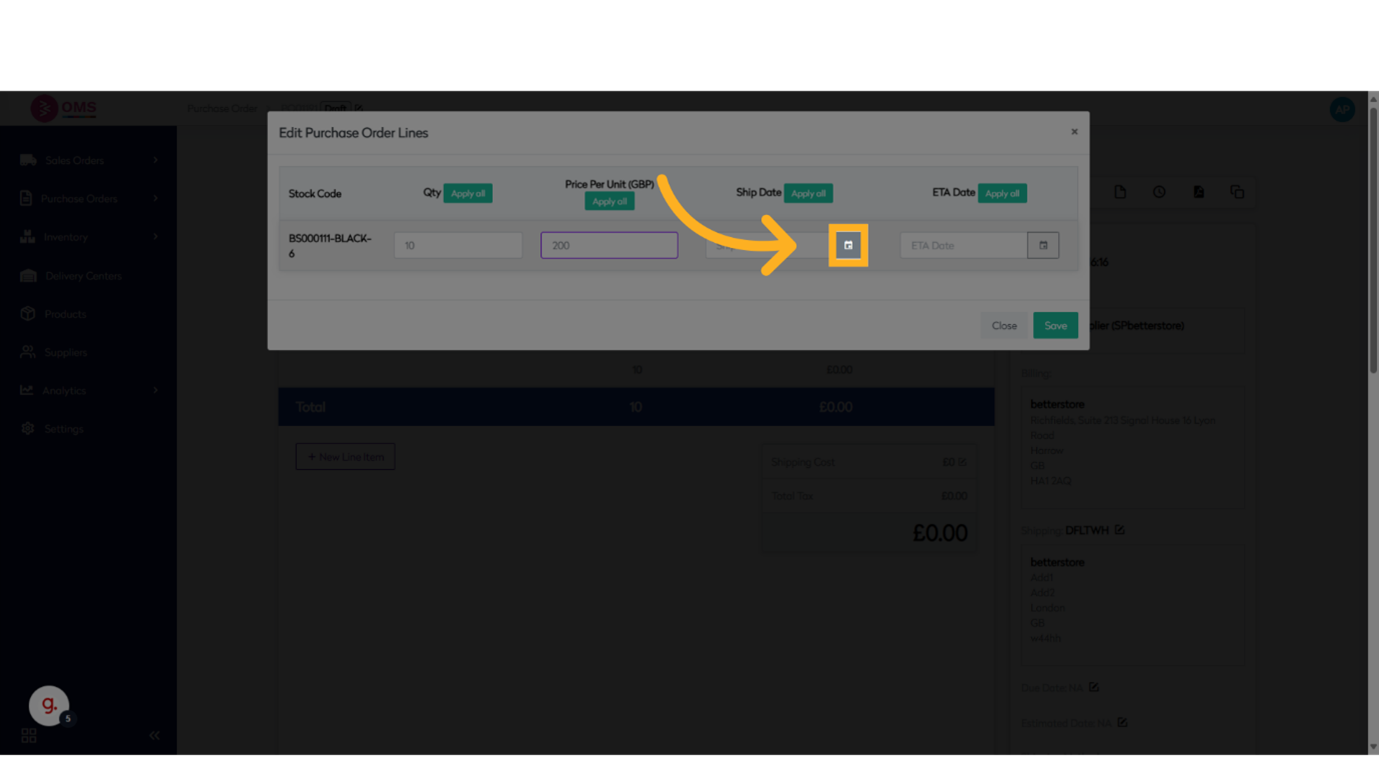
-
Update ETA date
Navigate to another editable section of the line item to update ETA date.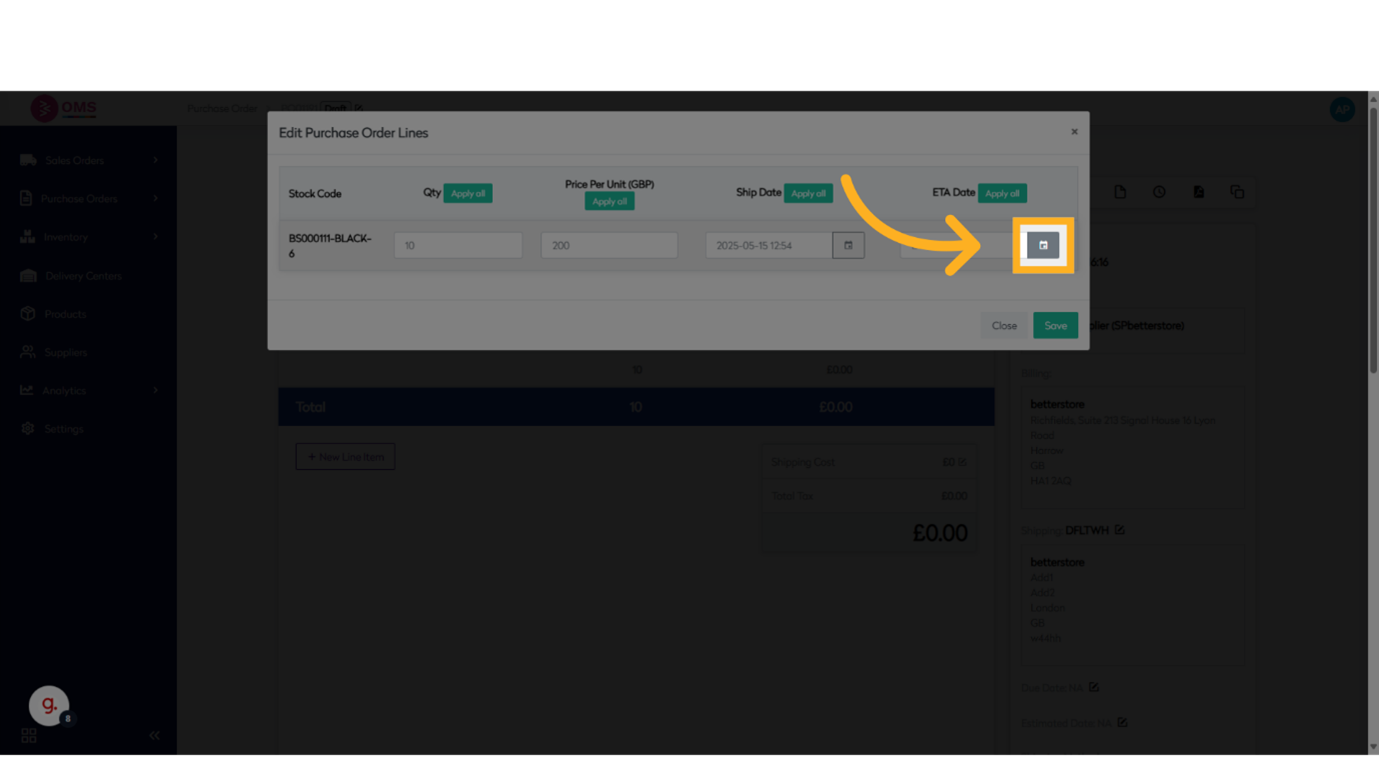
-
Click "Save"
Saves the changes made to the existing line item quantities.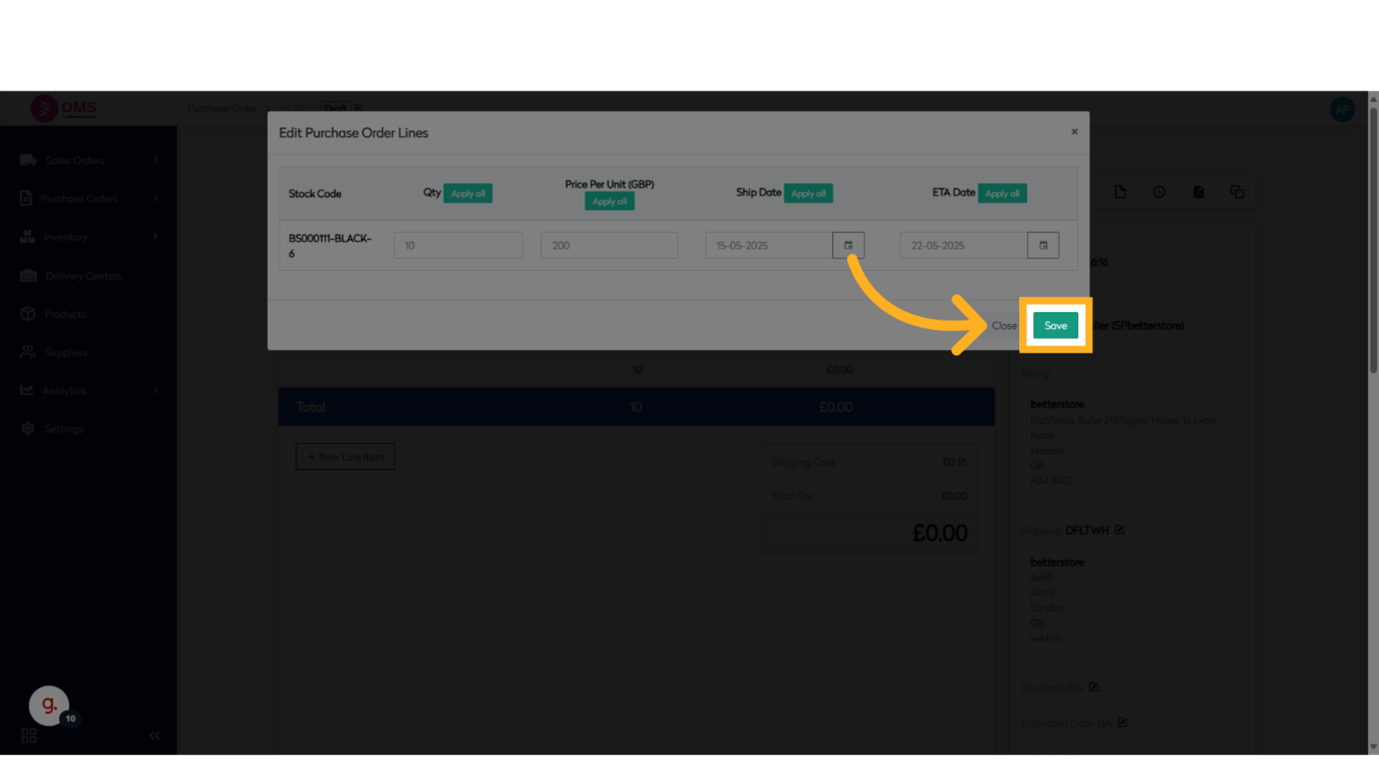
-
Click "New Line Item"
Adds a new blank line item row to the purchase order.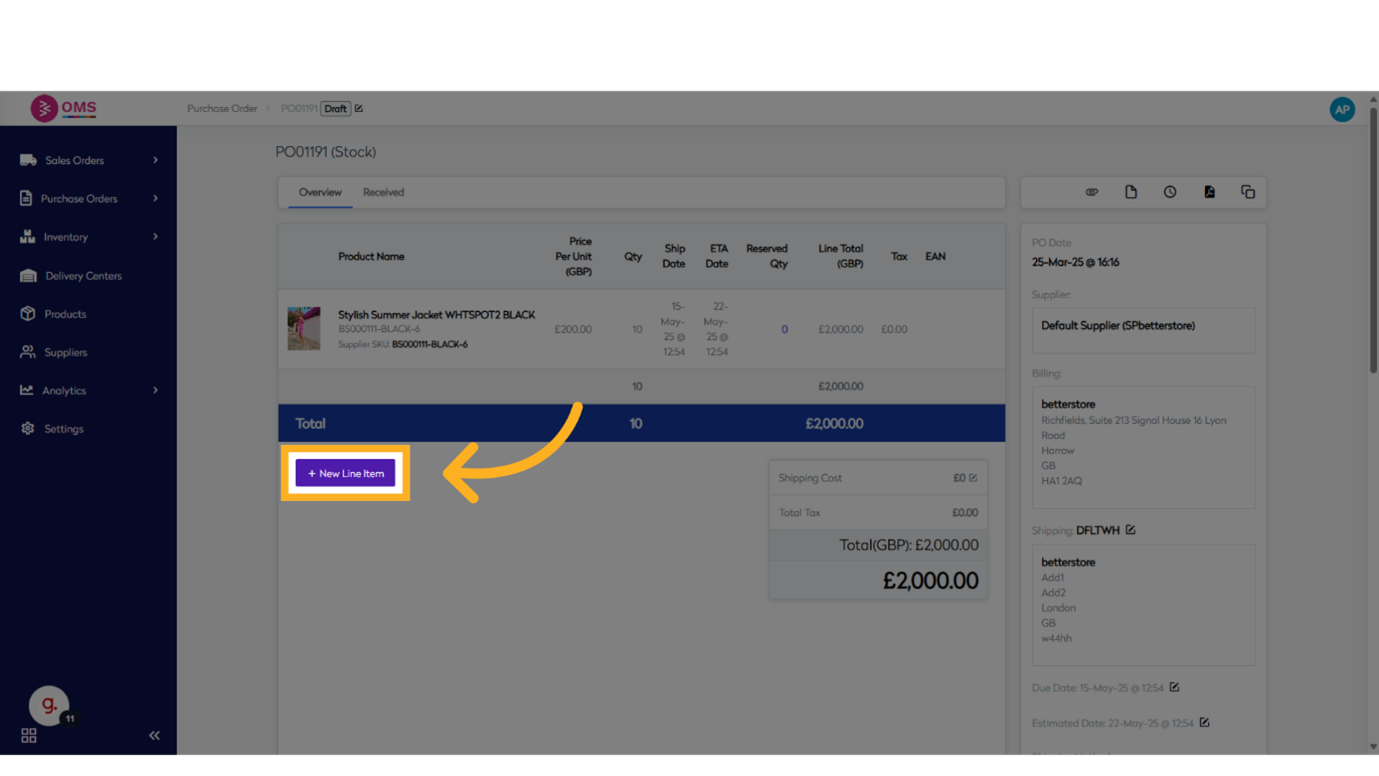
-
Click "Add another item.."
Opens the item selection dropdown to choose a product for the new line.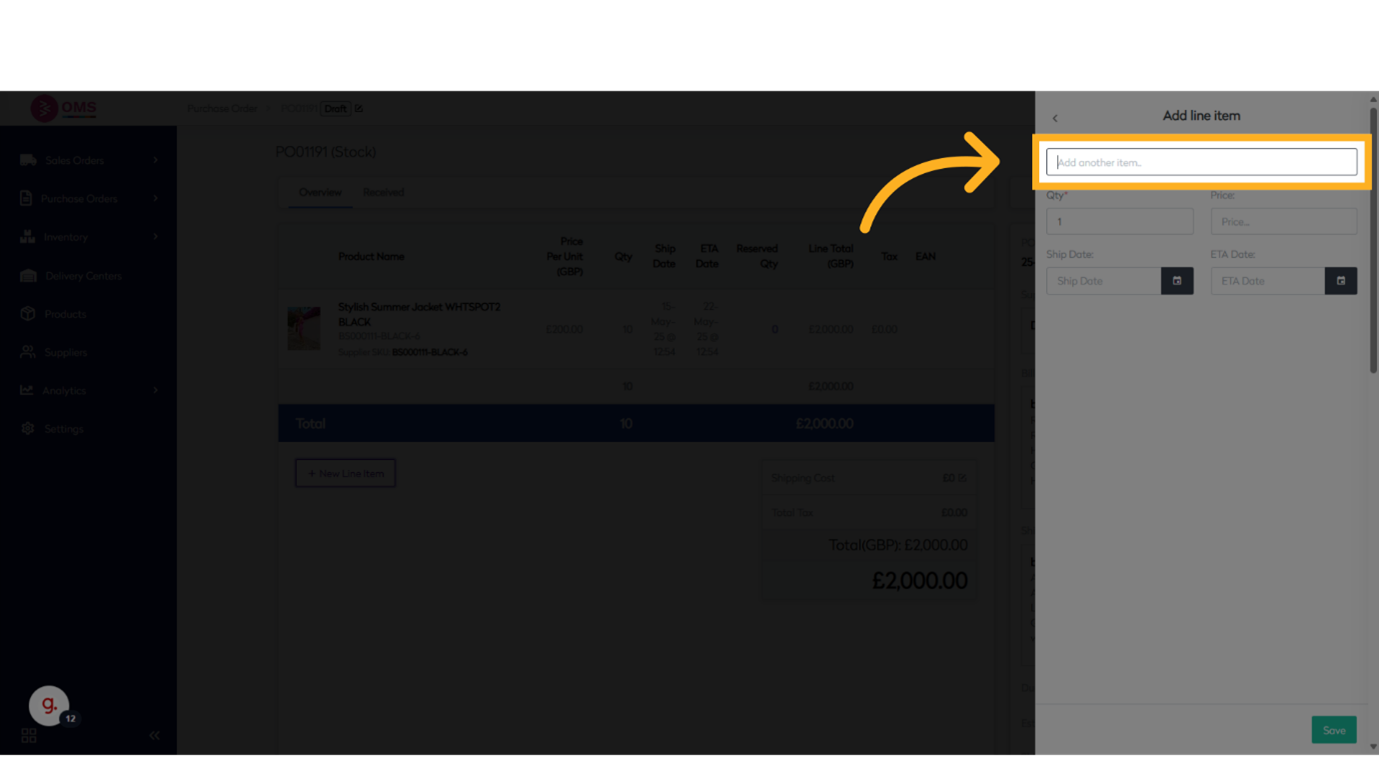
-
**Search for stock code **
Enter the stock code to filter products by code or name.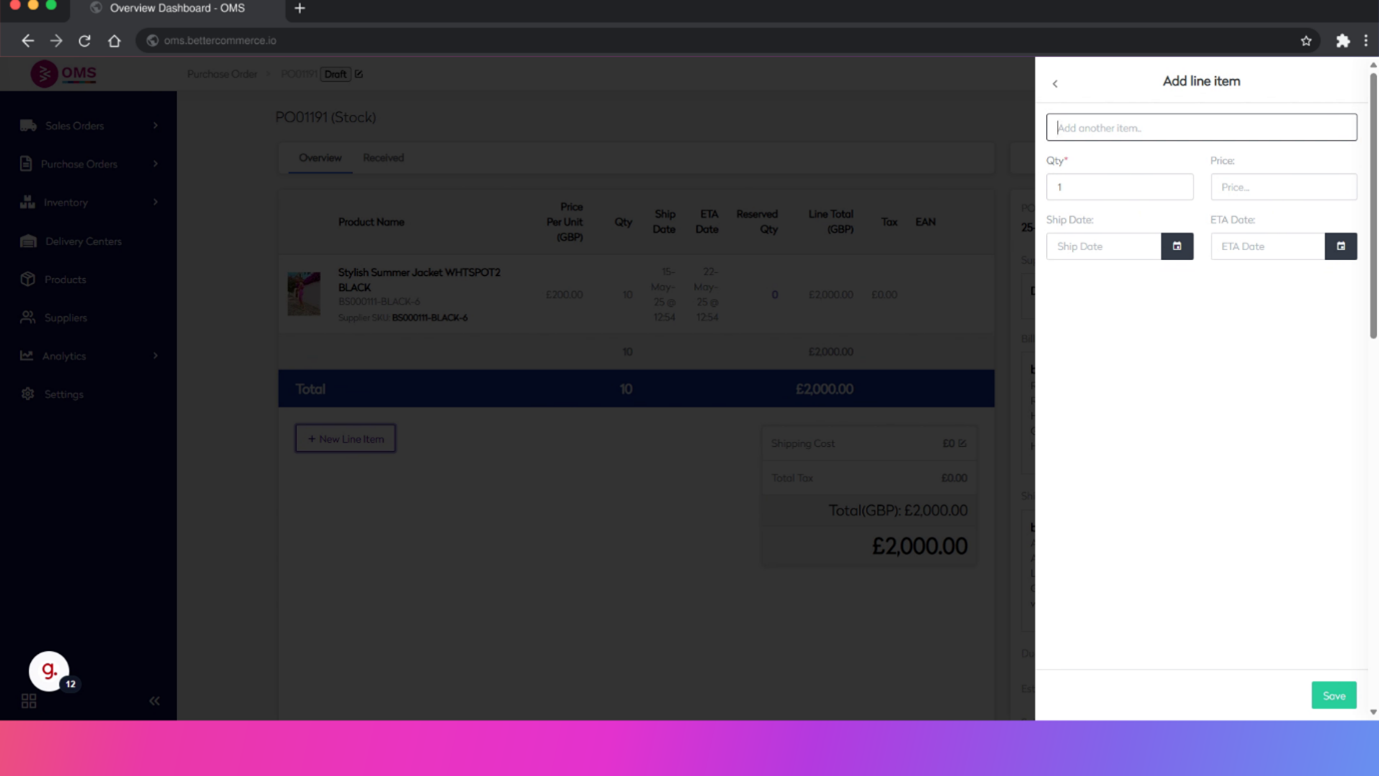
-
Select the stockcode "
Selects the product for the new line item.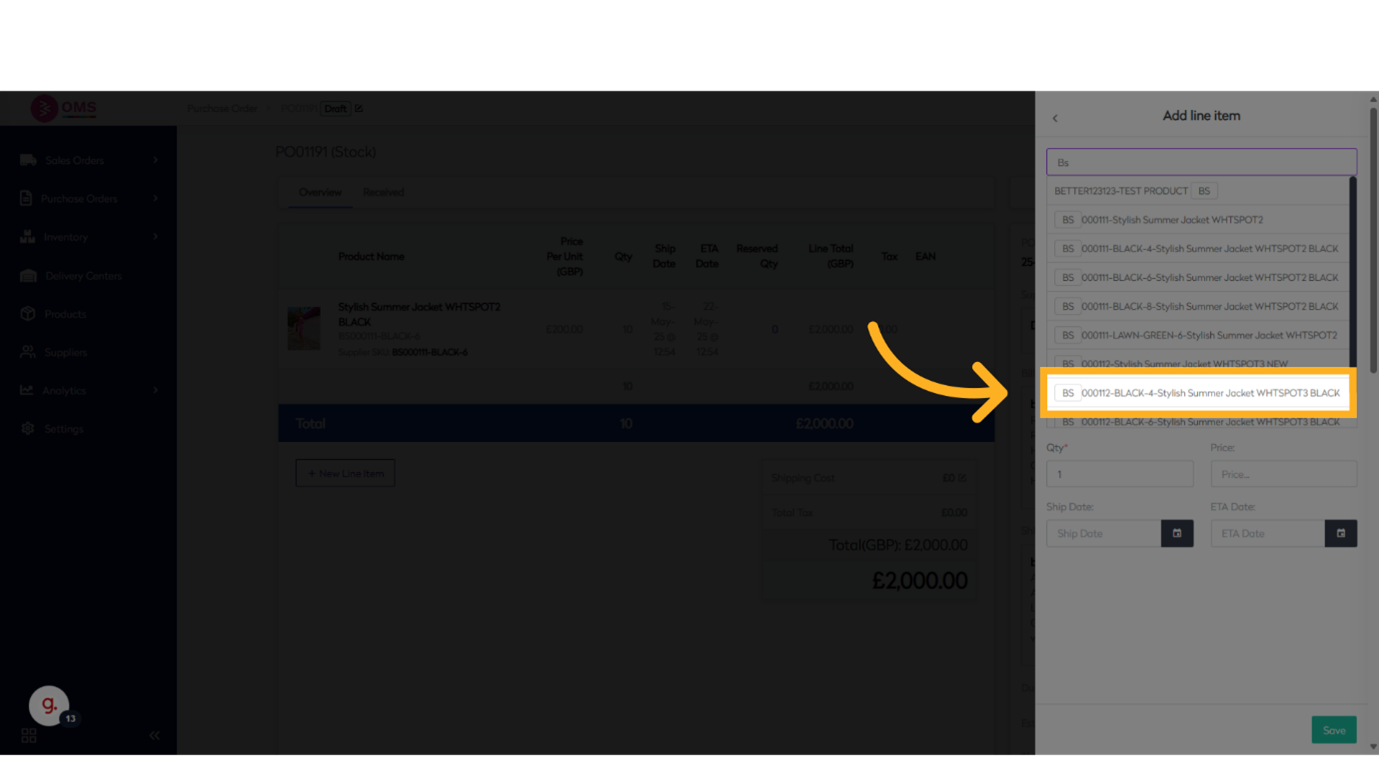
-
Enter the quantity
Enter the desired quantity for the new product.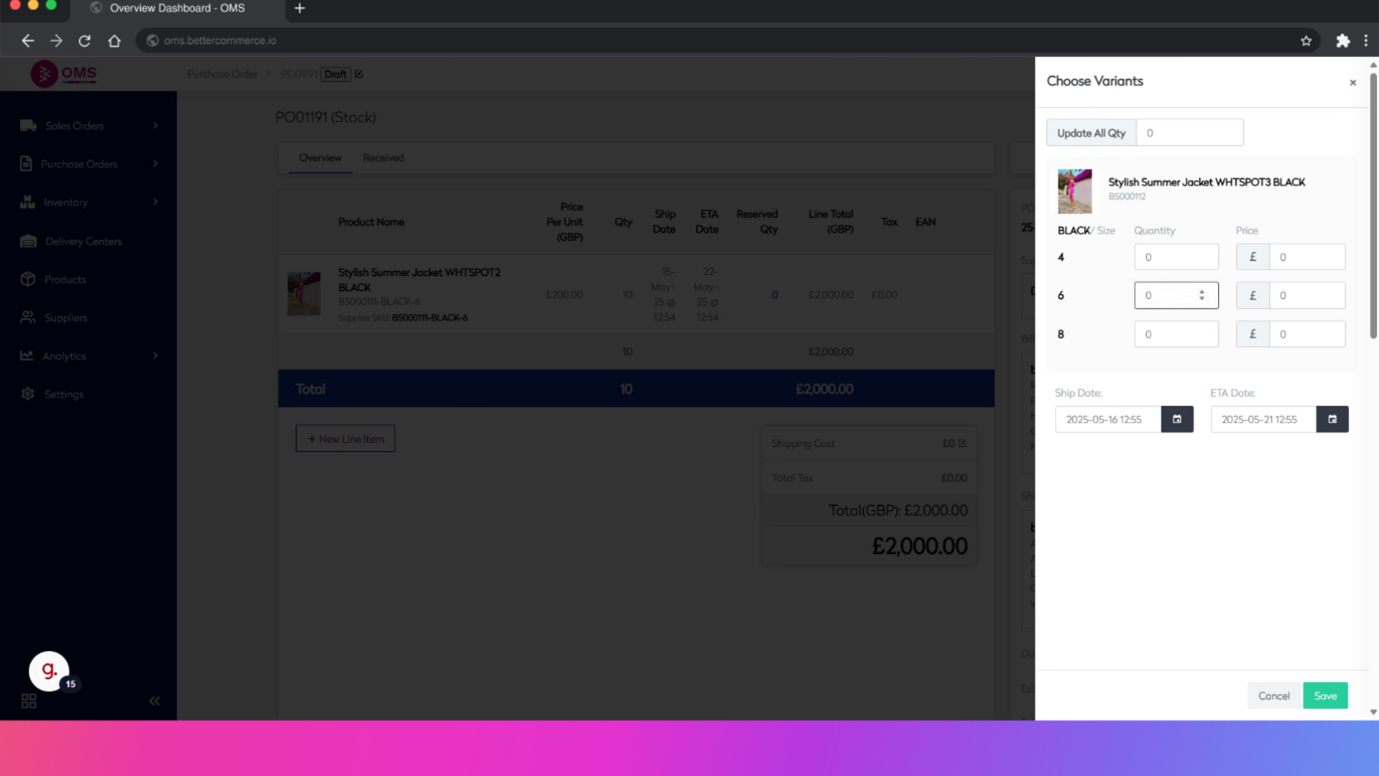
-
Enter the price
Enter the price or relevant numeric value for the new line.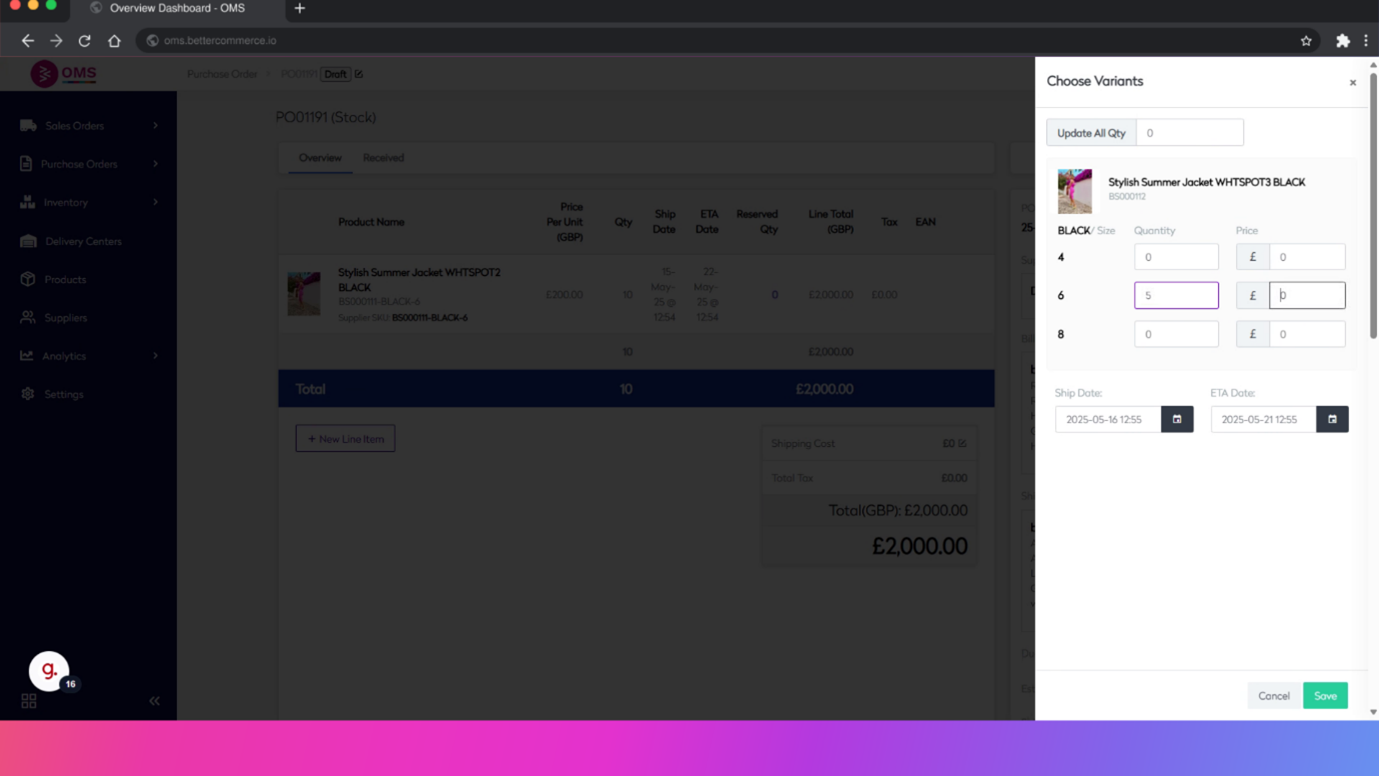
-
Click "Save"
Saves the newly added line item along with all updates to the purchase order.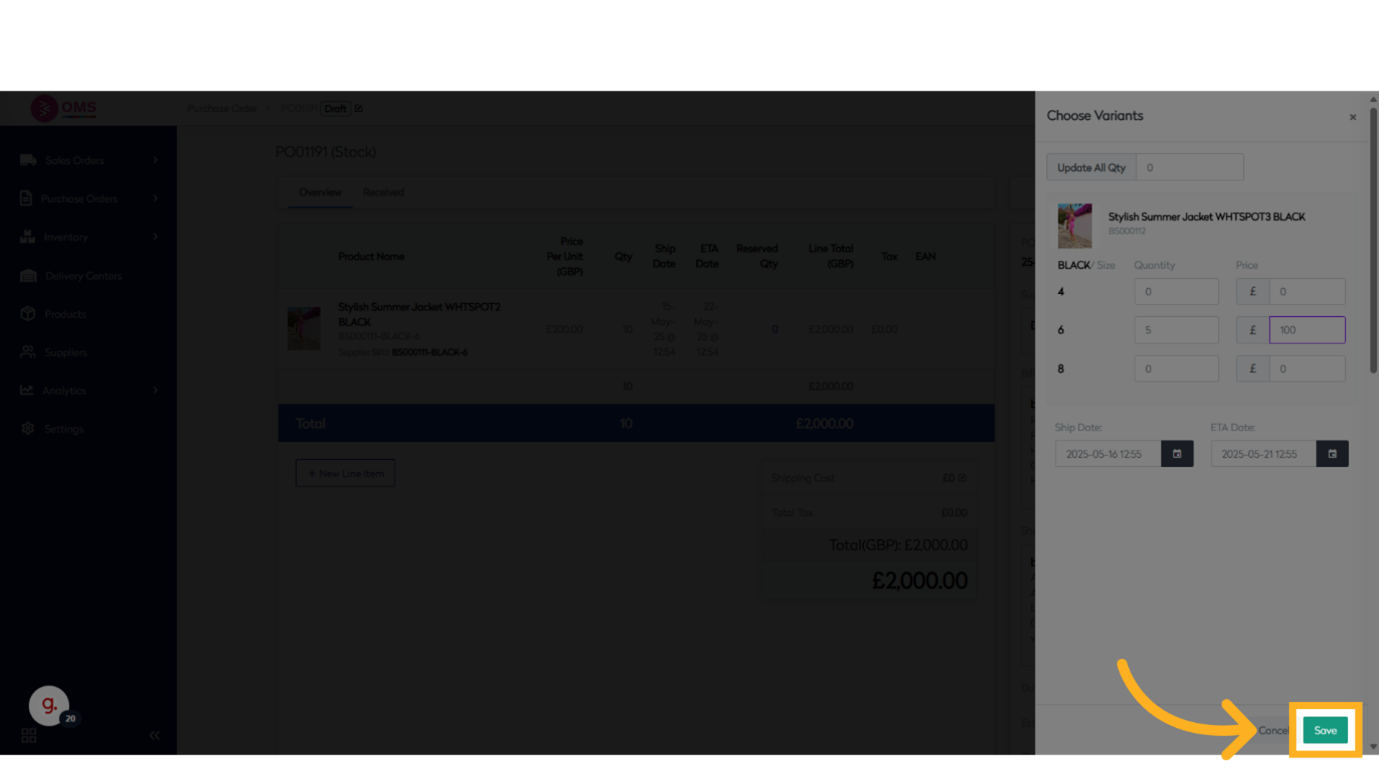
This guide covered the process of editing a purchase order in BetterCommerce, including selecting specific items, updating quantities, adding new line items, and saving the modifications made.