
Goods Receiving-GRN
This guide walks you through the process of managing Purchase Orders, receiving goods, and updating stock information in BetterCommerce.
Steps
- Introduction
Follow the detailed instructions to streamline the Goods Received Note (GRN) process efficiently.
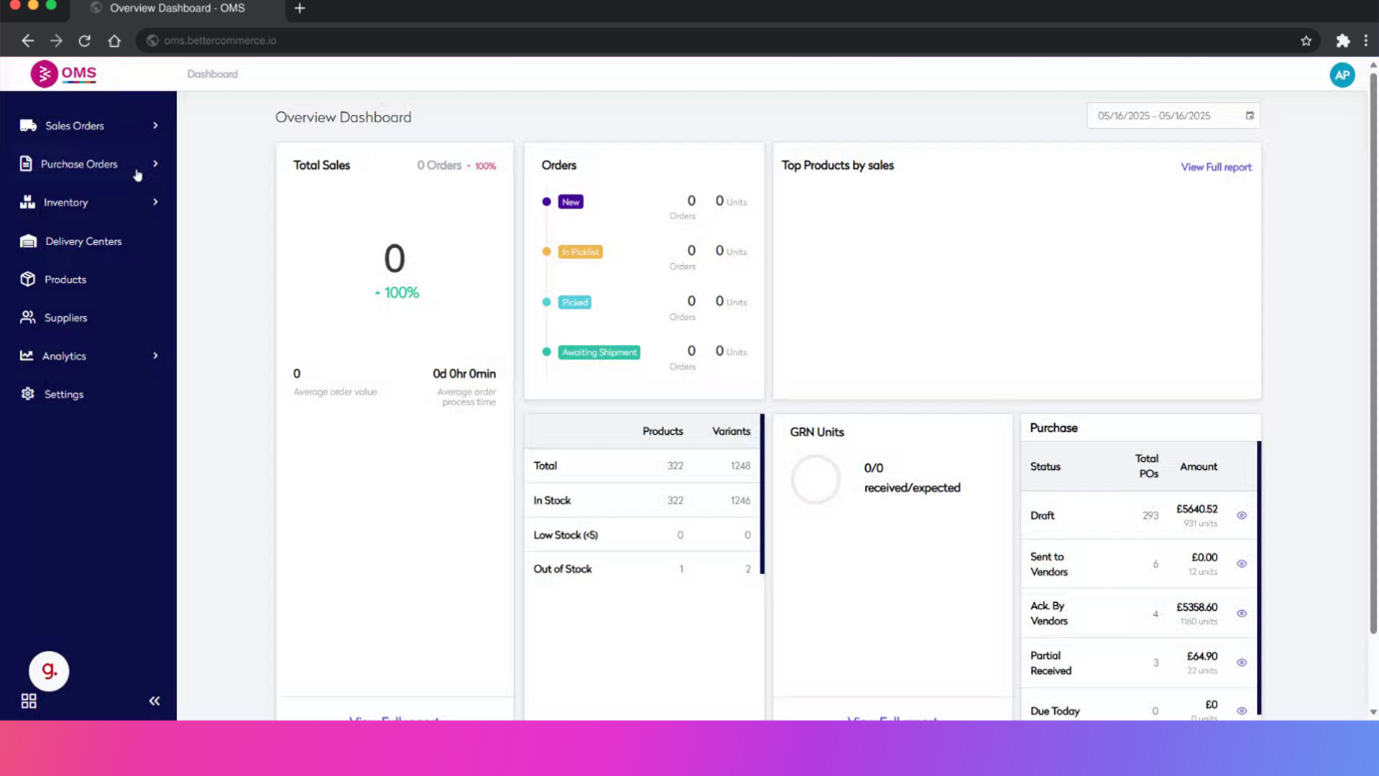
- Click "Purchase Orders"
Opens the Purchase Orders section where all POs are listed.
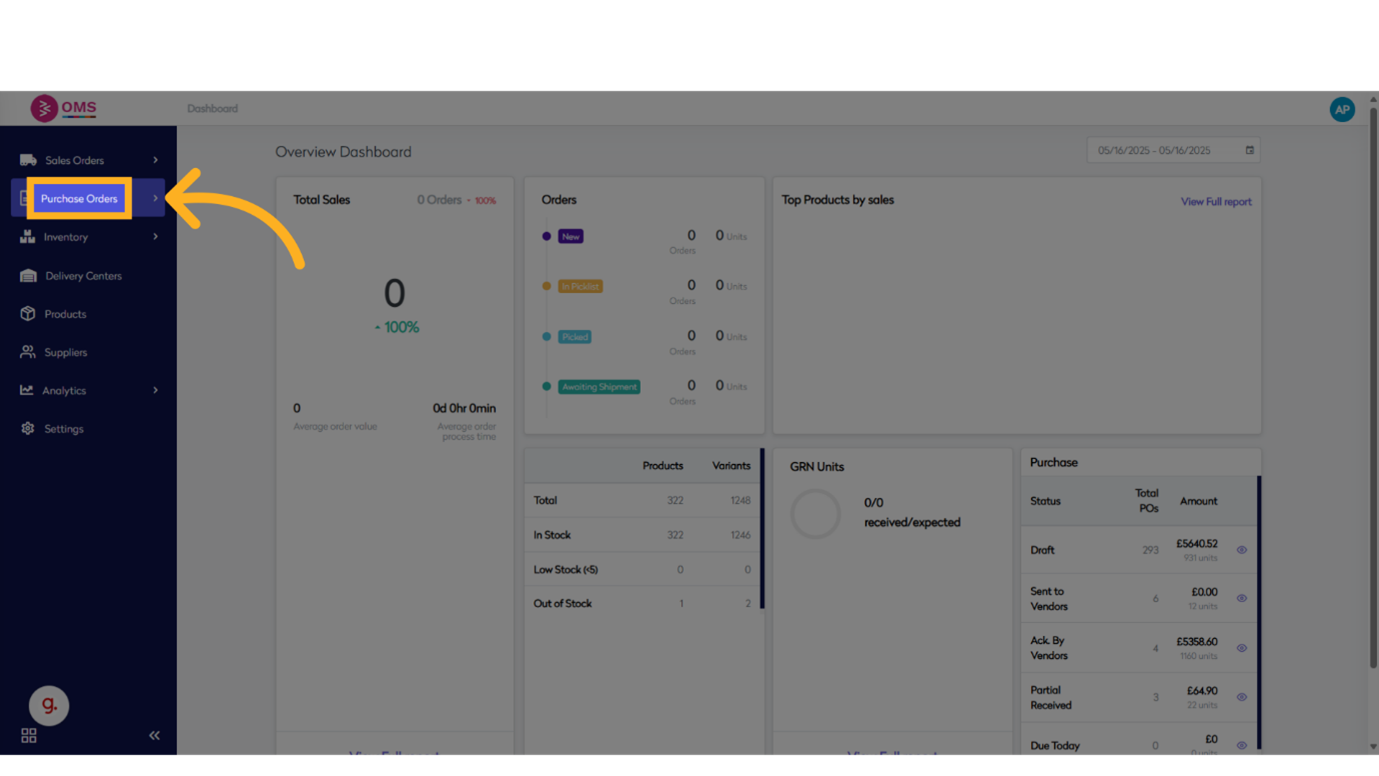
- Click "View"
Displays the list of existing purchase orders for selection.
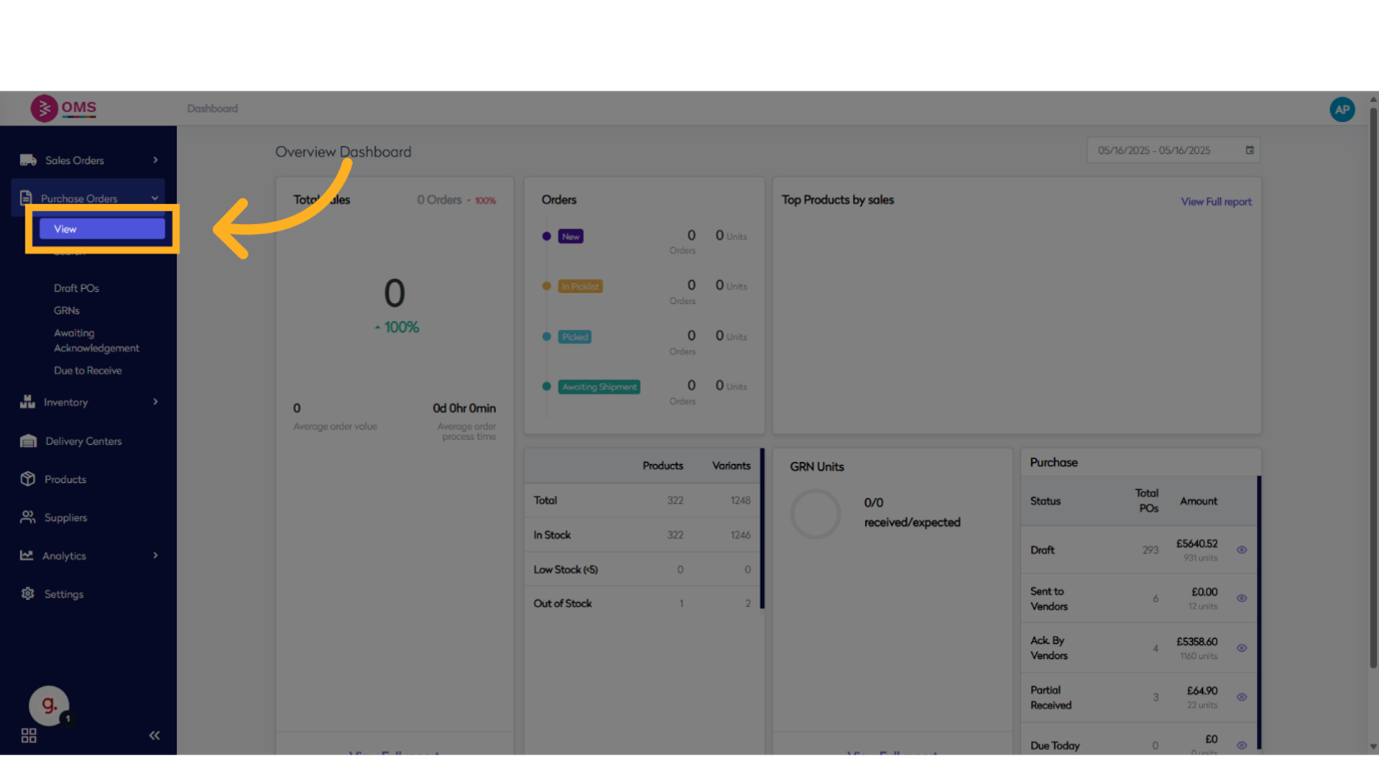
- Select the purchase order
Selects the specific purchase order to receive goods against.
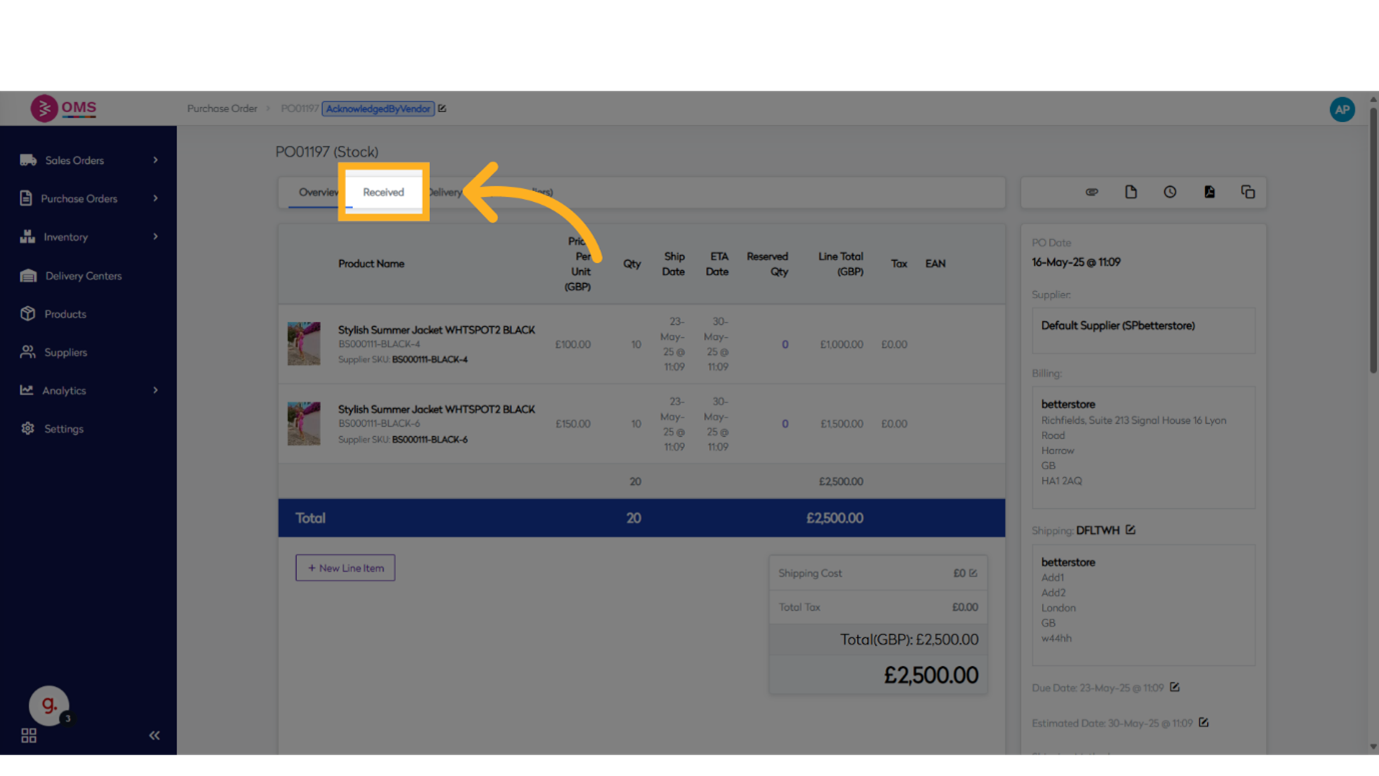
- Click "Received"
Navigates to the Received tab, showing past receipts and actions.
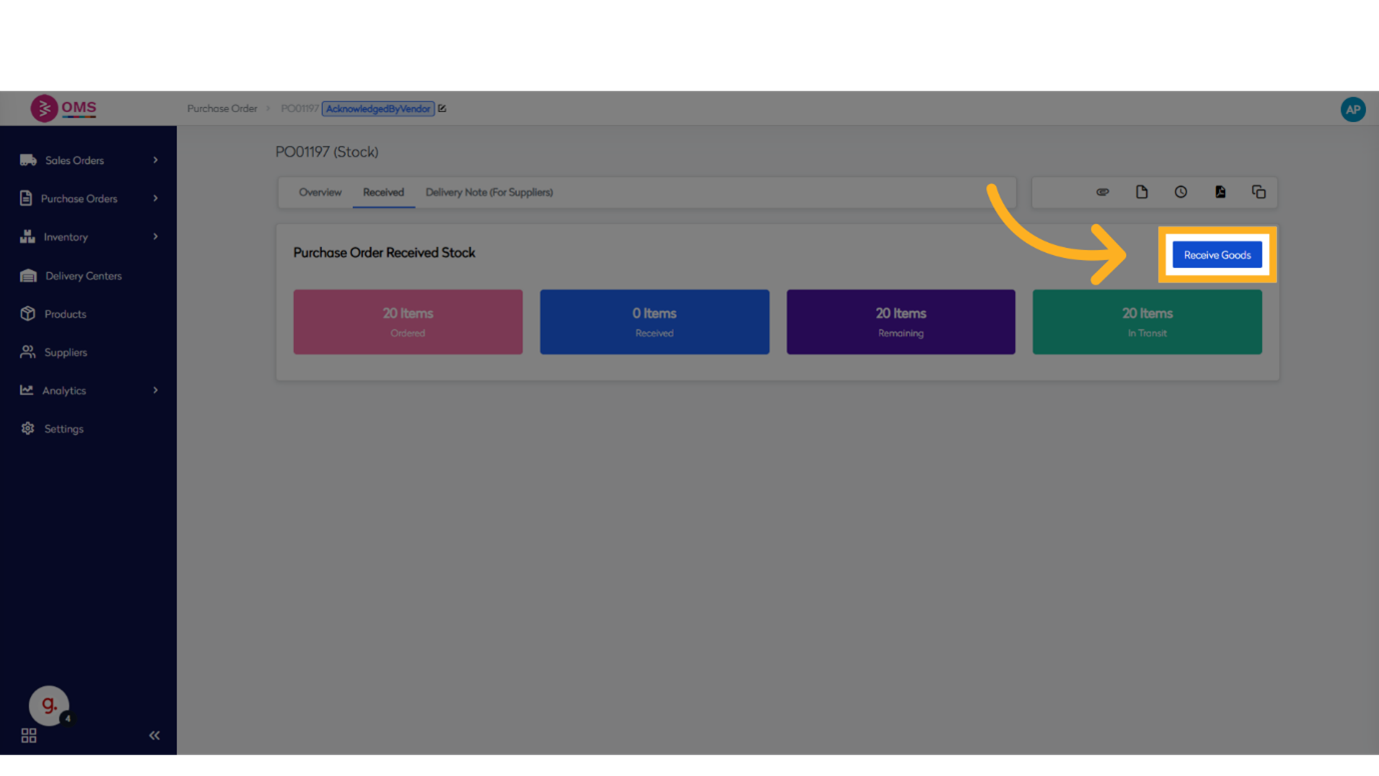
- Click "Receive Goods"
Opens the Receive Goods dialog to begin recording received items.
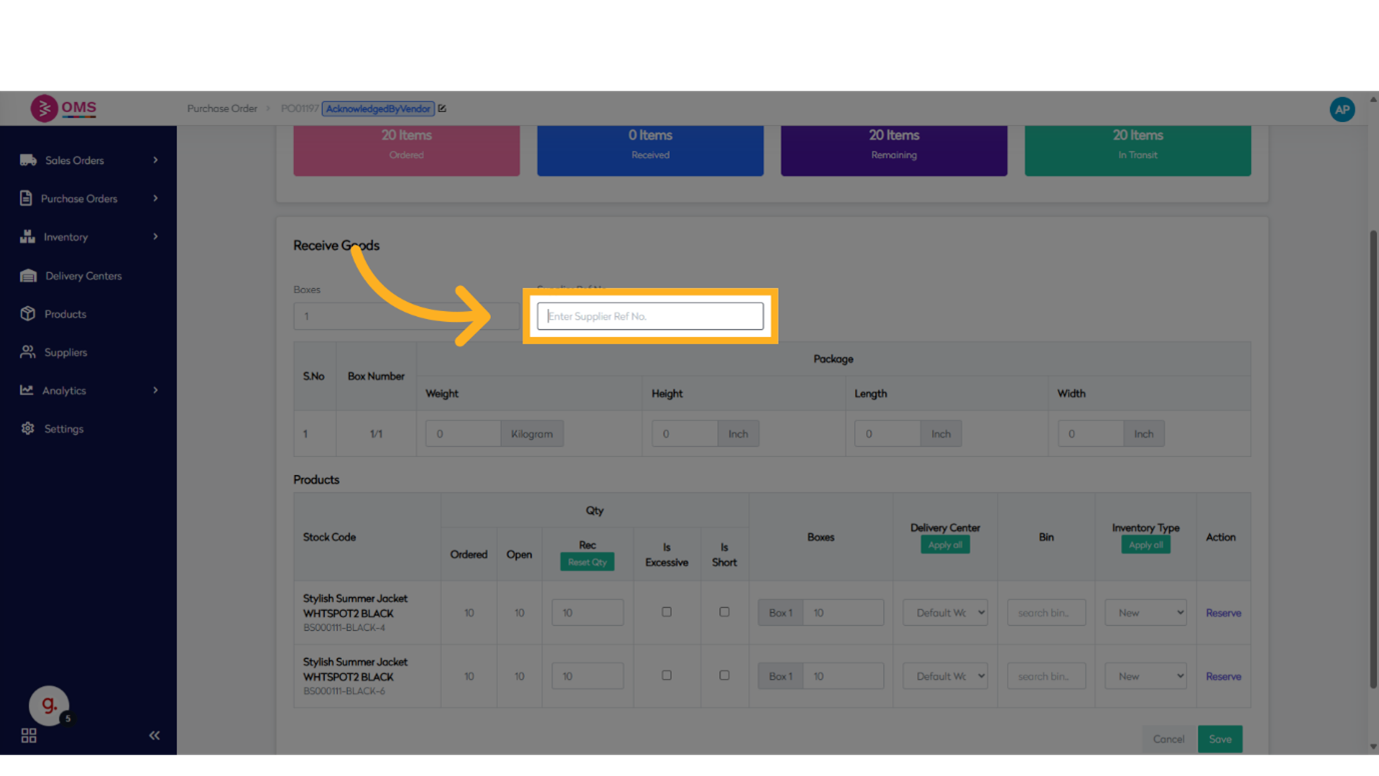
- Click "Enter Supplier Ref No."
Enter your supplier’s reference number, to correlate the receipt.
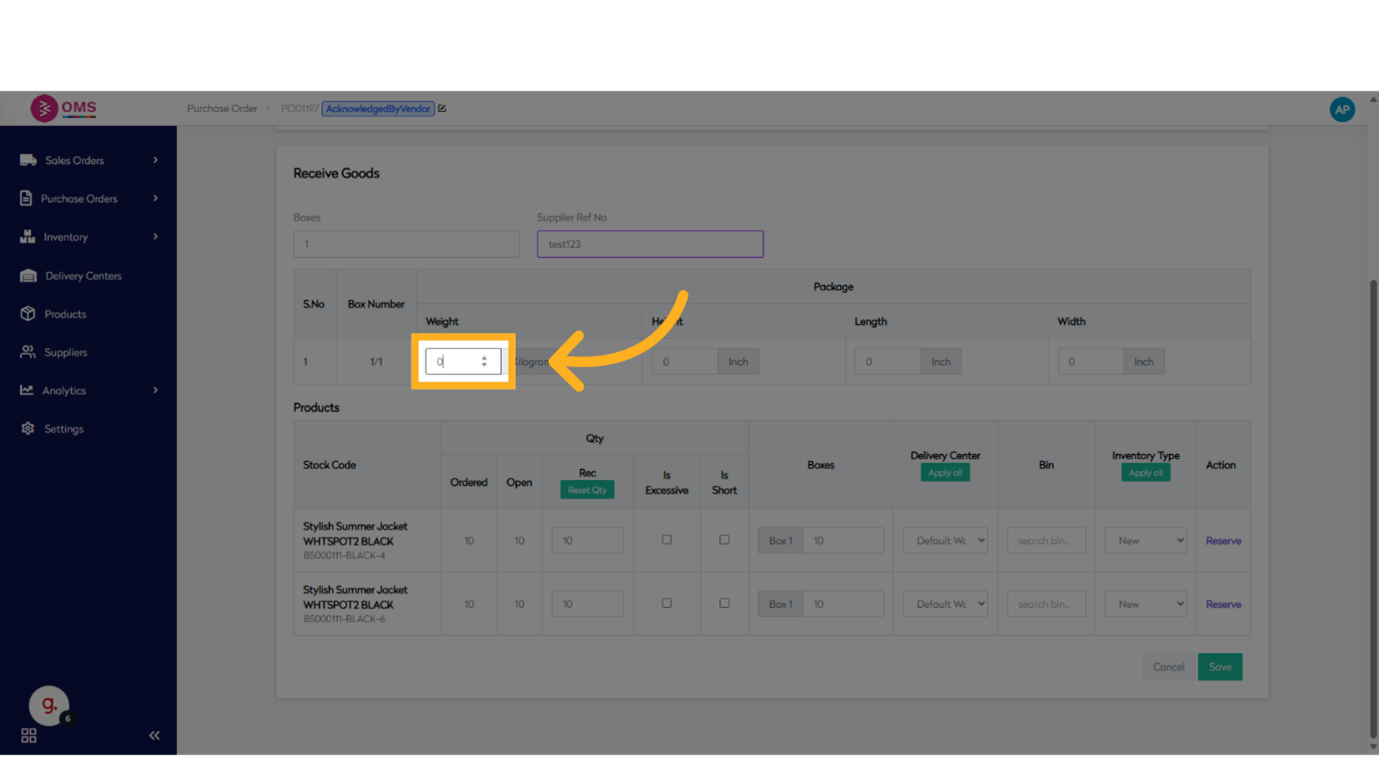
- Enter weight of the box
Selects the first cell to enter the weight of the box.
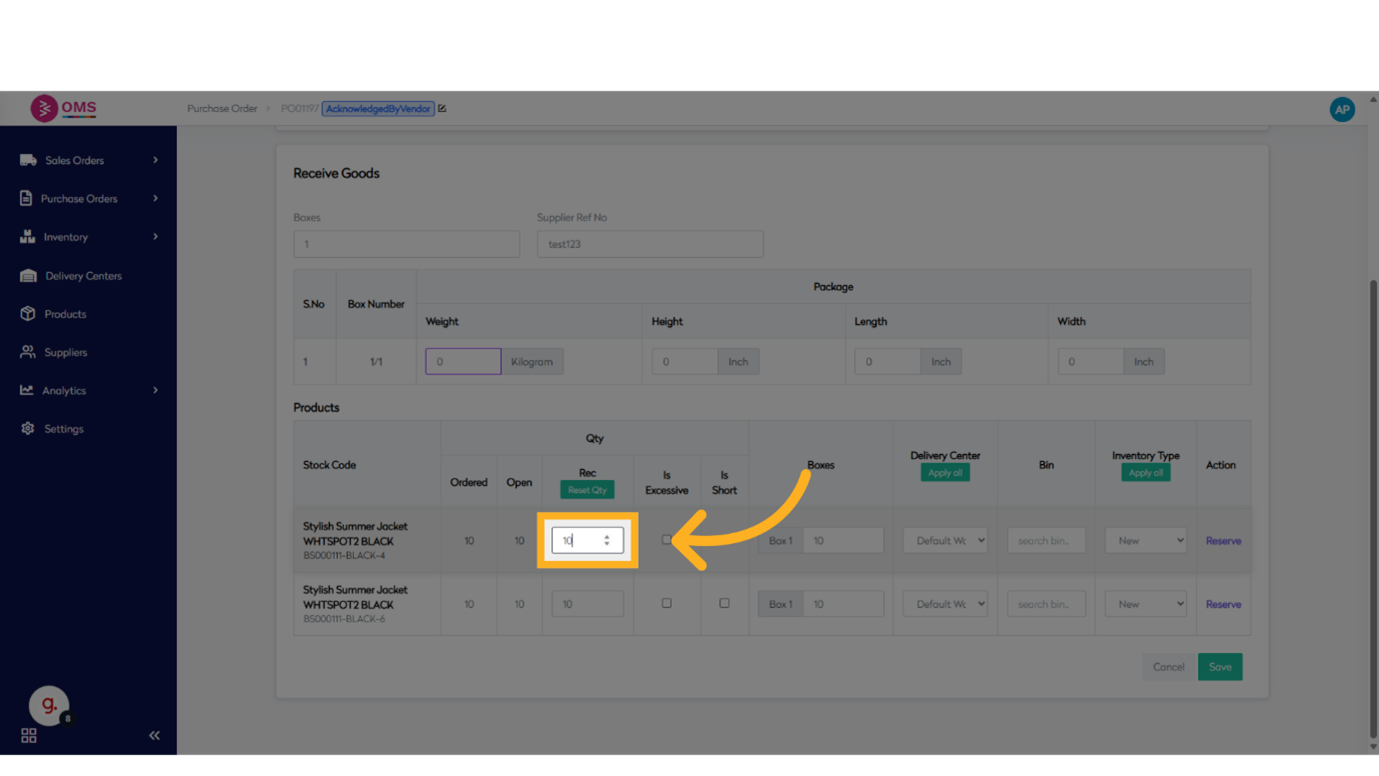
9.Enter received quantity
Enter the actual quantity received against that line.
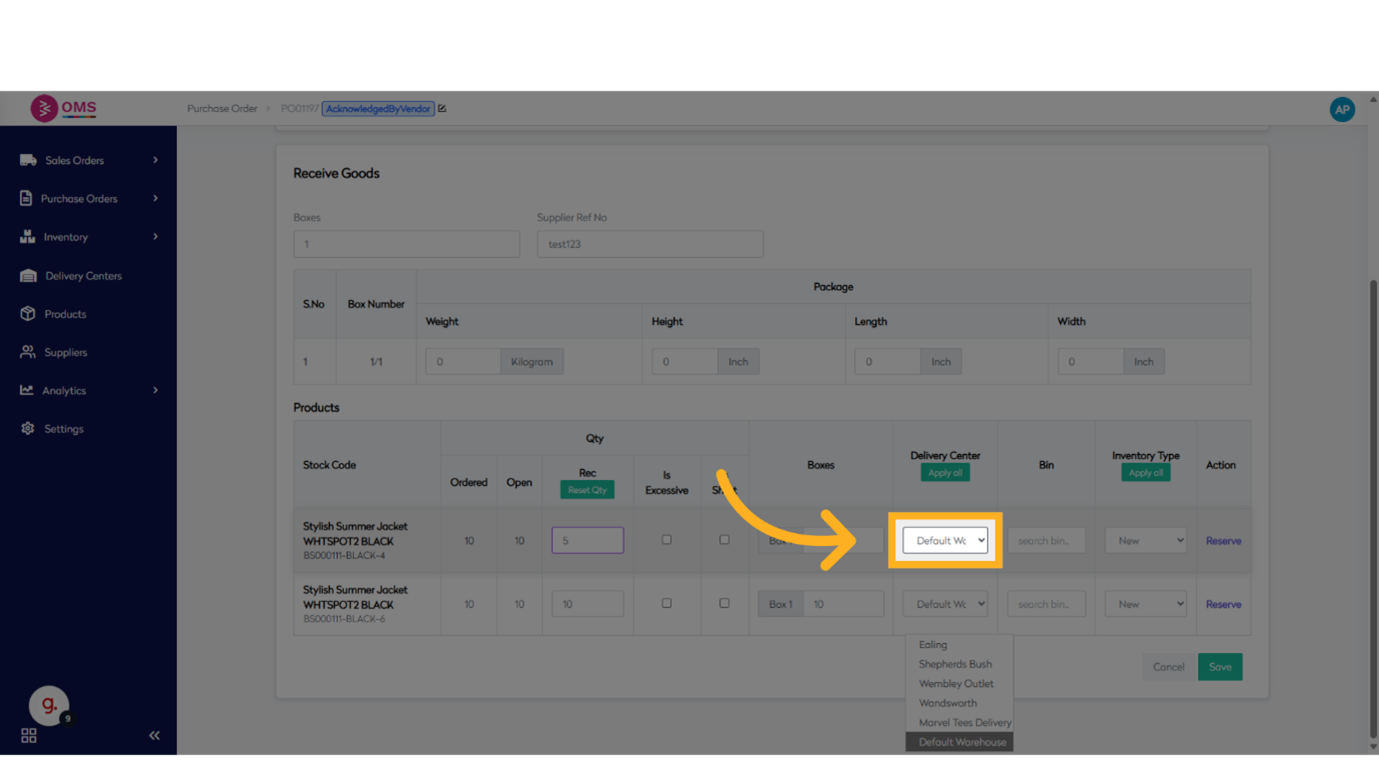
- Select the delivery center
Opens the Delivery Center dropdown to choose where items will be stocked.
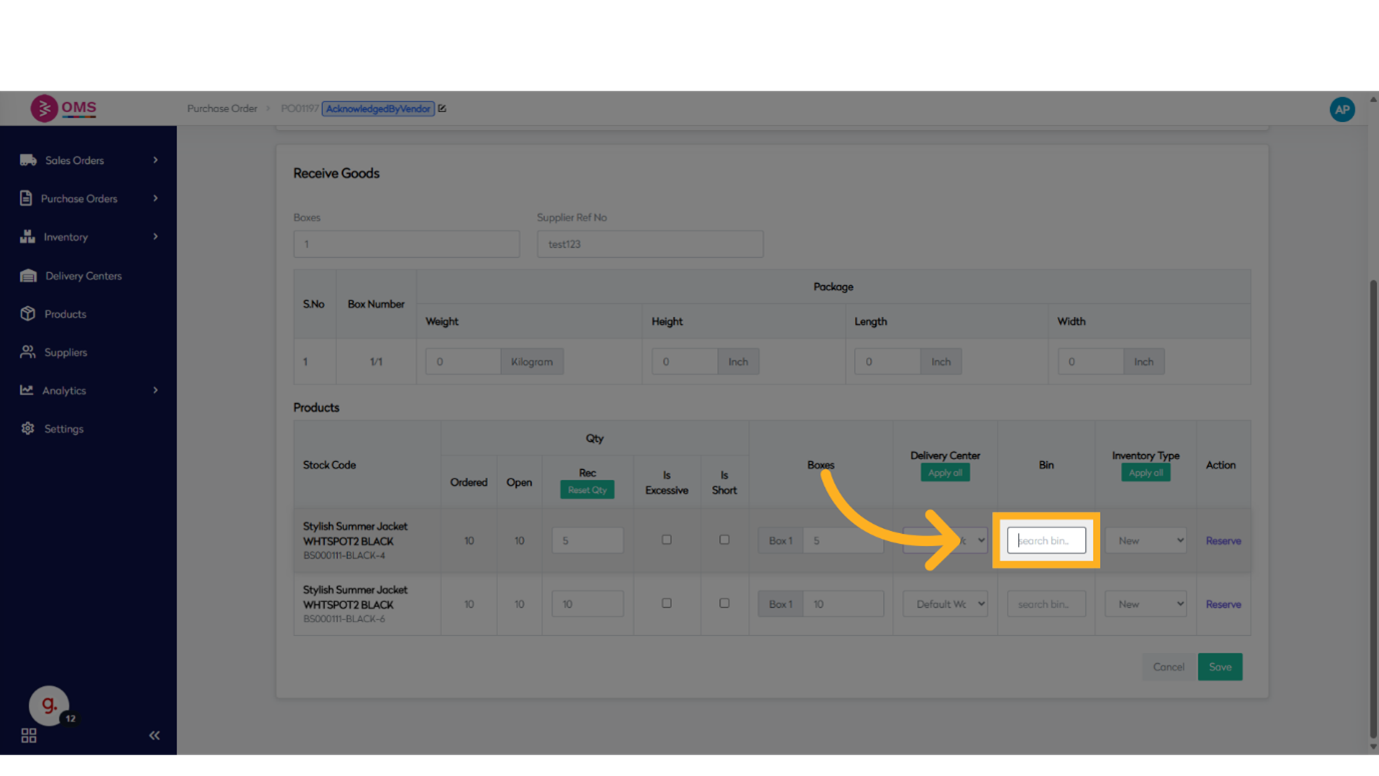
- Click "search bin.."
Activates the Bin Search field to locate a specific storage bin.
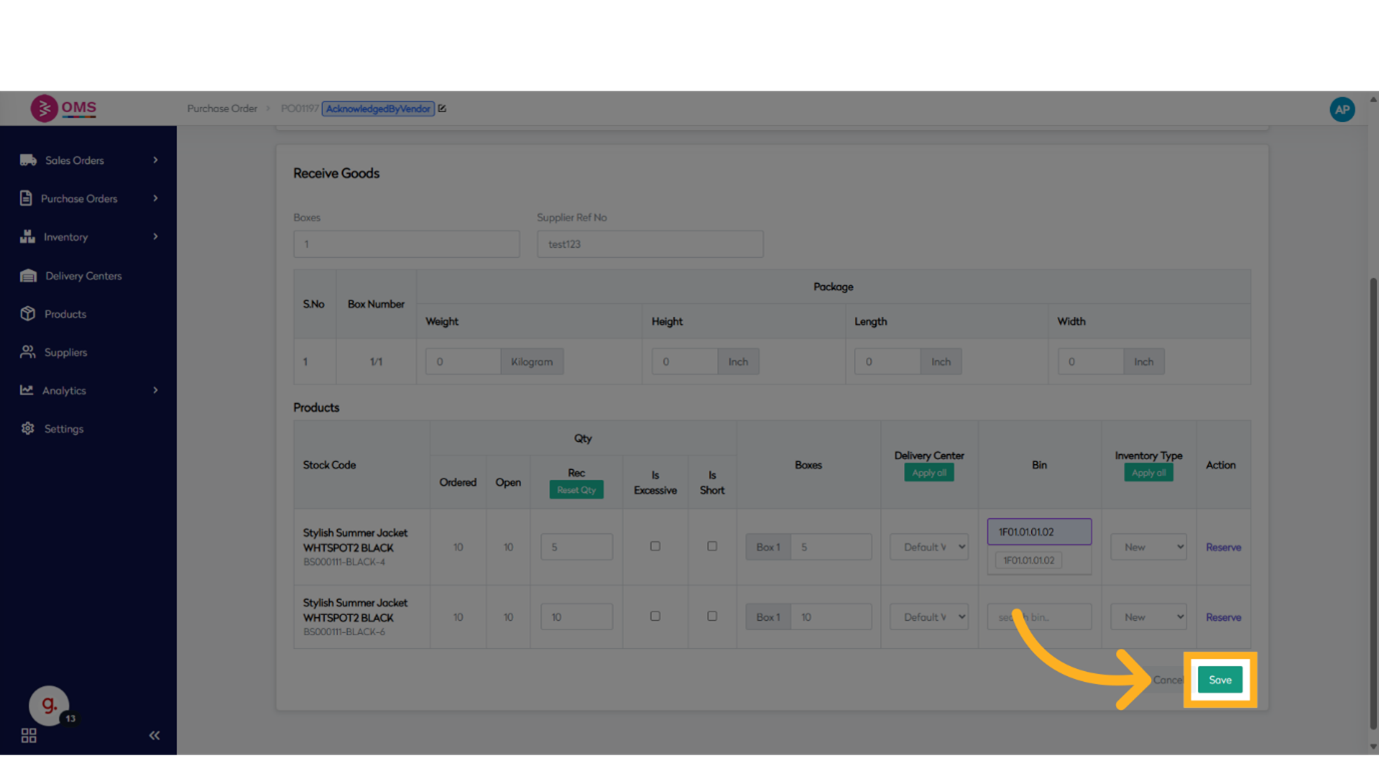
- Click "Save"
Finalizes and saves all GRN details, updating stock levels in BetterCommerce.
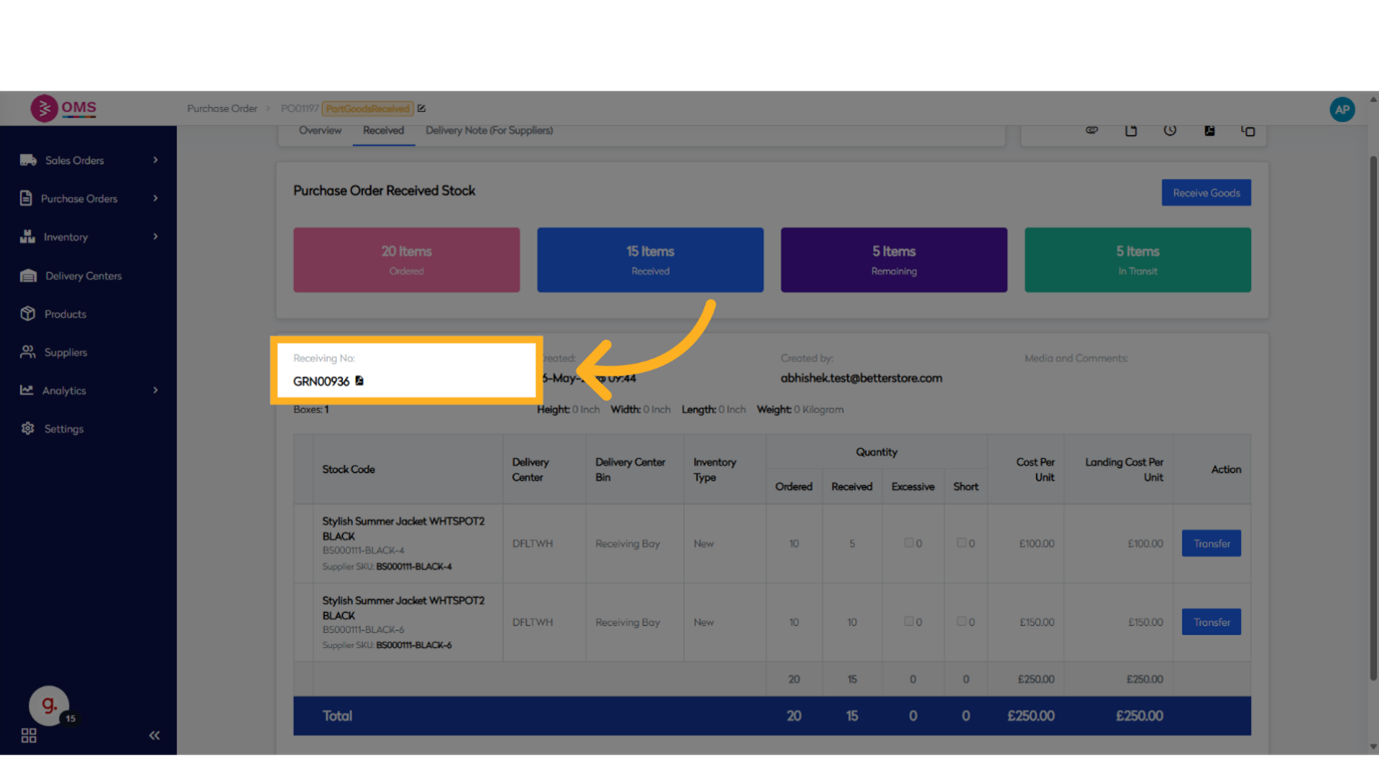
This guide covered navigating Purchase Orders, receiving goods, updating stock details, and saving changes in BetterCommerce for effective inventory management.