
Overview
The Product and Relation Import functionality within the BetterCommerce Order Management System (OMS) is designed to support key operational workflows that directly impact order accuracy and inventory management. By importing core product data and their inter-relationships, the OMS ensures:
- Accurate calculation of available inventory across SKUs and warehouses
- Maintenance of product relationships (e.g., bundles, variants, accessories) critical for fulfillment logic
- Real-time synchronization of stock levels across connected websites, physical stores, and marketplaces
This import process plays a vital role in ensuring the order-taking logic—such as In Stock, Backorder, and Dropship workflows—operates with precision and consistency, thereby enhancing fulfillment efficiency and customer satisfaction.
Navigation Path
To access the Product Import functionality, follow these steps:
-
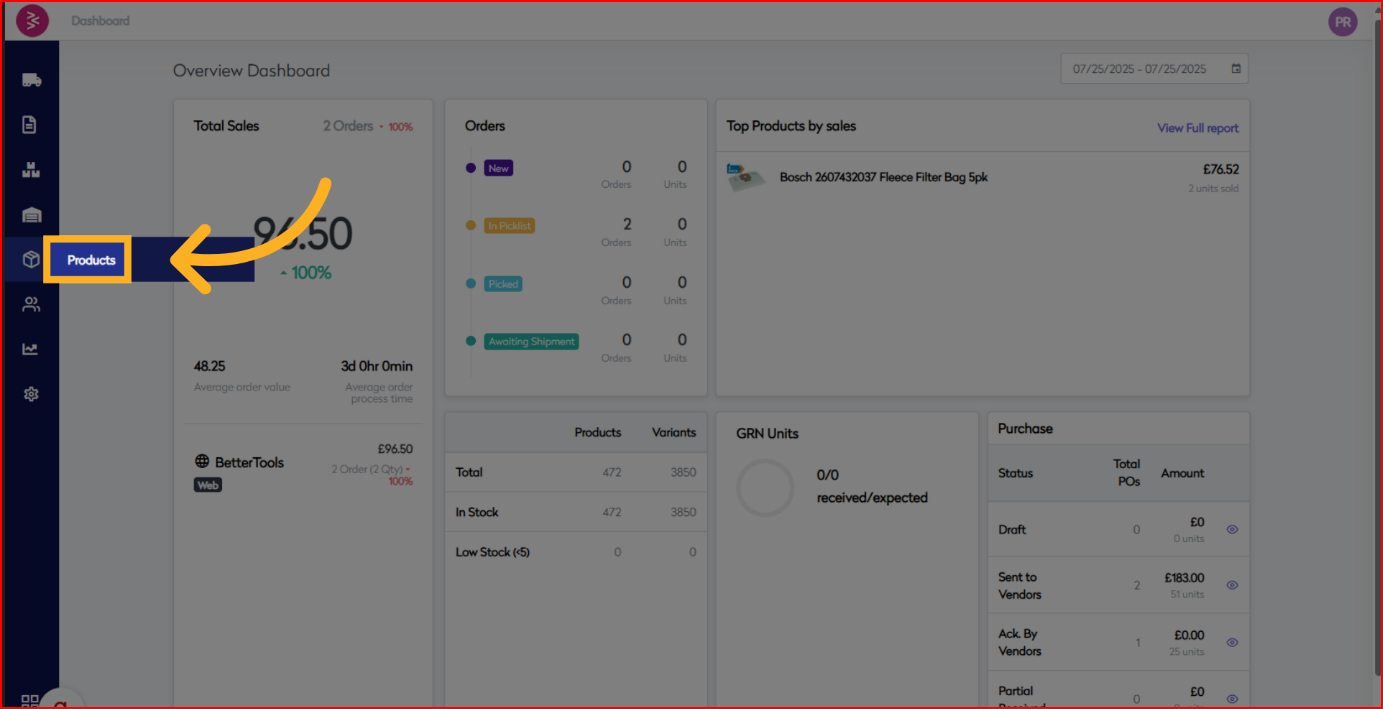
Navigate to the Dashboard and select Product menu.
-
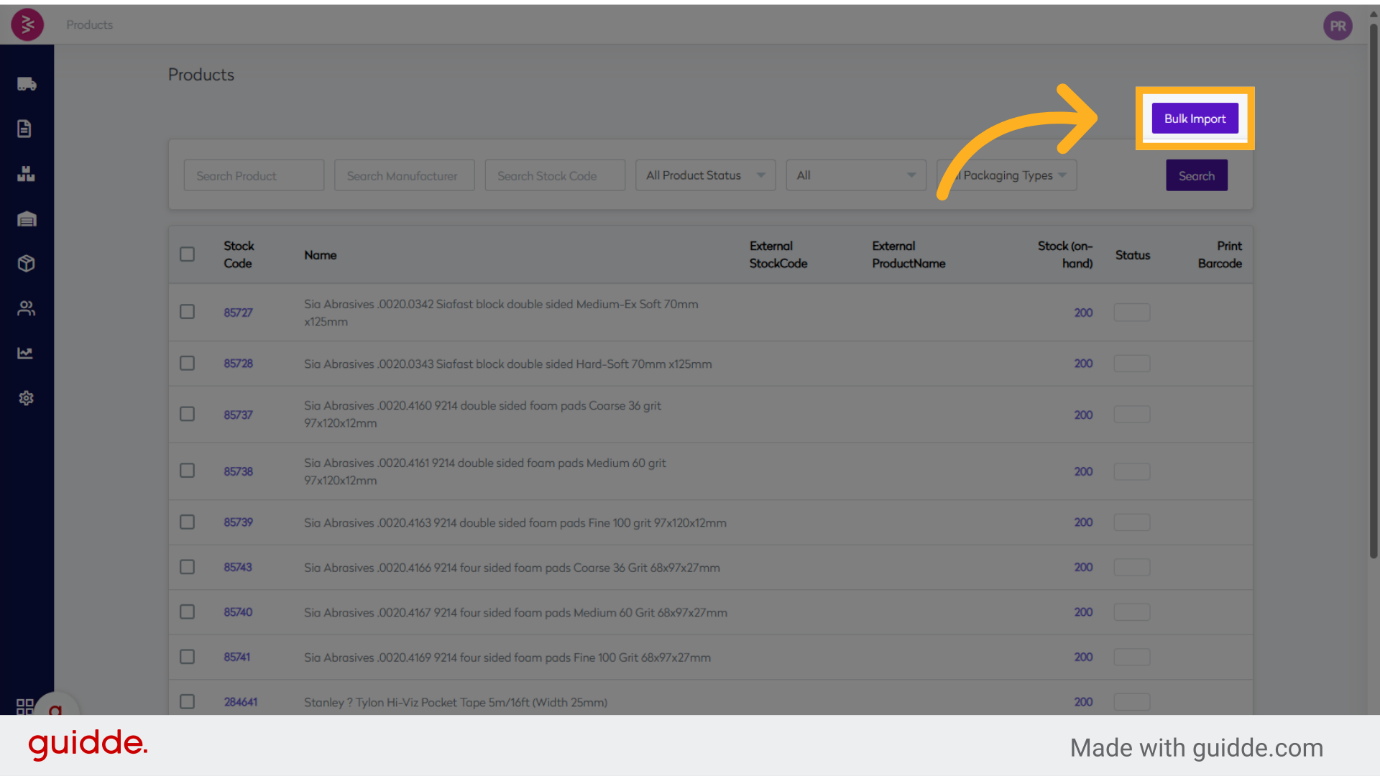
It will take you to Product listing page and then on top right corner select Bulk Import.
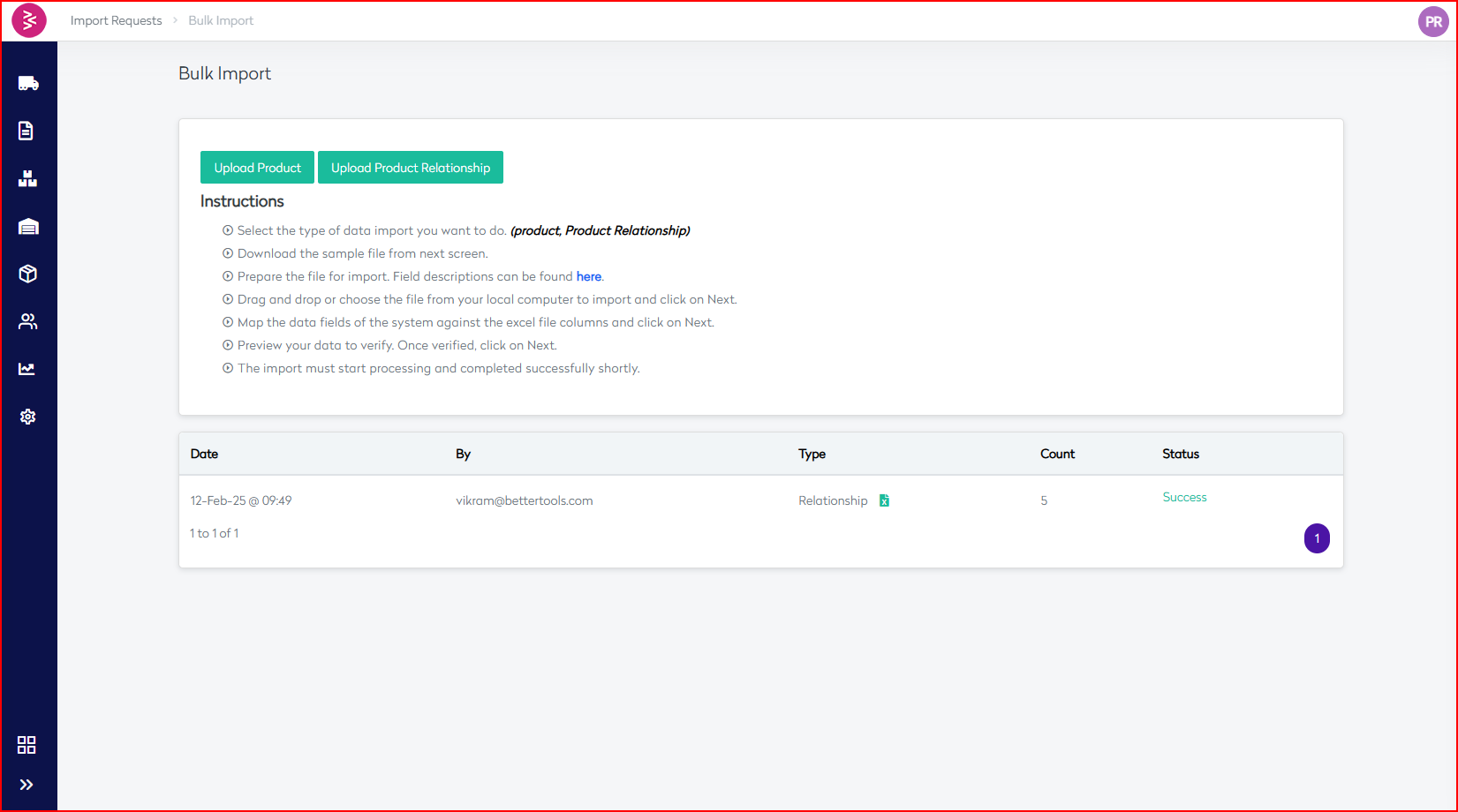
- Once you click on the bulk import, you will be in bulk import dashboard.
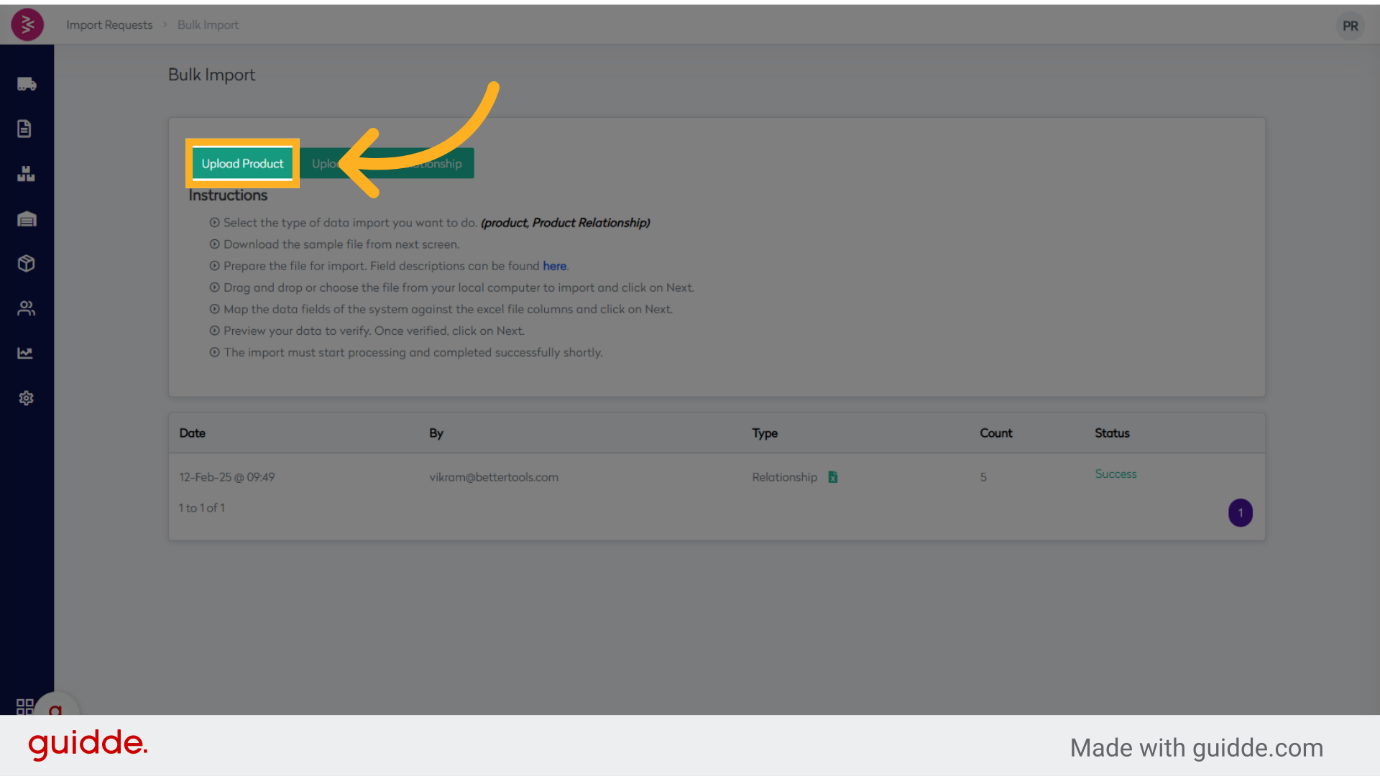
- Now from here you can start uploading import File
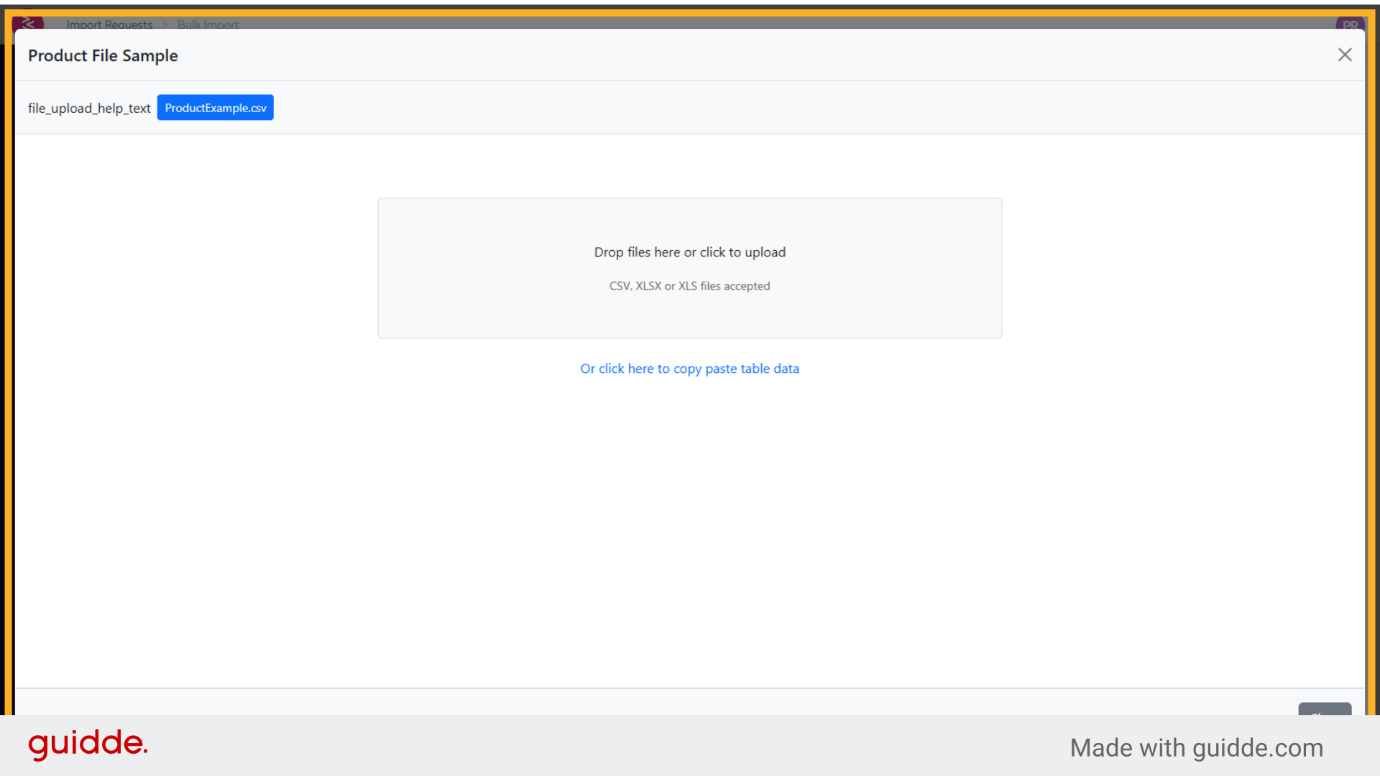
- A prompt will appear to upload a file.
- Supported formats include: .CSV, .XLSX, and .XLS.
- Upload the file by dragging and dropping it into the designated area or by browsing manually.
- Optionally, download the sample template (ProductUploadSampleFile.xlsx) for reference.
- Alternatively, paste table data directly using the provided option.
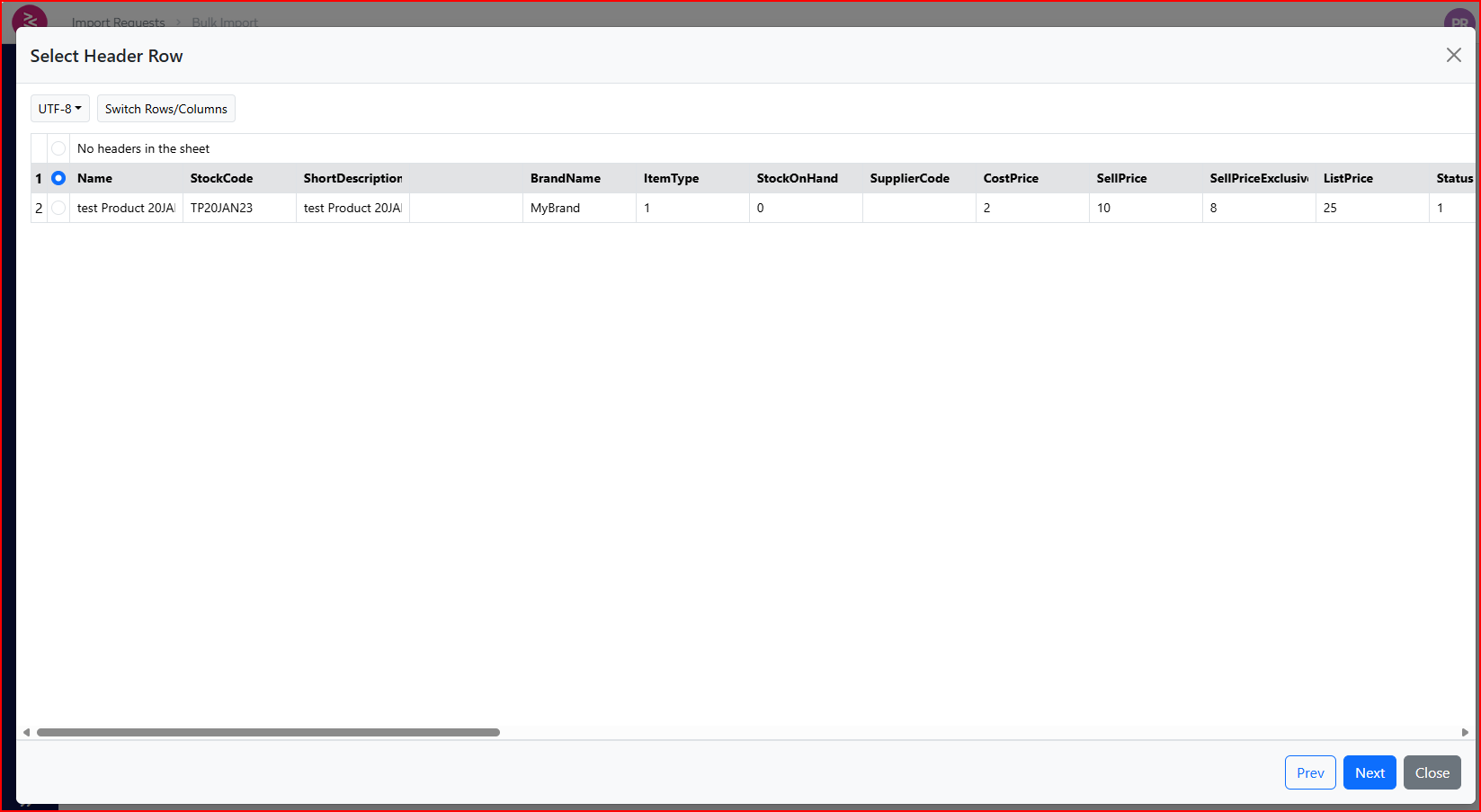
- Select Header Row
- After uploading the file, the system will display a preview of the data.
- Indicate whether the file includes headers by selecting the appropriate option.
- The system will read and list all columns, such as:
- StockCode
- ProductCode
- ProductName
- ShortDescription
- LongDescription
- ItemType
- Brand, Category, ParentCategory
- CostPrice, ListPrice, SellPrice
- Currency
- And additional fields as applicable.
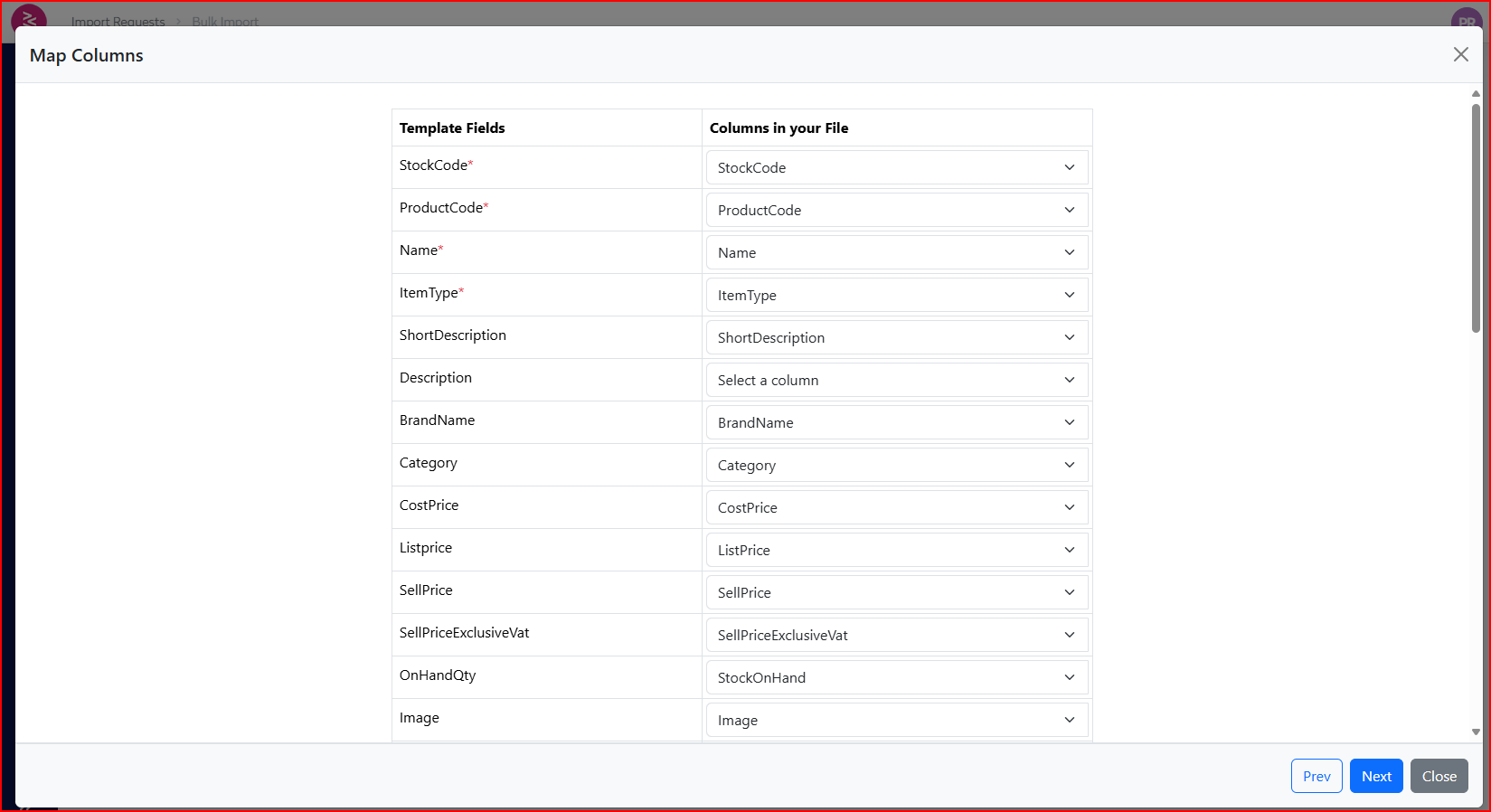
- Map Columns Based on the analysis of the mapping screenshot, each column from the uploaded file is mapped to a corresponding field in the PIM system as follows:
| PIM Field | Mapped Column from File |
|---|---|
| StockCode | StockCode |
| ProductCode | ProductCode |
| ProductName | ProductName |
| ShortDescription | ShortDescription |
| LongDescription | LongDescription |
| ItemType | ItemType |
| Brand | Brand |
| Category | Category |
| ParentCategory | ParentCategory |
| CostPrice | CostPrice |
| ListPrice | ListPrice |
| SellPrice | SellPrice |
| Currency | Currency |
Additional fields may be mapped as required.
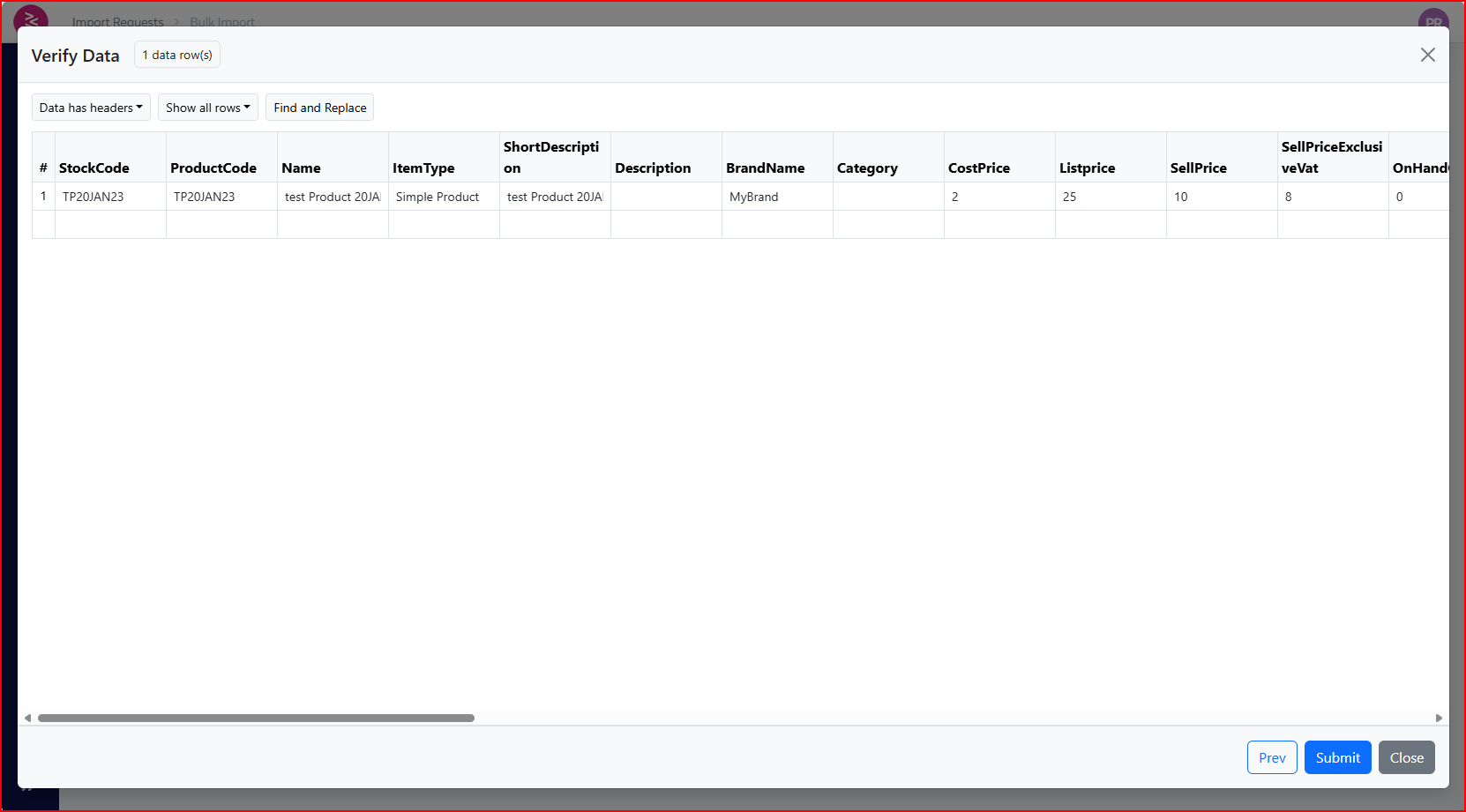
- Verify Data
- Prior to submission, the PIM system provides a detailed data verification preview.
- Review all rows for consistency, accuracy, and completeness.
- Commonly displayed fields include:
- ProductCode, ProductName
- Pricing: CostPrice, ListPrice, SellPrice
- Category, Brand, ItemType
- Perform inline edits, execute find-and-replace actions, or re-map columns if necessary before proceeding.
- Submit Import
- After verifying the data, click Submit to finalize the import process.
- Once finish you can see the imported file will be visible in the dashboard.
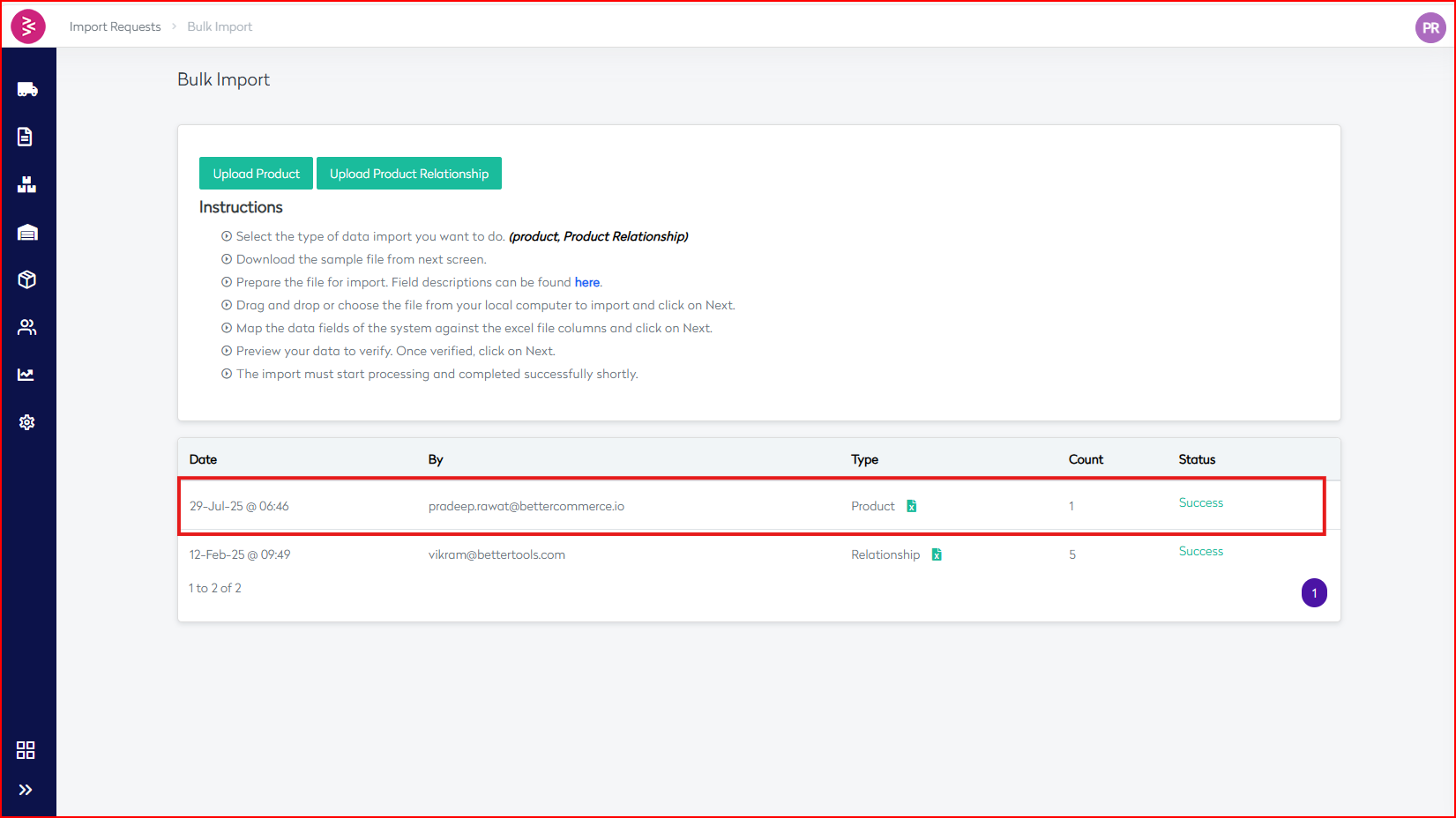
Bulk Import Summary – OMS (Product & Relation Import)
The Bulk Import feature in the BetterCommerce Order Management System (OMS) allows seamless uploading of product data and their inter-relationships to support critical inventory and fulfillment workflows.
✅ Purpose
- Ensure accurate available inventory calculations
- Maintain product relationships (e.g., bundles, variants, accessories)
- Enable real-time stock sync across channels (websites, physical stores, marketplaces)
- Improve the accuracy of In Stock, Backorder, and Dropship workflows
🧭 Navigation Steps
- Go to Dashboard → Product menu
- Click on Bulk Import from the Product listing page
- Enter the Bulk Import Dashboard
- Upload the file (formats:
.CSV,.XLSX,.XLS) - Optionally download the ProductUploadSampleFile.xlsx or paste tabular data directly
🗂 Import Process Overview
1. Upload File
- Upload via drag-and-drop or manual browsing
- Supported formats:
.CSV,.XLSX,.XLS - Optional: use sample template or paste table data
2. Select Header Row
- Confirm if the file contains a header row
- Preview and validate columns such as:
StockCode,ProductCode,ProductNameShortDescription,LongDescription,ItemTypeBrand,Category,ParentCategoryCostPrice,ListPrice,SellPrice,Currency
3. Map Columns
| PIM Field | Mapped Column from File |
|---|---|
| StockCode | StockCode |
| ProductCode | ProductCode |
| ProductName | ProductName |
| ShortDescription | ShortDescription |
| LongDescription | LongDescription |
| ItemType | ItemType |
| Brand | Brand |
| Category | Category |
| ParentCategory | ParentCategory |
| CostPrice | CostPrice |
| ListPrice | ListPrice |
| SellPrice | SellPrice |
| Currency | Currency |
Additional fields may be mapped as needed.
4. Verify Data
- Preview data before submission
- Review fields like:
ProductCode,ProductName,CostPrice,Brand,ItemType, etc. - Perform inline edits, find-and-replace, or re-map columns if necessary
5. Submit Import
- Click Submit to complete the import
- The imported file appears in the dashboard for tracking
📌 Impact
- Ensures inventory precision across OMS and connected systems
- Supports accurate and consistent fulfillment logic
- Improves customer satisfaction by maintaining reliable stock and order status visibility