
What is a Purchase Order?
A purchase order (PO) is a business document, created by the buyer, which authorizes a purchase transaction for goods or services from a supplier. POs play an important role in controlling business purchases. A professional PO process builds robust supplier relationships and provides an audit trail of all transactions. It is generally assisted by some level of automation that helps speed up the process, improves communication and minimizes financial risk.
Steps
- Introduction
From navigating through the Purchase Orders section to saving the finalized order, you will learn the step-by-step process to efficiently manage PO creation.
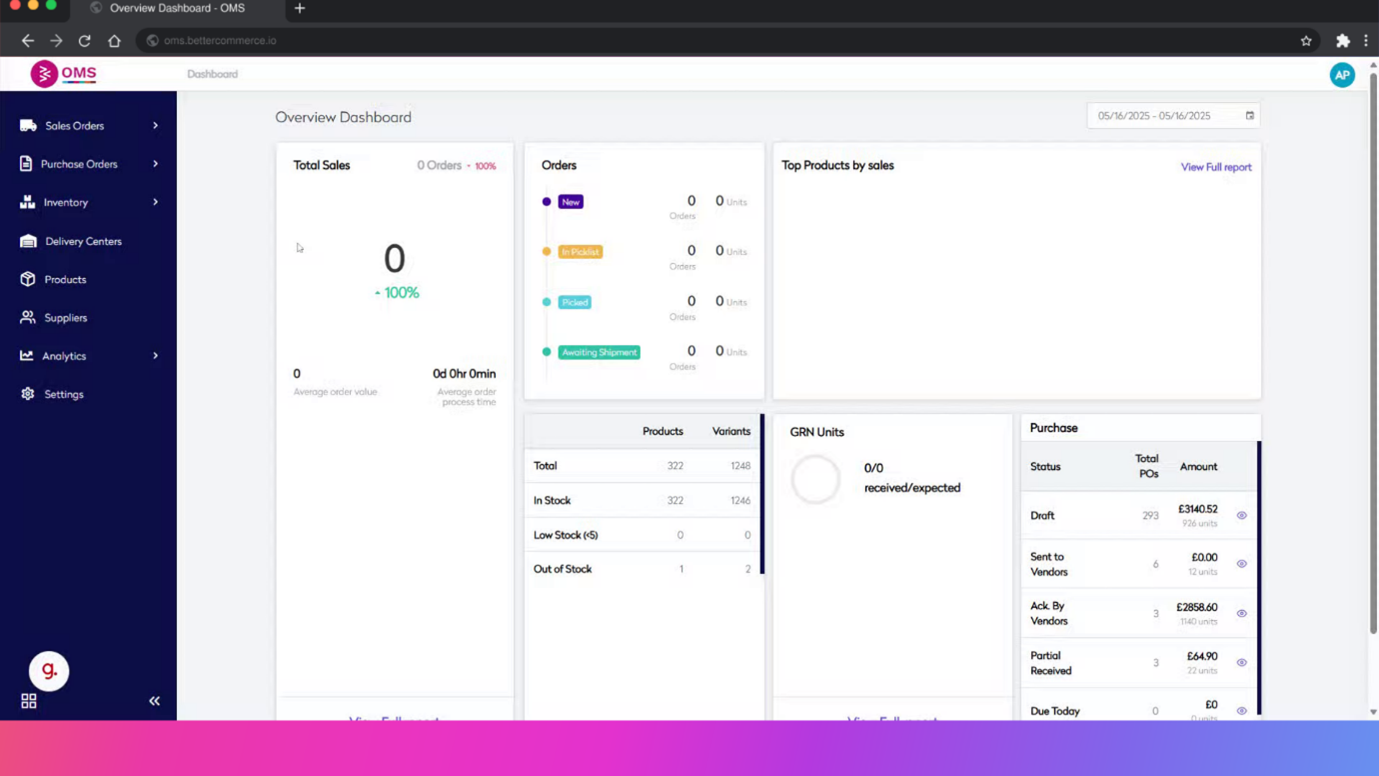
- Click "Purchase Orders"
Navigate to the Purchase Orders section.
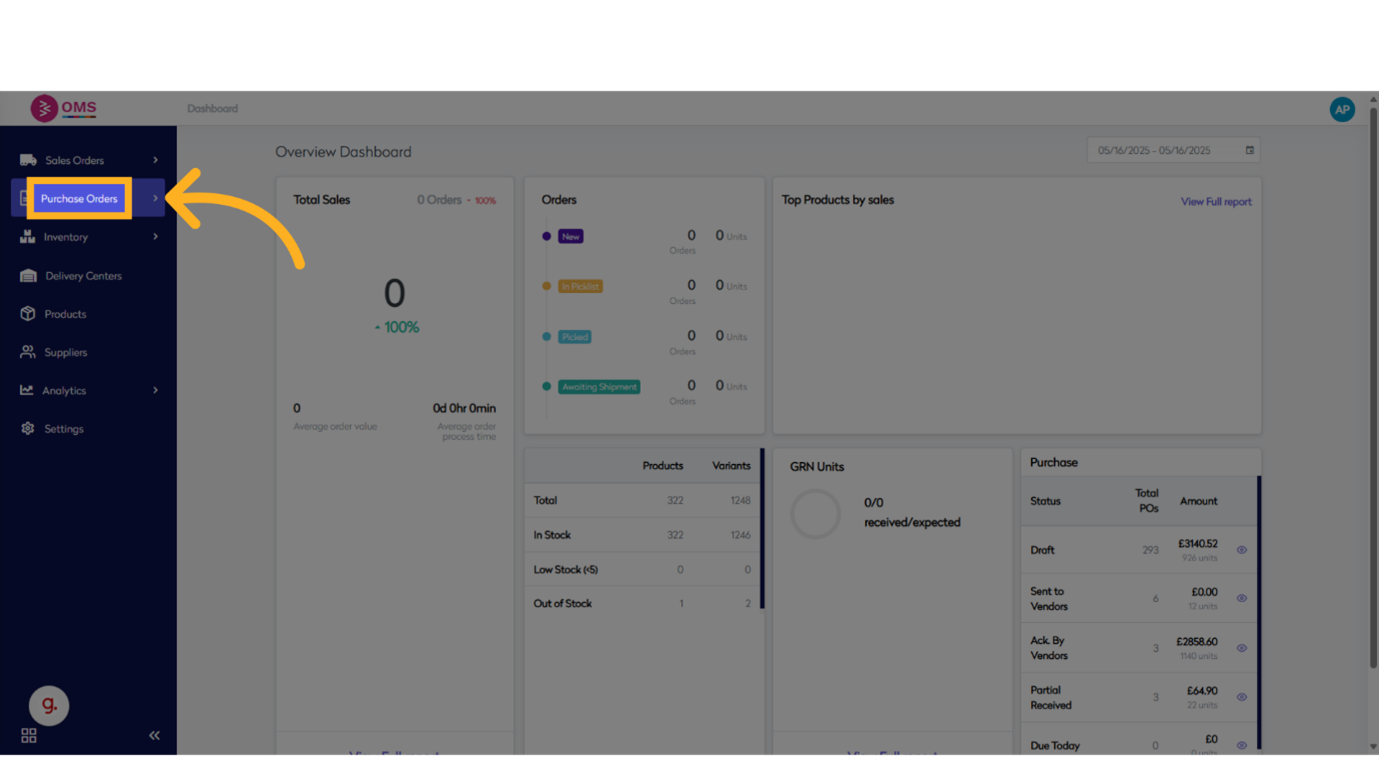
- Click "View"
Select the "View" option.
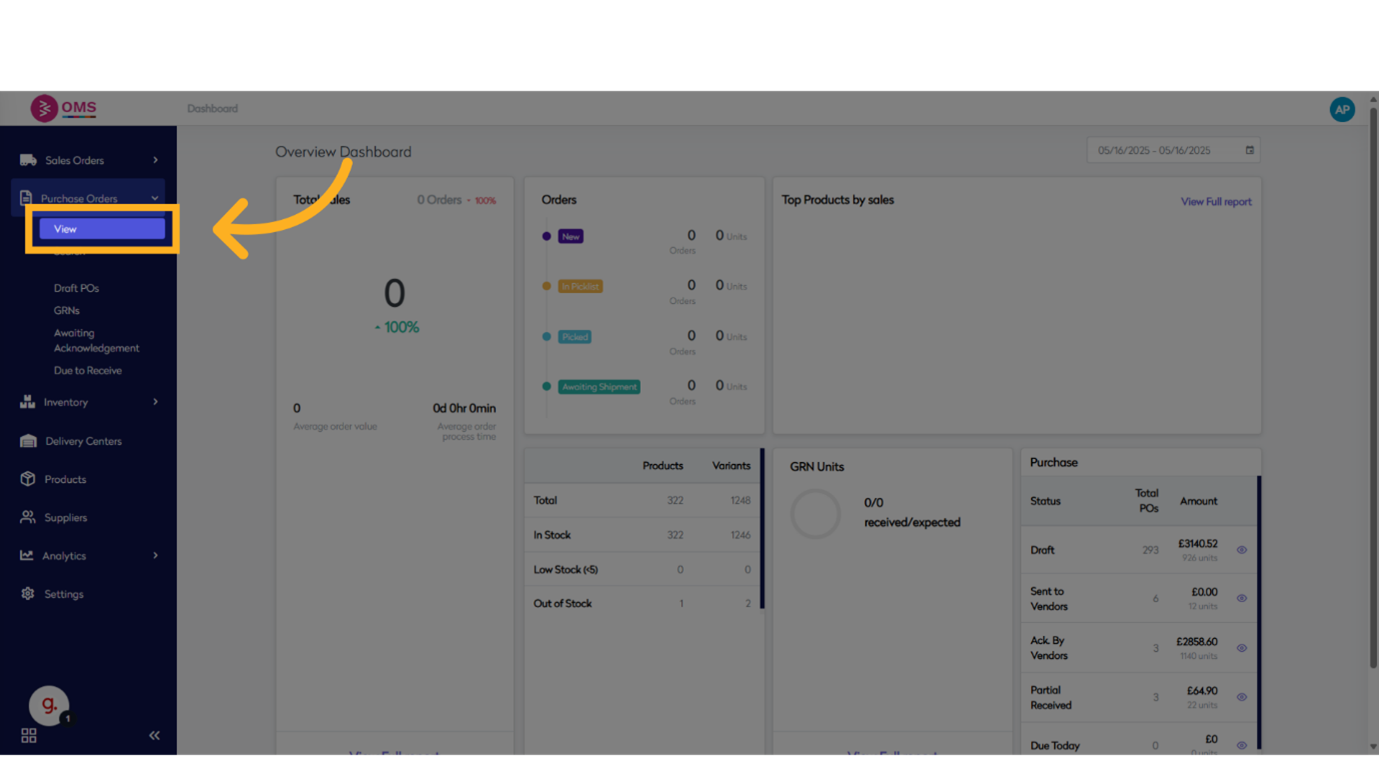
- Click "Create PO"
Initiate the creation of a new Purchase Order (PO).
- Select Purchase Order Type "Stock"
Access the Stock section.
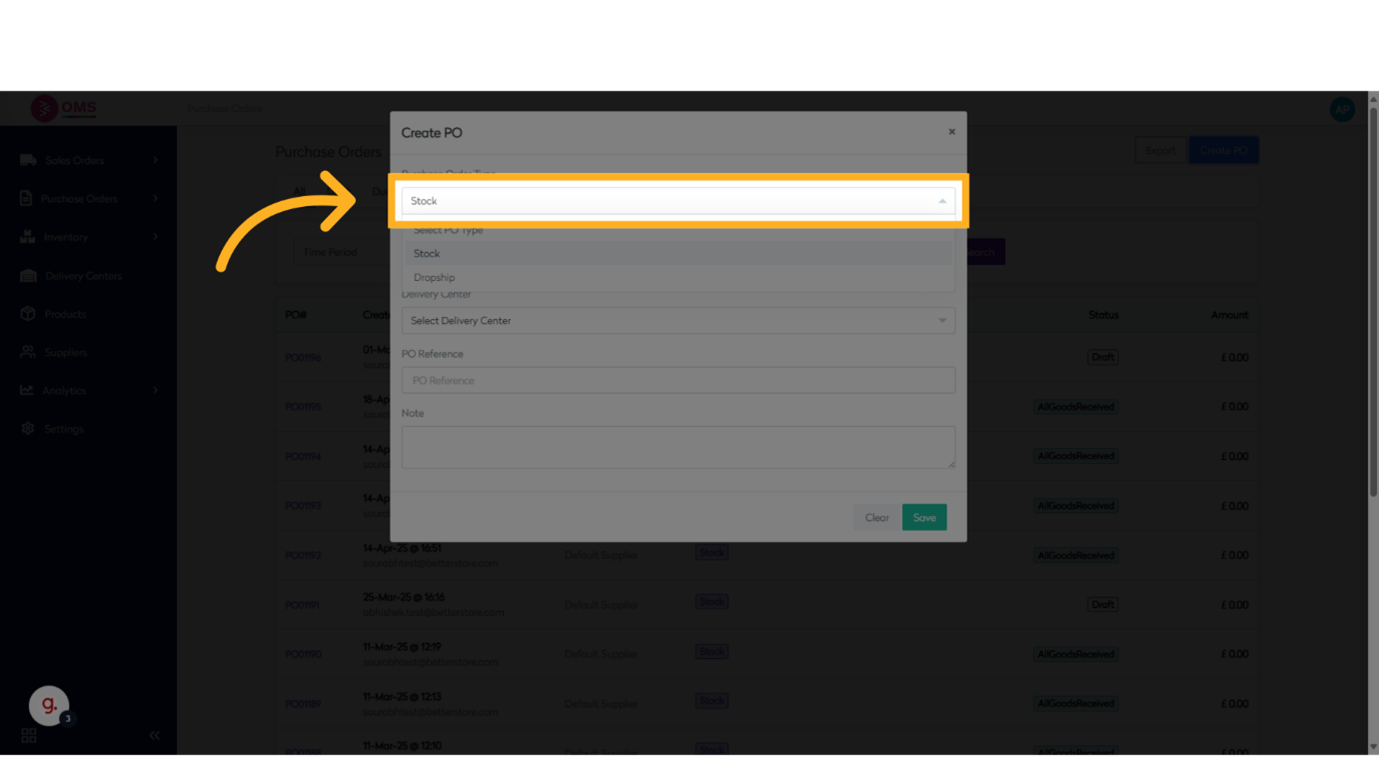
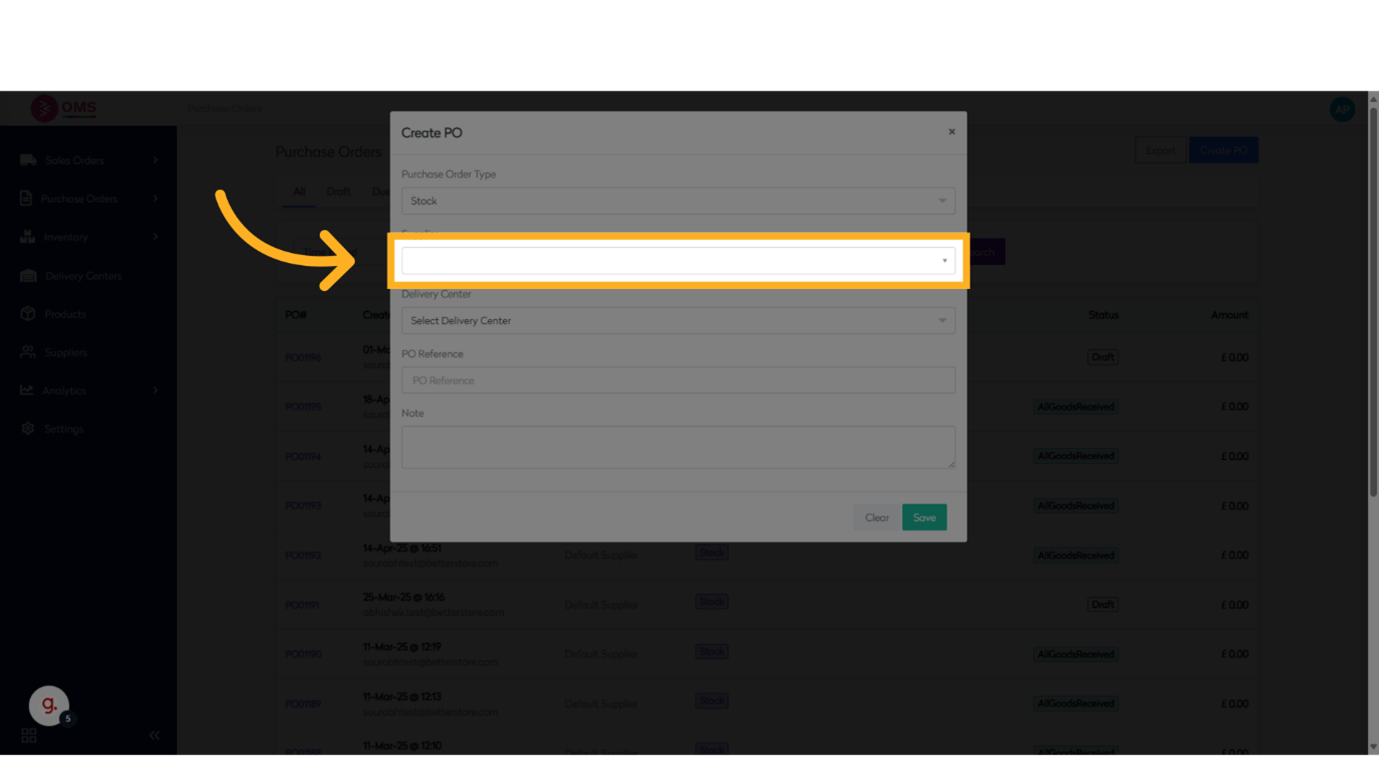
- Select Supplier
Proceed with the supplier selection.
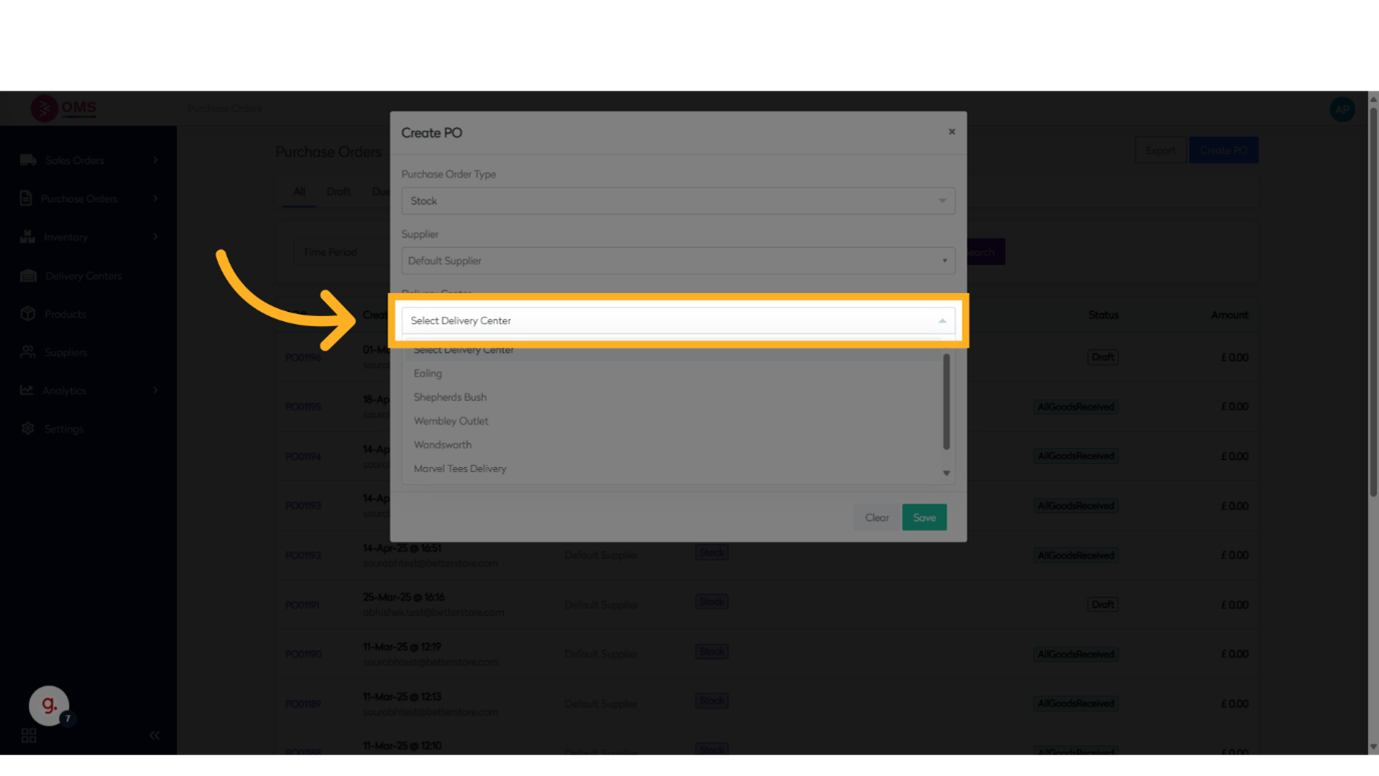
- Click "Select Delivery Center"
Choose the Delivery Center.
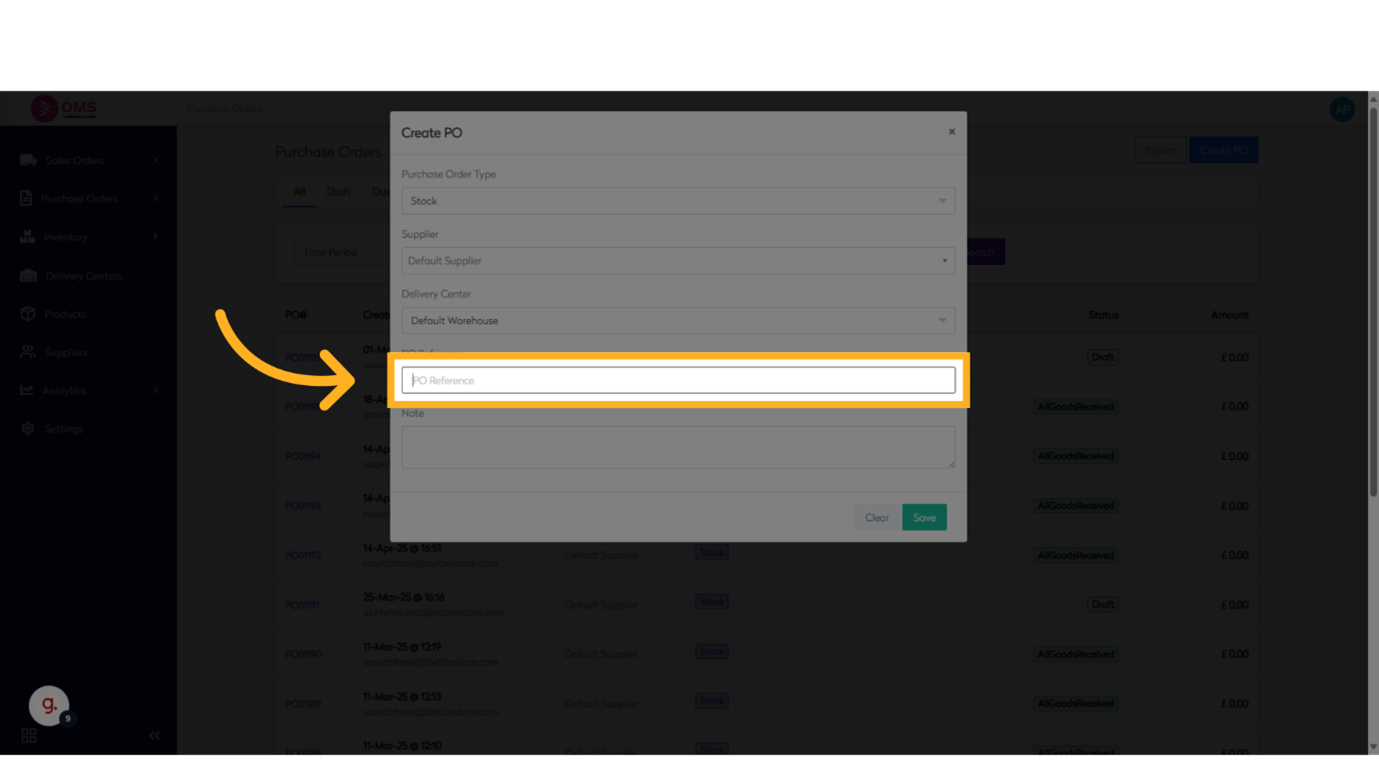
- Click "PO Reference"
Fill in the PO Reference field.
- Click to enter notes
Continue with the process.
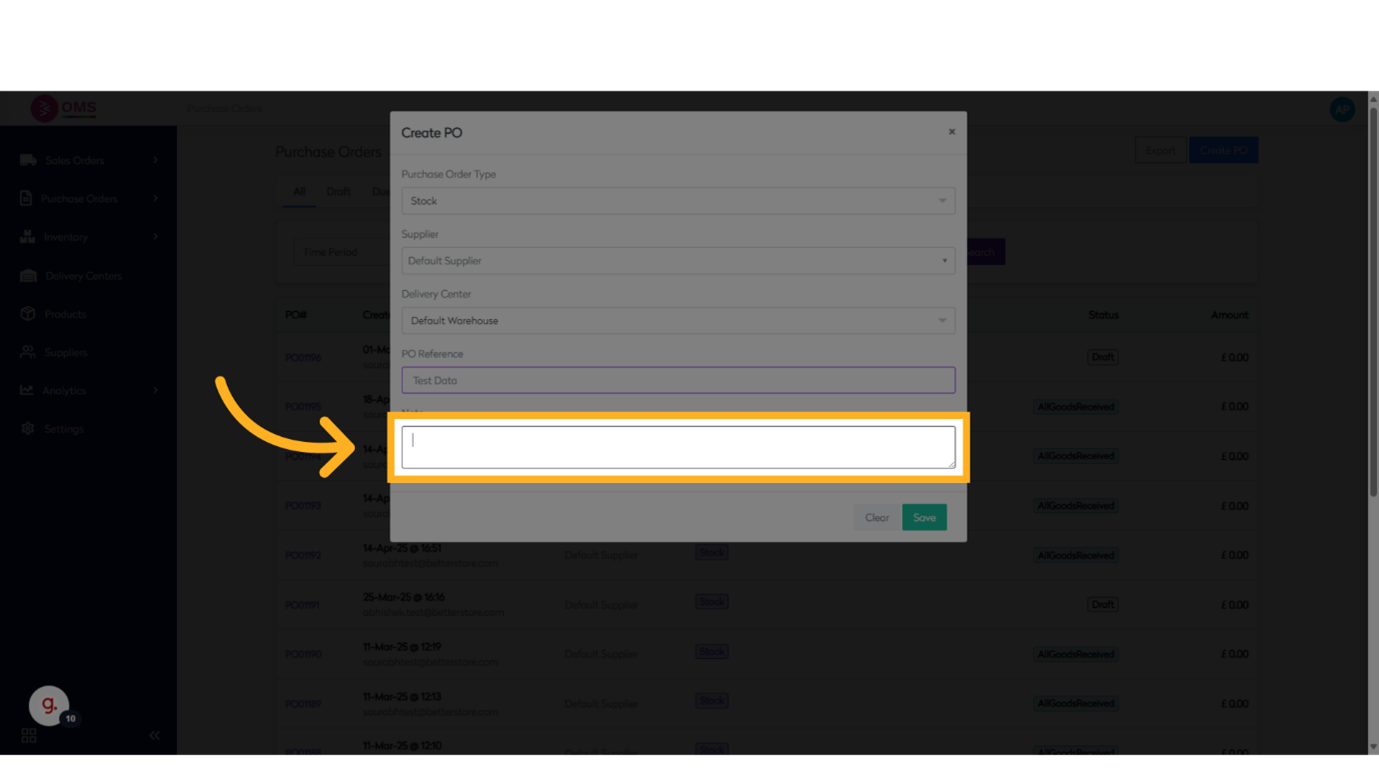
- Click "Save"
Save the changes made.
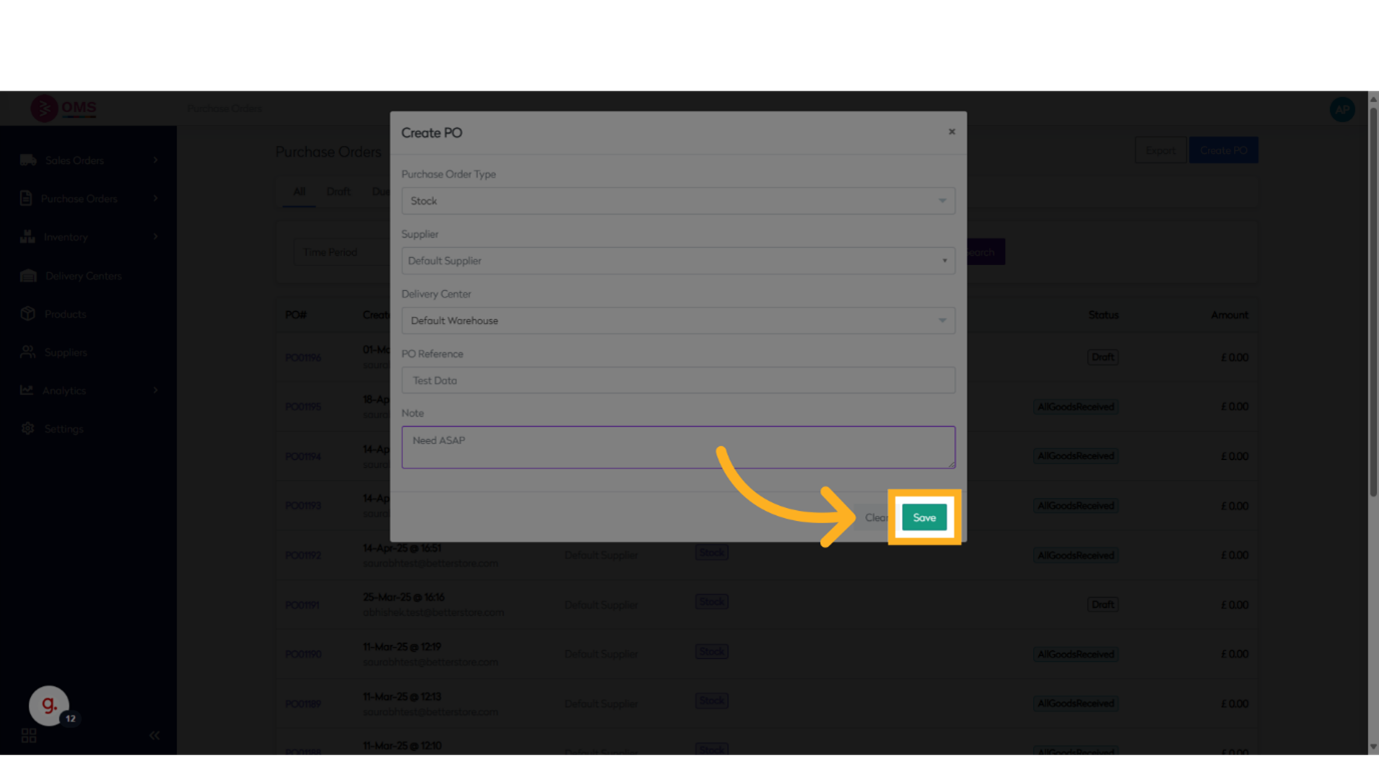
- Click "New Line Item"
Add a new Line Item.
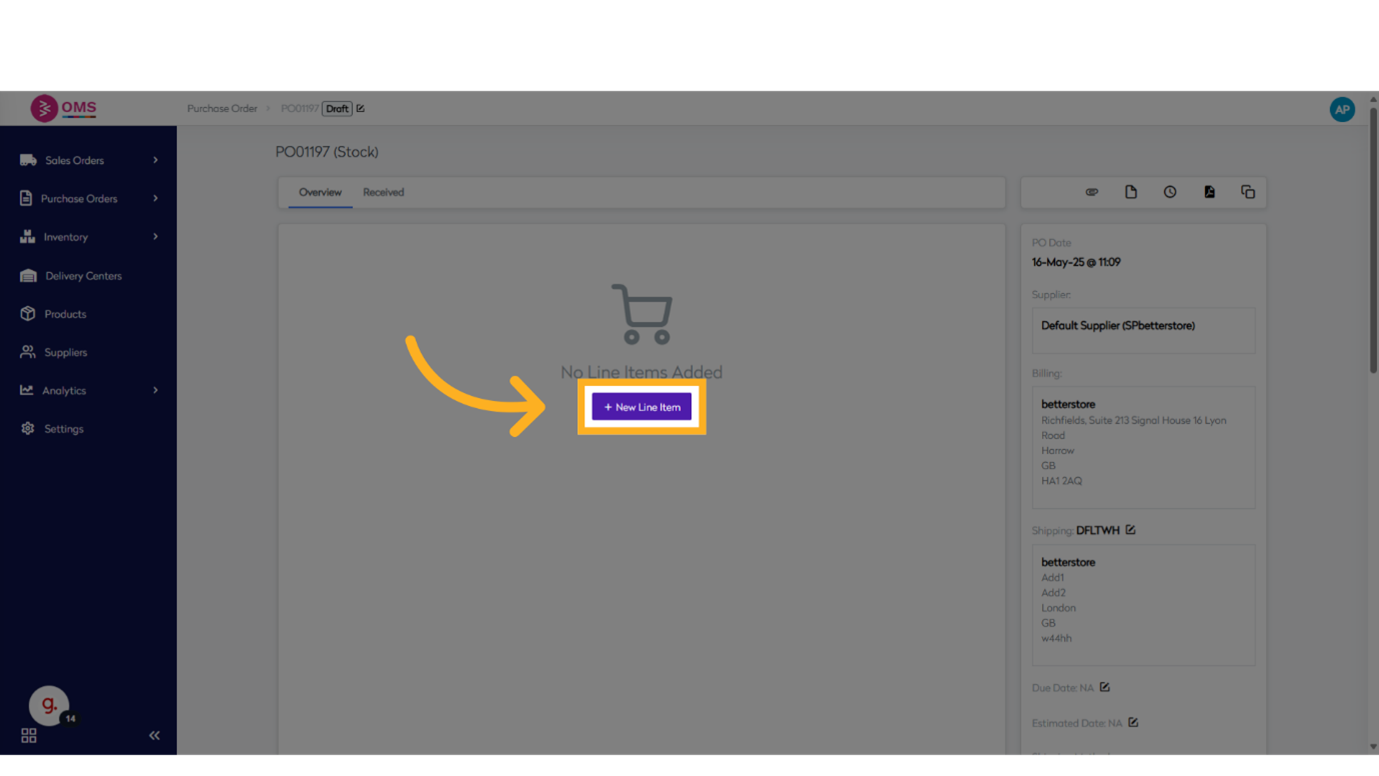
- Click "Add another item.."
Add another item to the list.
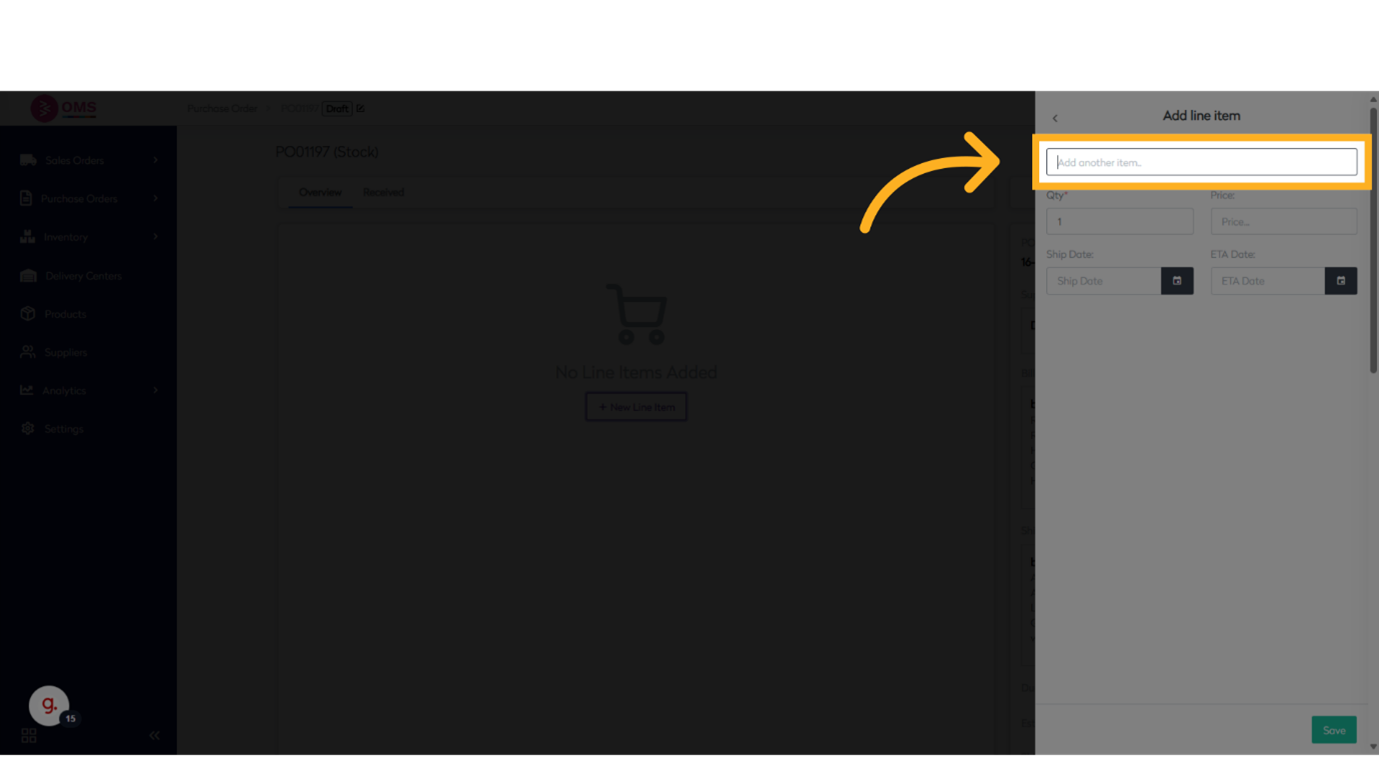
- Search for stock code
Fill in the text box with stock code
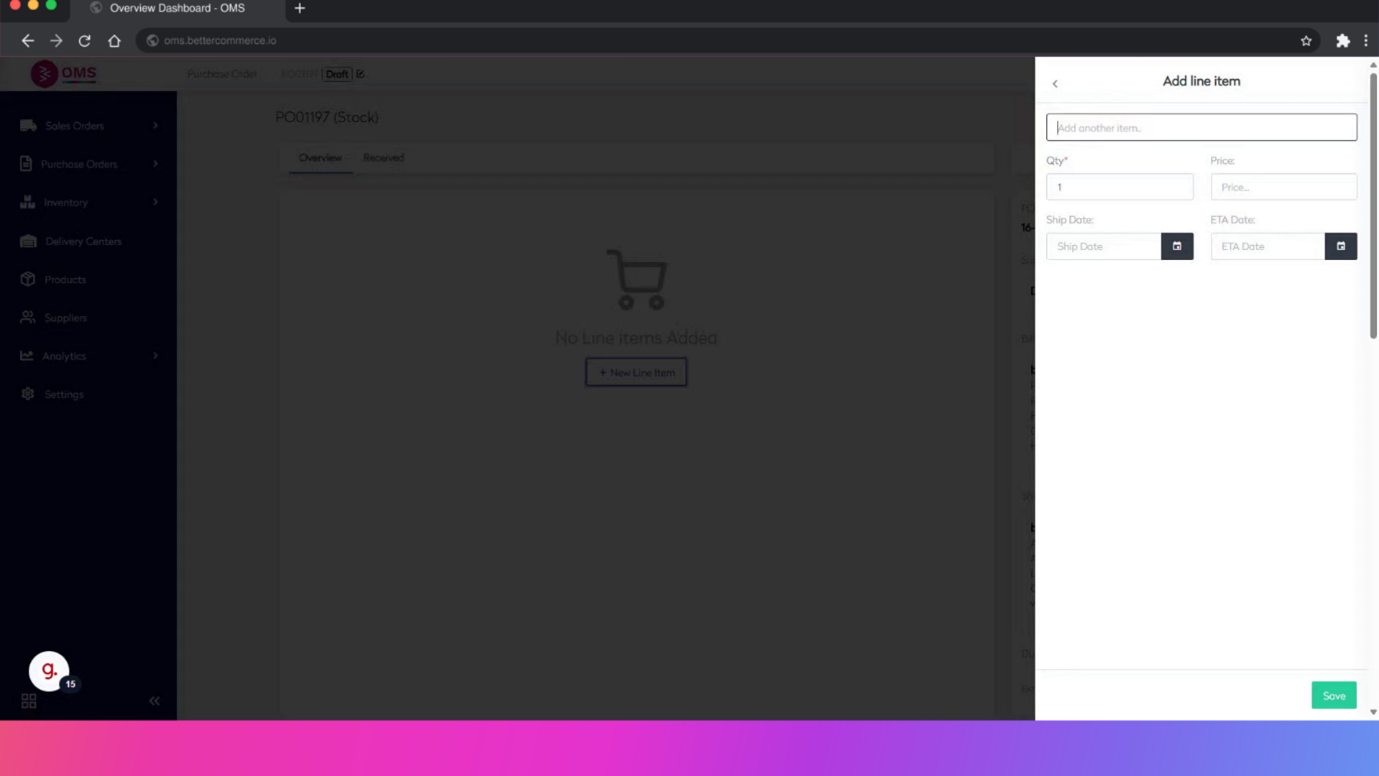
- Select the stockcode
Select the specific item.
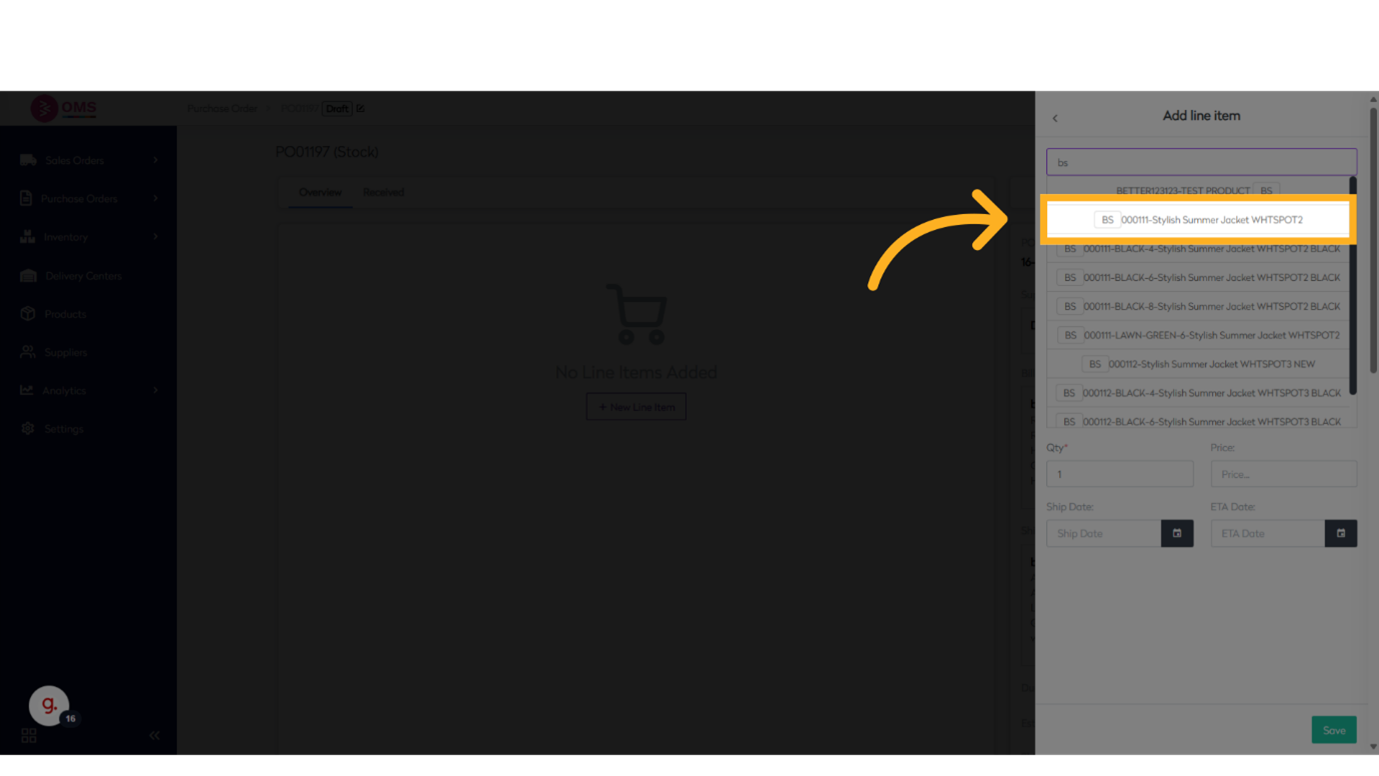
- Click to insert quantity
Insert quantity.
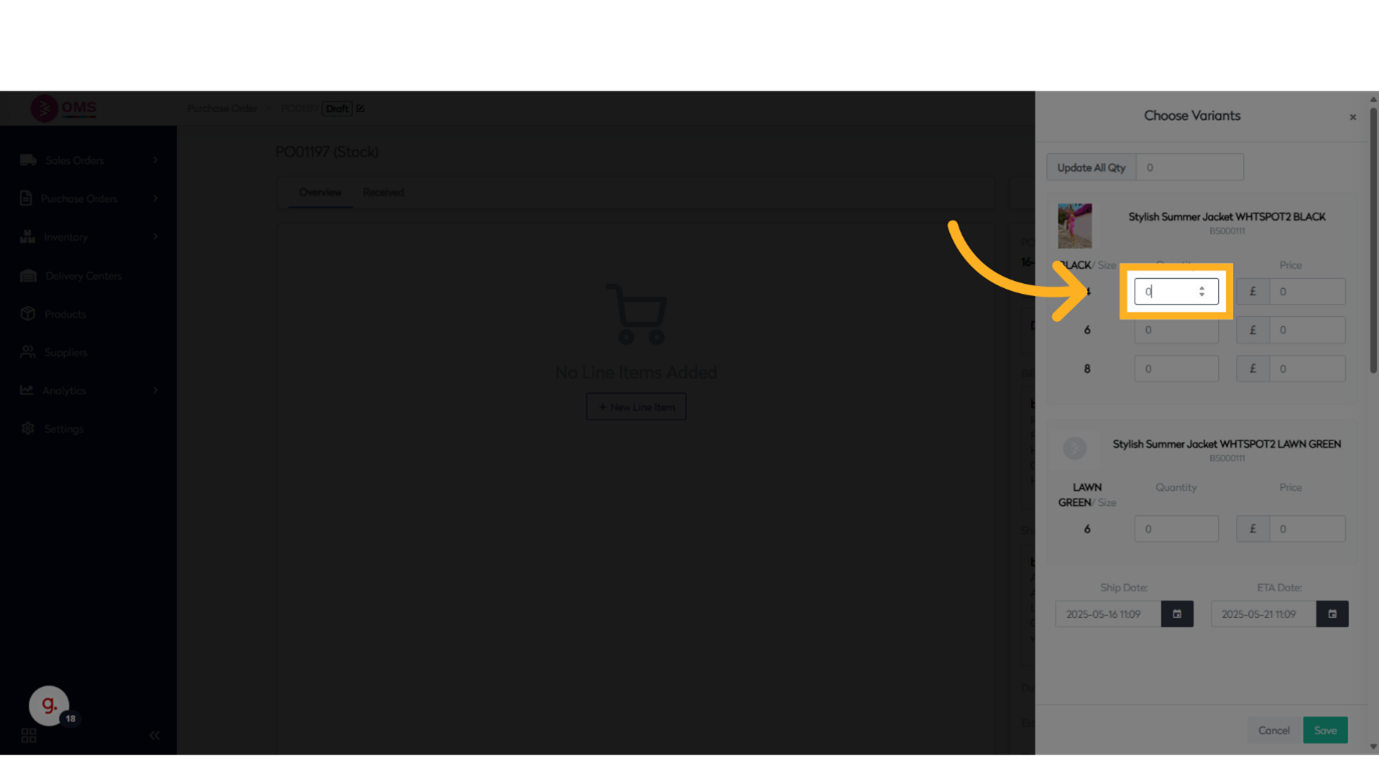
- Enter the price for the item
Input price in the available field
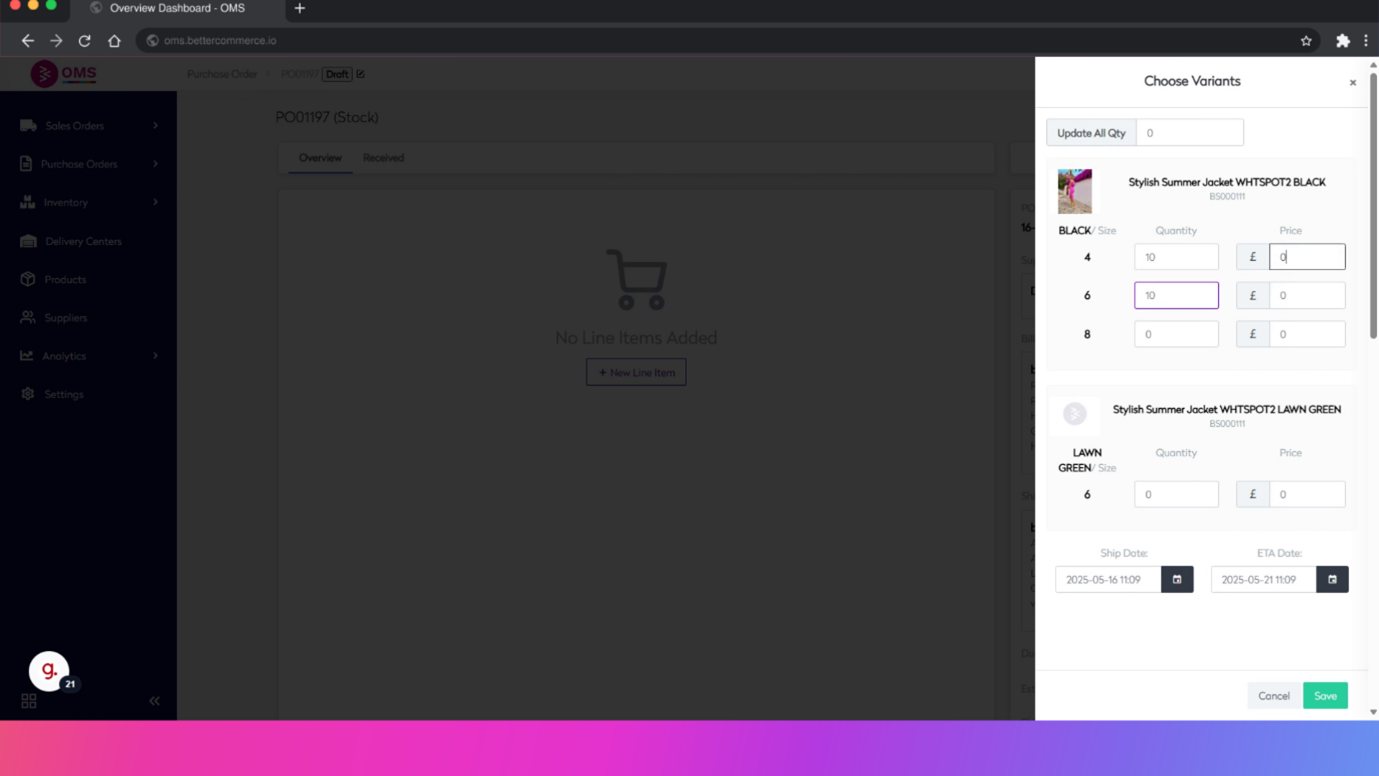
- Click here to enter Ship Date
Enter the Ship Date.
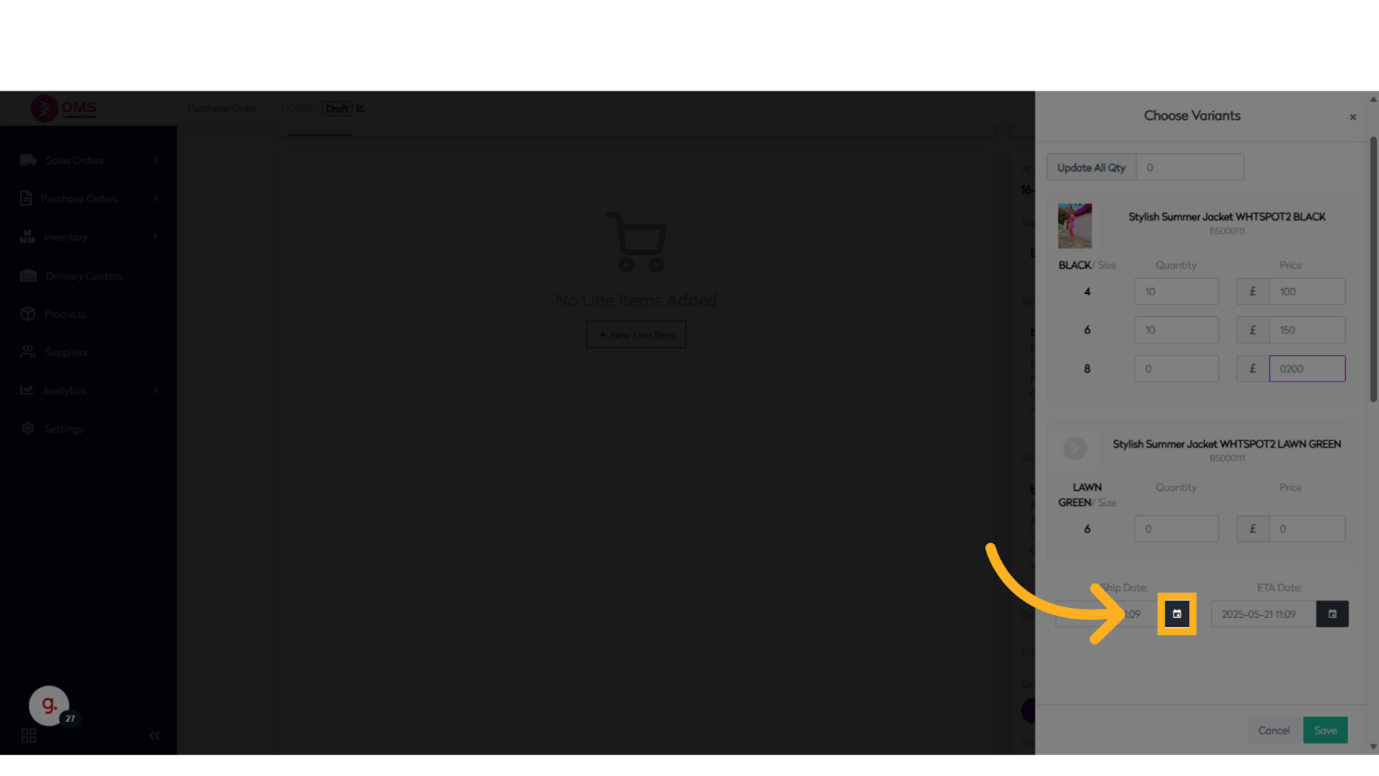
- Click here to enter the Estimated Date
Enter the Estimated Date.
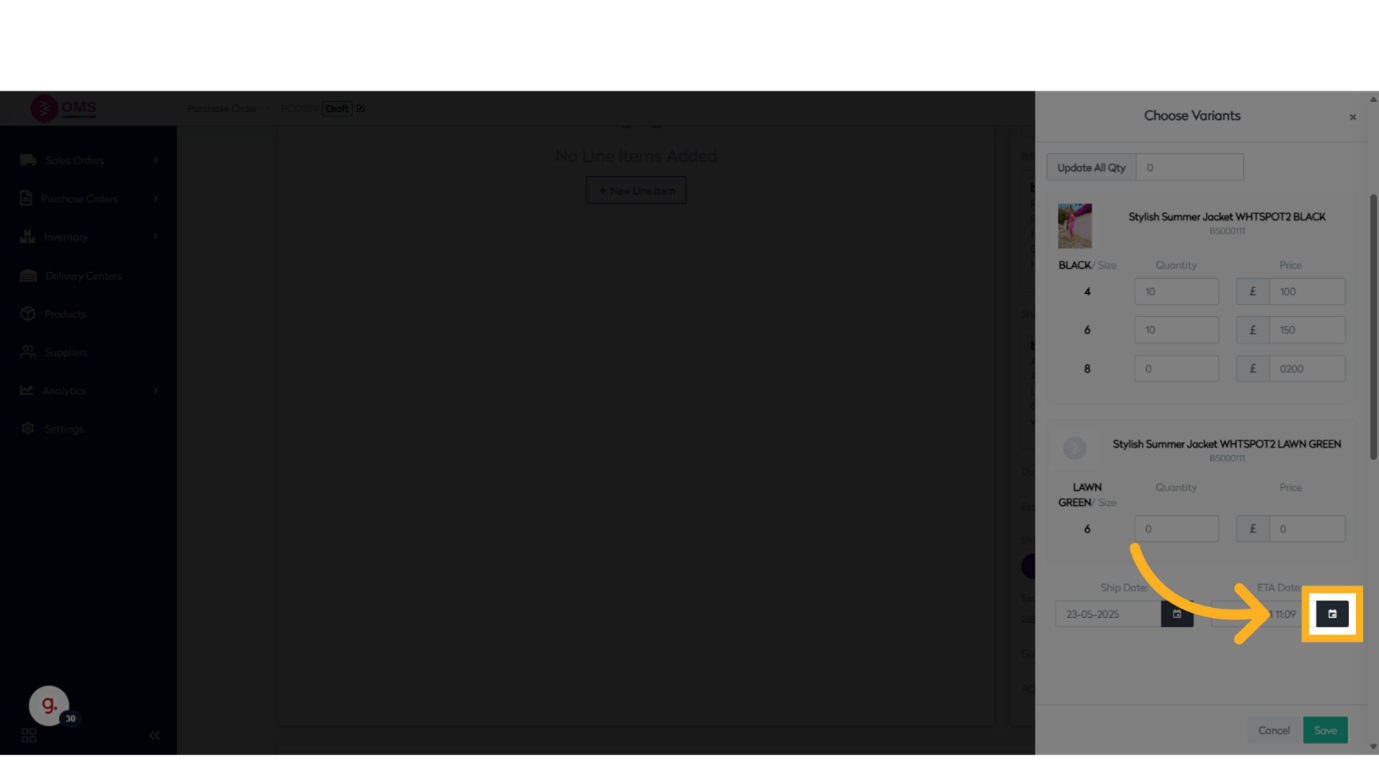
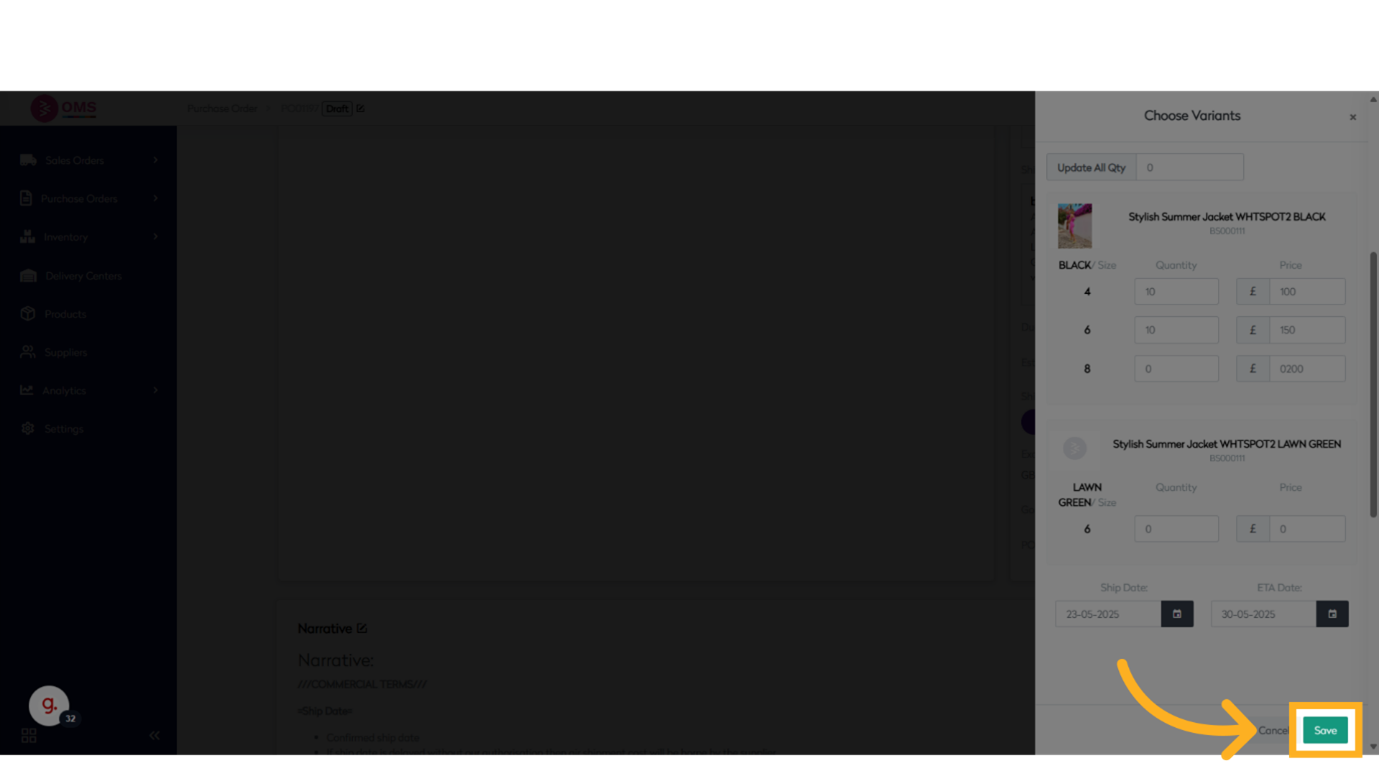
- Click "Save"
Save the changes.
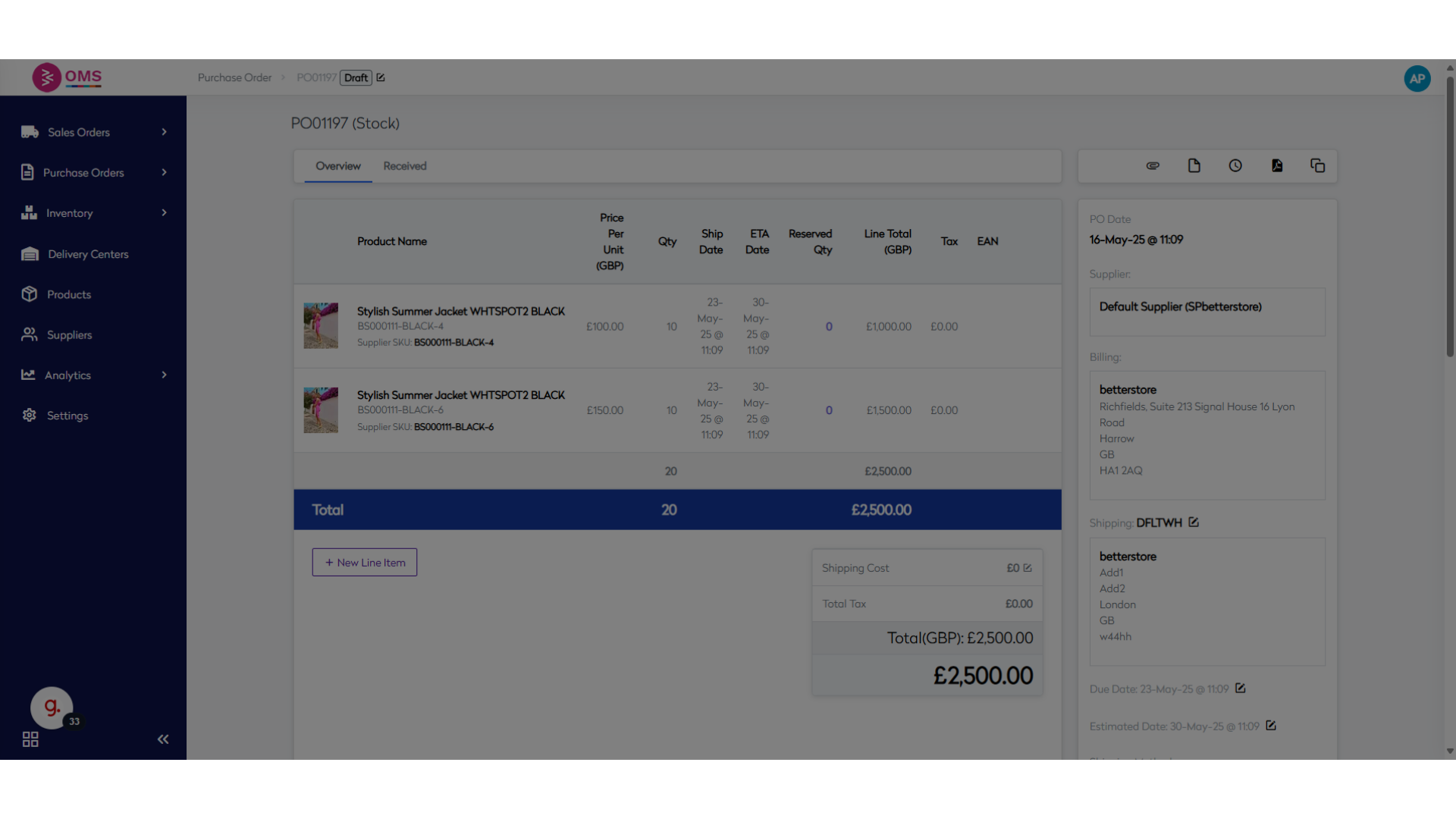
- Check "Purchase Order"
Check the Purchase Order details.
Info
At this stage, the PO is in Draft status and you start populating more information for the PO on the detail screen.
-
Supplier Currency
POs are always created in the supplier’s local currency. On this screen, you can update the Exchange Rate to convert values to GBP. -
Shipping Method
Select the shipping method for the PO: Courier, Air, or Sea. -
Goods Receiving Tolerance
Specify the tolerance levels for goods receiving on the PO. -
Other Details Visible
- Supplier Name
- Billing Address
- Shipping Address
This guide covered the precise steps to create a Purchase Order in Bettercommerce, including selecting items, setting quantities, entering prices, and saving the order. By following these instructions, users can effectively utilize the platform for PO management.