
Assigning a Picker in OMS
Assigning a picker is a crucial step in the order fulfillment process within BetterCommerce OMS. A picker is the warehouse staff responsible for locating and collecting the items required to fulfill an order.
Once a picklist is created, you can assign one or more pickers to handle the picking tasks. This helps streamline operations, ensure accountability, and reduce picking delays.
To assign a picker:
- Navigate to the Sales Orders section.
- Select the desired order or generated picklist.
- Click Assign Picker.
- Choose a picker from the list or enter their email ID.
- Click Save to confirm the assignment.
Steps
-
Click Sales Orders
Navigate to the Sales Orders section to begin managing open orders.
-
Click View
Open the list of sales orders available for picking and packing.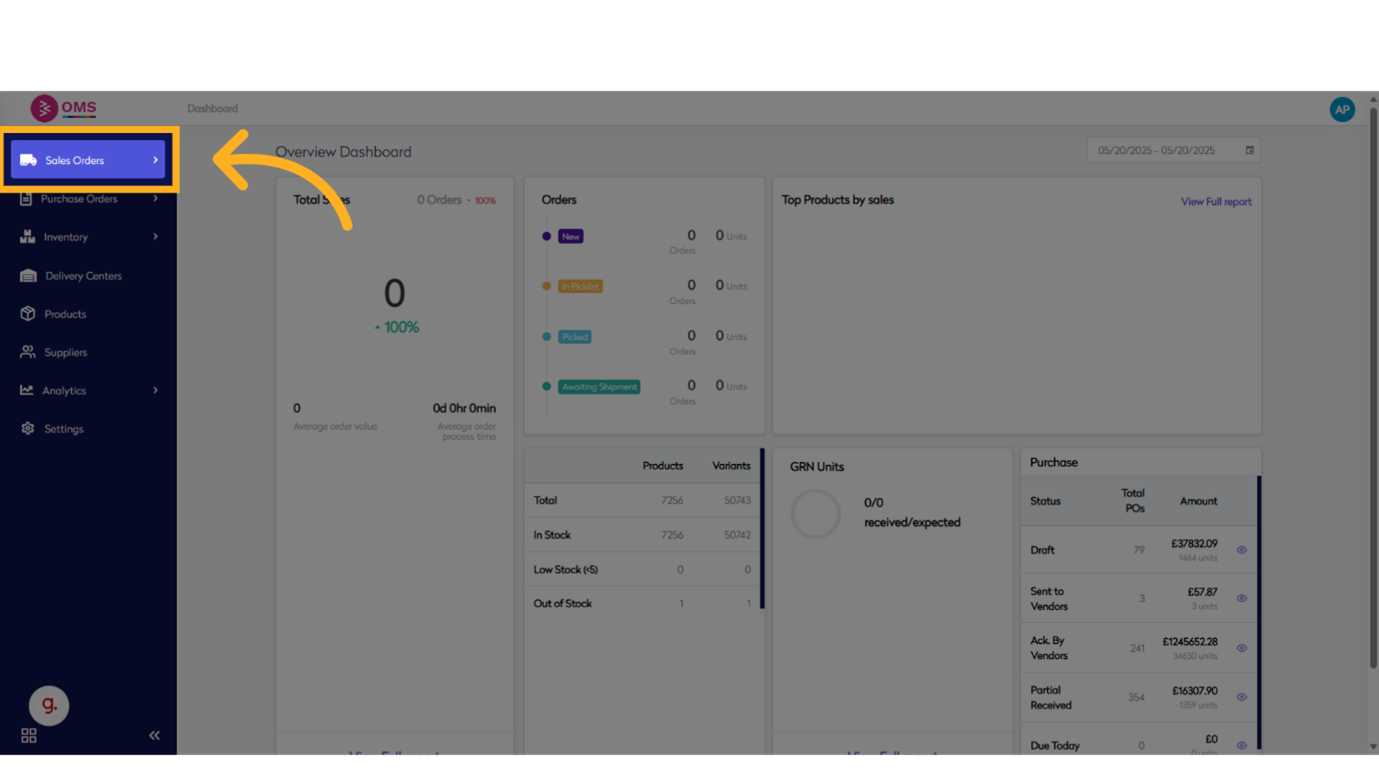
-
Click here
Navigate to the order group or section that contains the relevant orders.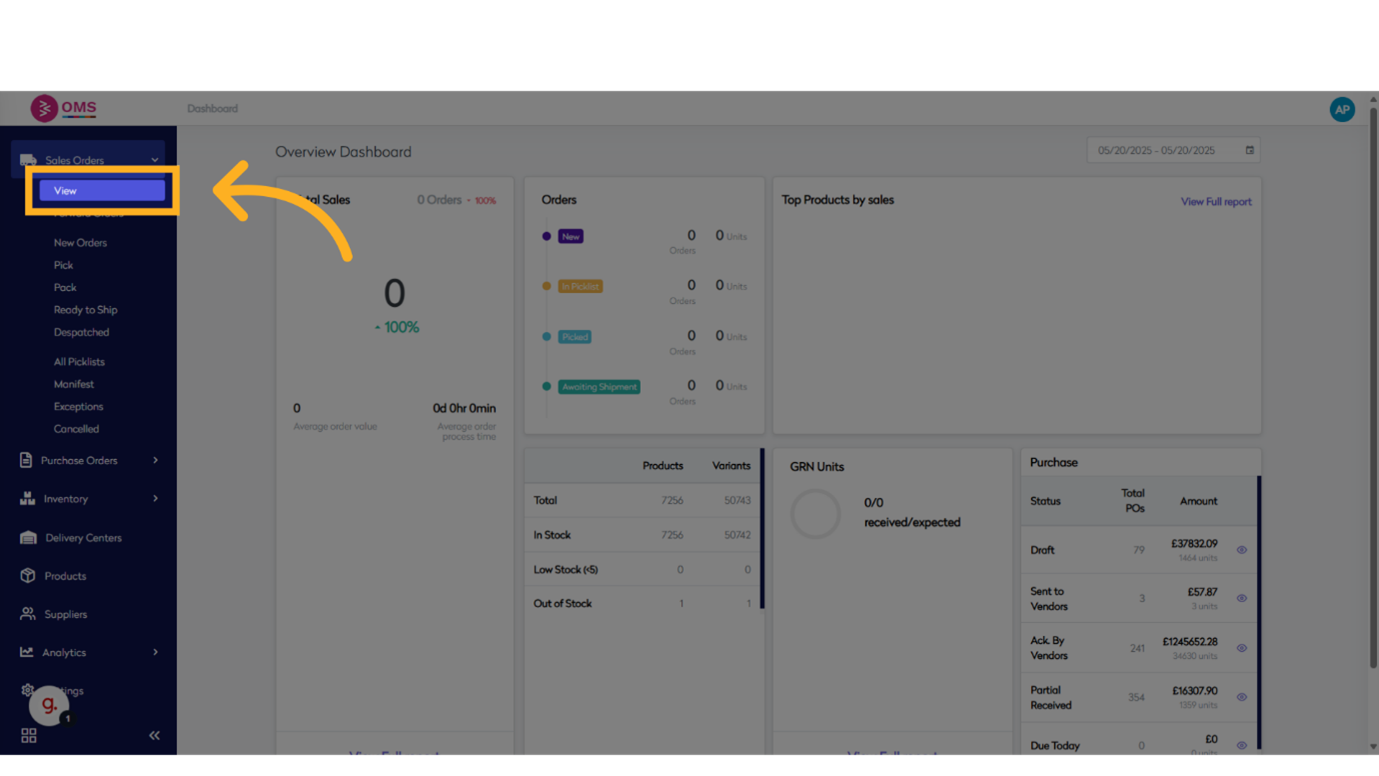
-
Click on Standard (Stock)
Select the "Standard (Stock)" order group to begin processing.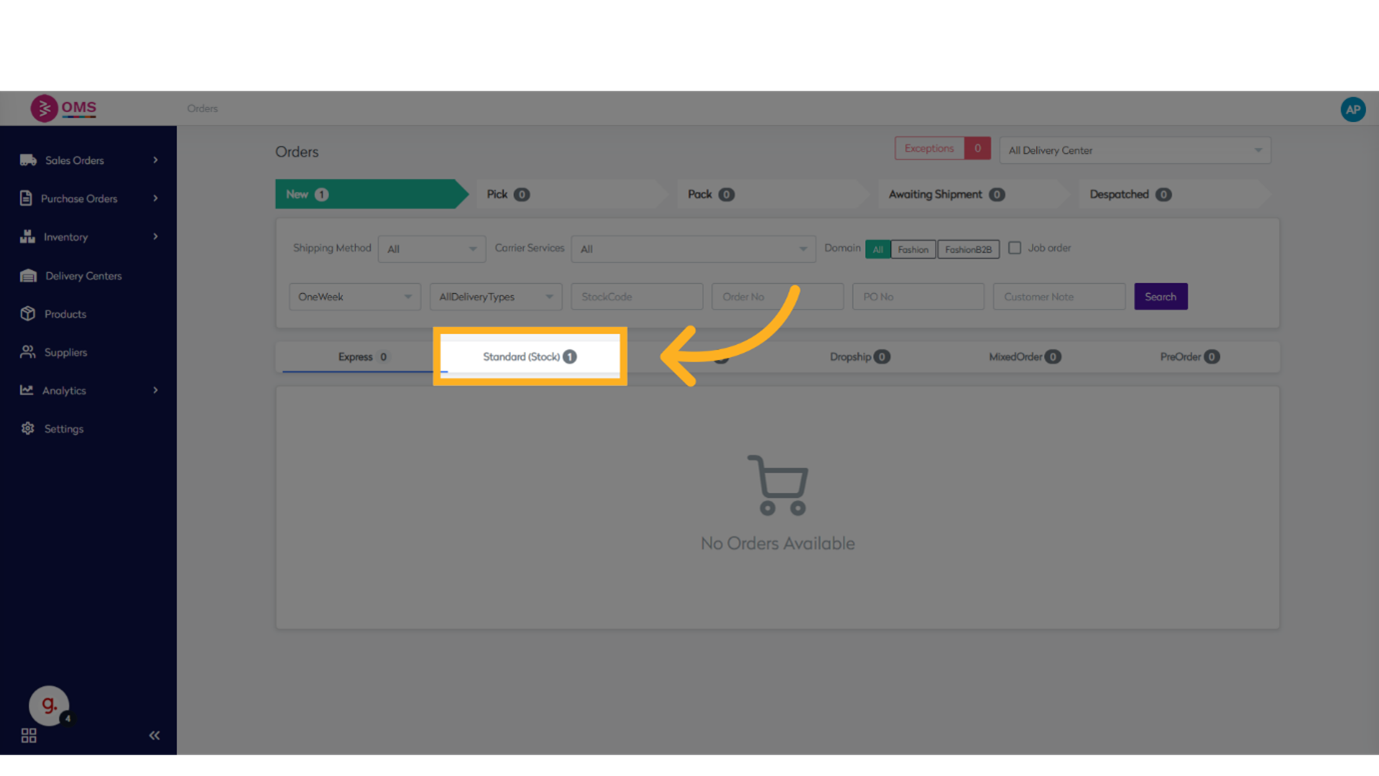
-
Click on check box
Enable the order or toggle a setting to make it selectable.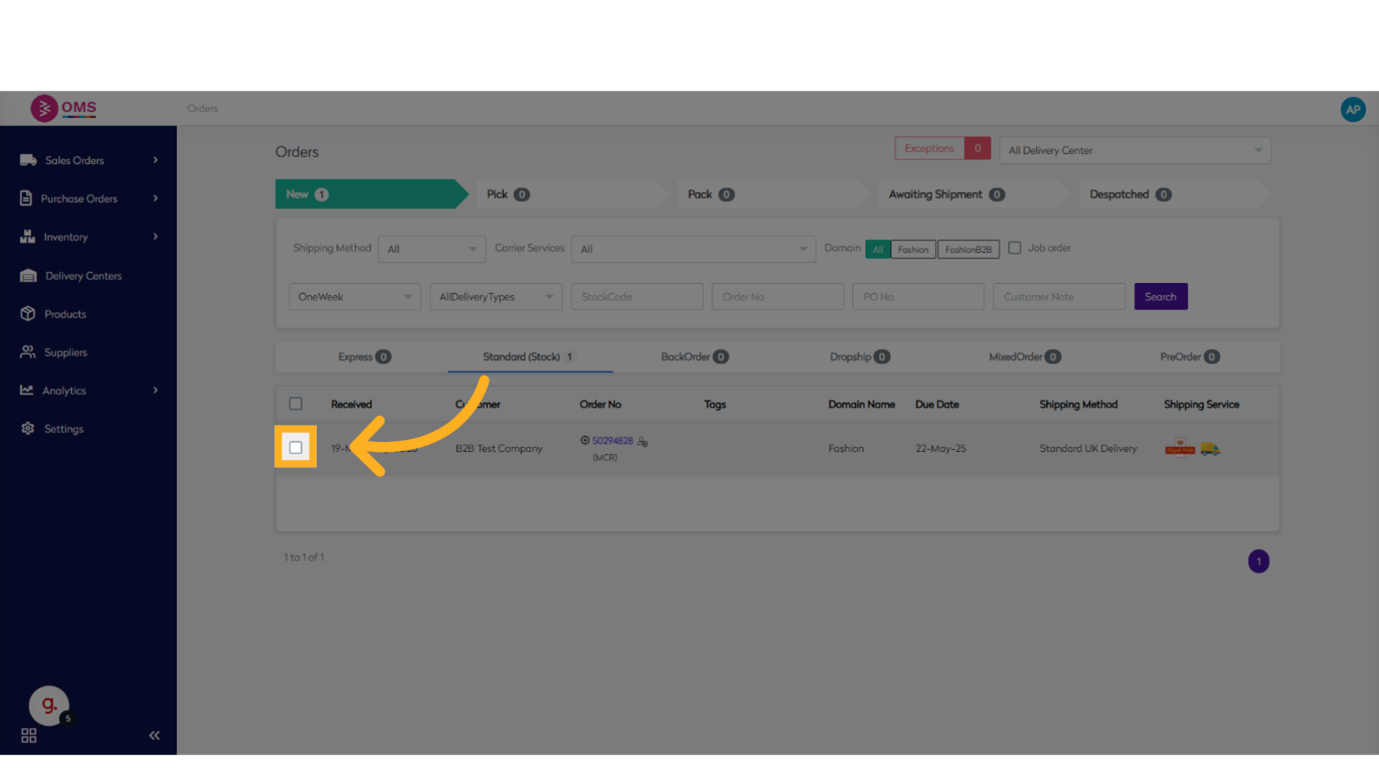
-
Click on Create Picklist
Start the picklist creation process for the selected orders.
-
Click to Select the order
Confirm the toggle or setting is enabled.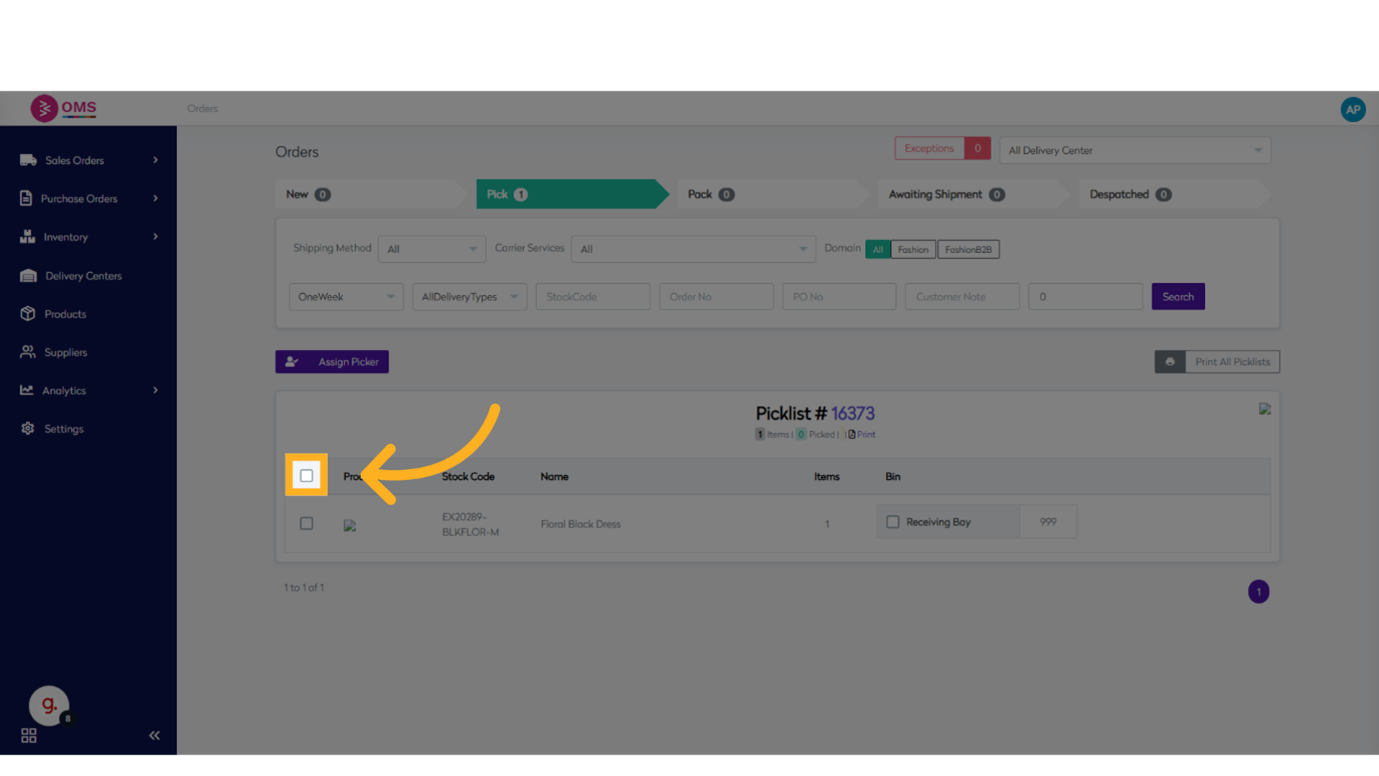
-
Click on Assign Picker
Choose the person or team responsible for picking the order.
-
Click to Select the picker
Select pickers by their email addresses from the list.
-
Click Save
Save the picker assignments to proceed.
The assigned picker can now view and start the pick process under their account. This ensures every order is picked by the right person and tracked effectively through the OMS.
Assigning pickers improves efficiency, reduces errors, and keeps your fulfillment process organized.