
Understanding Stock Allocation in OMS
Stock allocation is a key part of order fulfillment and inventory management. It ensures that available stock is assigned to customer orders in a timely, efficient, and rules-based manner. In BetterCommerce OMS, stock allocation is handled automatically but can be customized and manually triggered as needed.
What Is Stock Allocation?
Stock allocation refers to the process of reserving inventory for a specific sales order. Once an order is placed, the system checks available stock and allocates the required quantity to that order. This prevents the same stock from being promised to multiple customers and helps maintain fulfillment accuracy.
How Stock Allocation Works in OMS
-
Navigate to the Inventory
Go to the Inventory section in OMS to begin the process.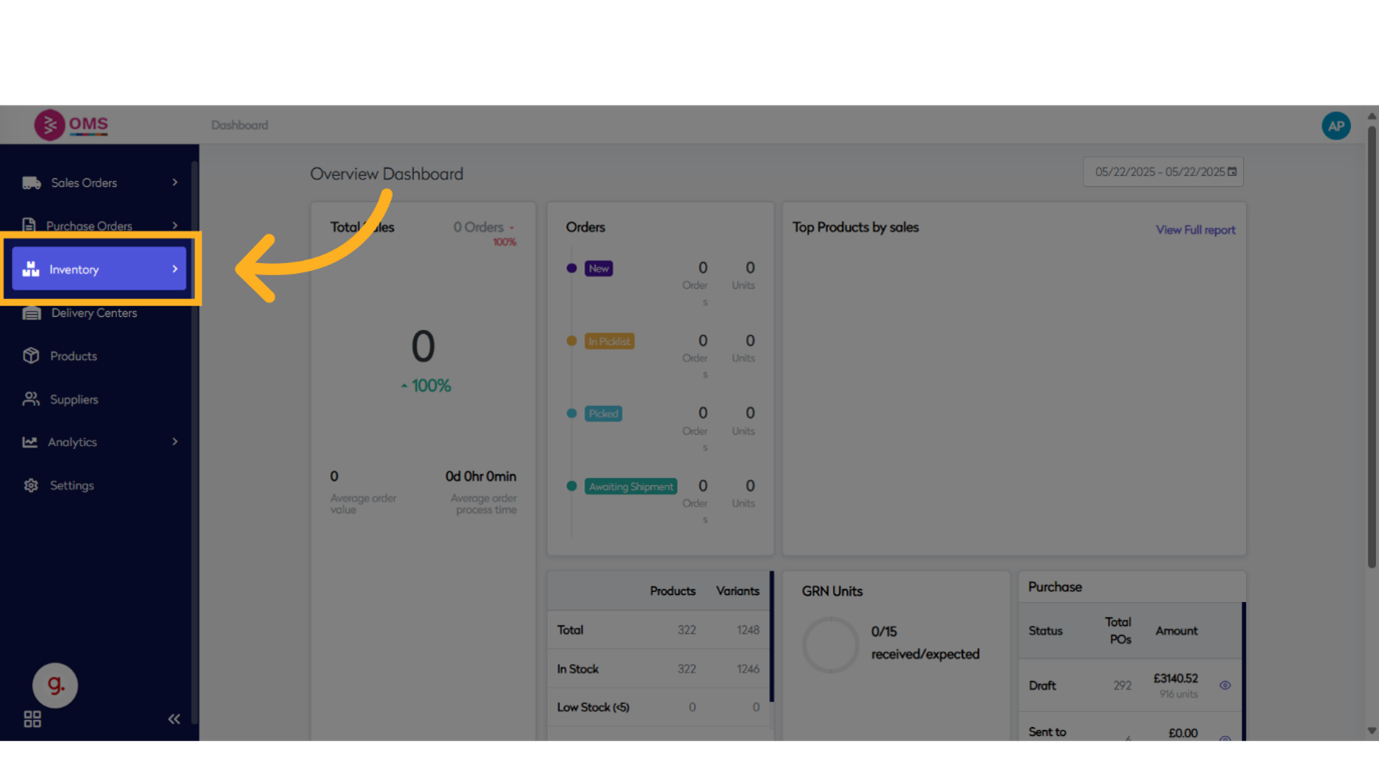
-
Click "Stock Allocation"
Select the Stock Allocation option to initiate a new stock count session.
-
Click "Stock Take"
Confirm the selection again to proceed with launching a new stock take session.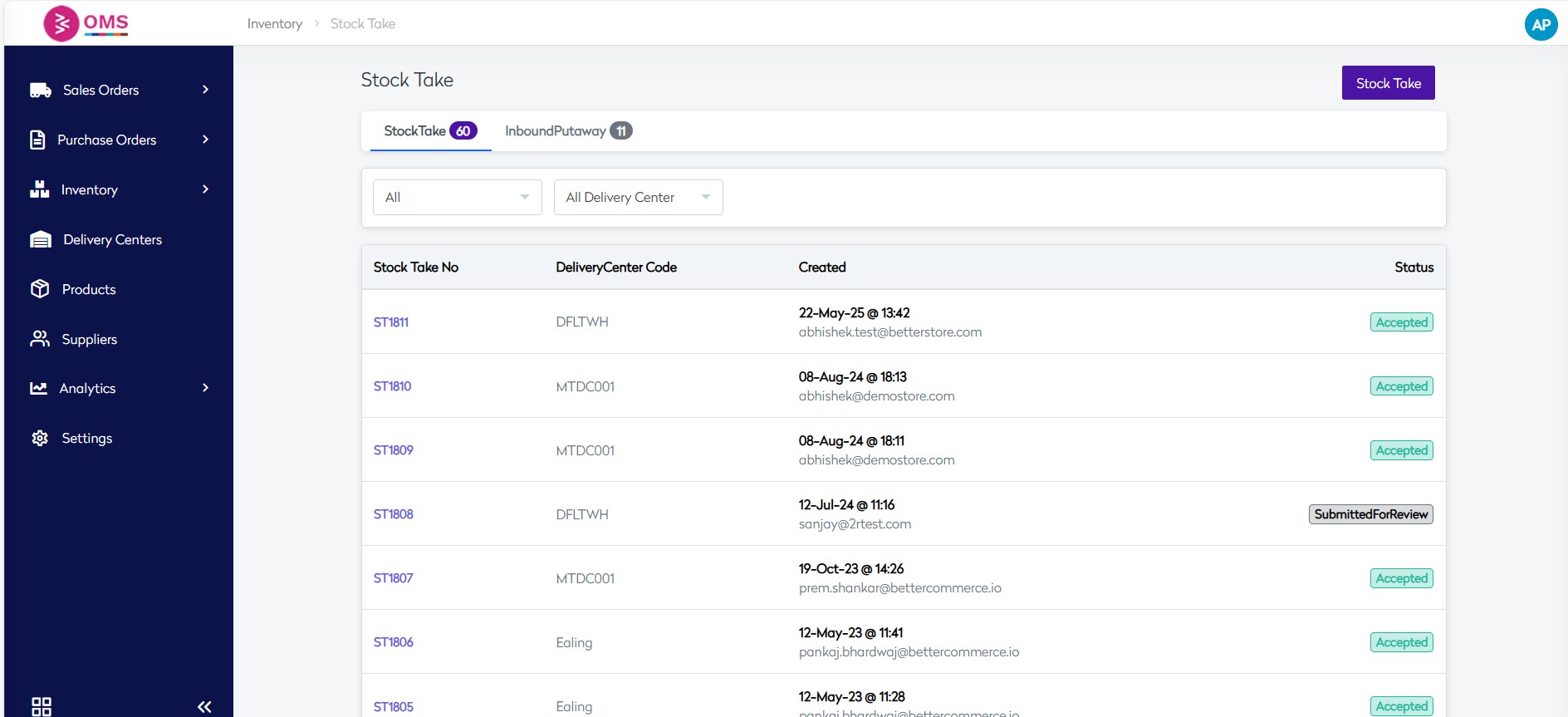
-
Select from the options.
-
All Bins Update
This option resets the count from all existing bins (excluding the ones allocated) and sets the count as per the file uploaded. -
Specific Bin Update
This option does not update any existing allocations. It only updates specific lines as mentioned in the uploaded sheet.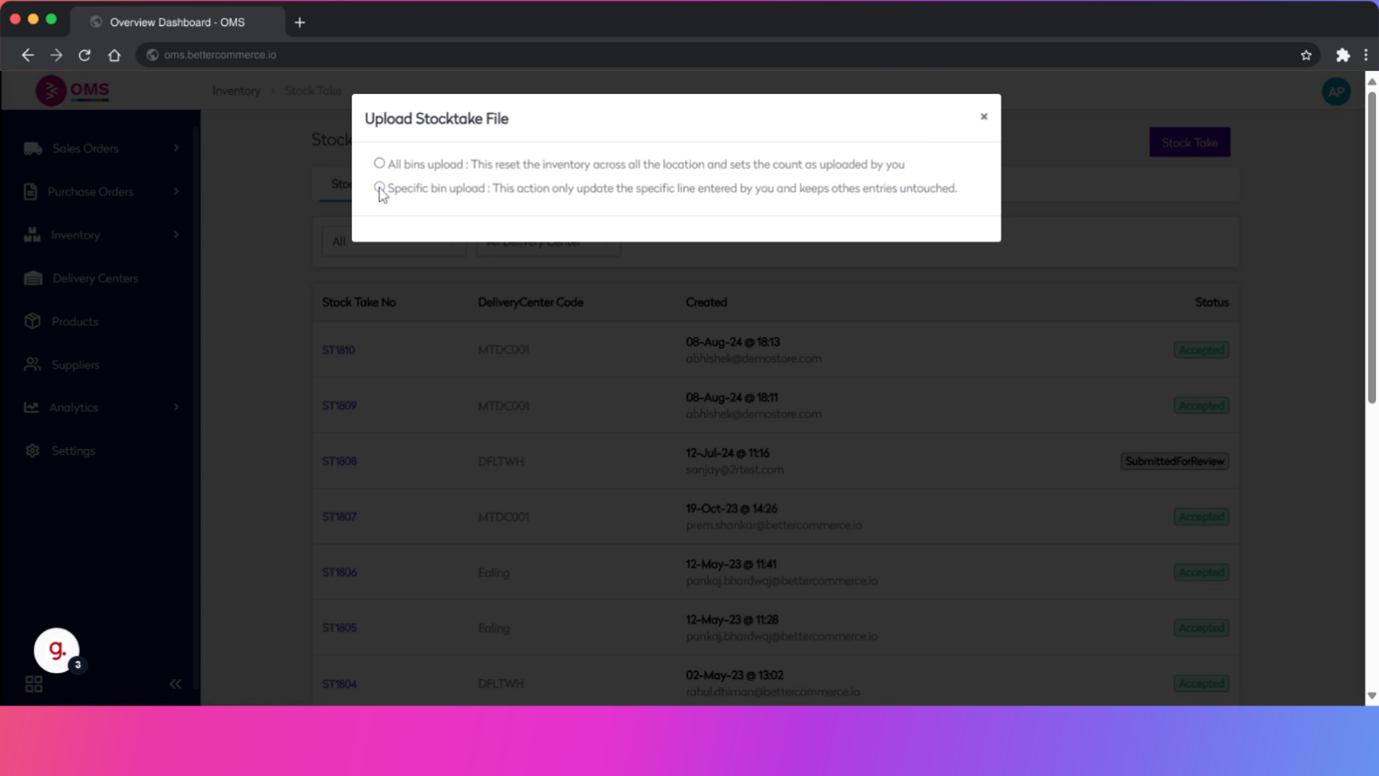
-
Click "Download Excel"
Click the Download Excel button to export the current stock list for physical counting. This spreadsheet will be used to record actual stock levels.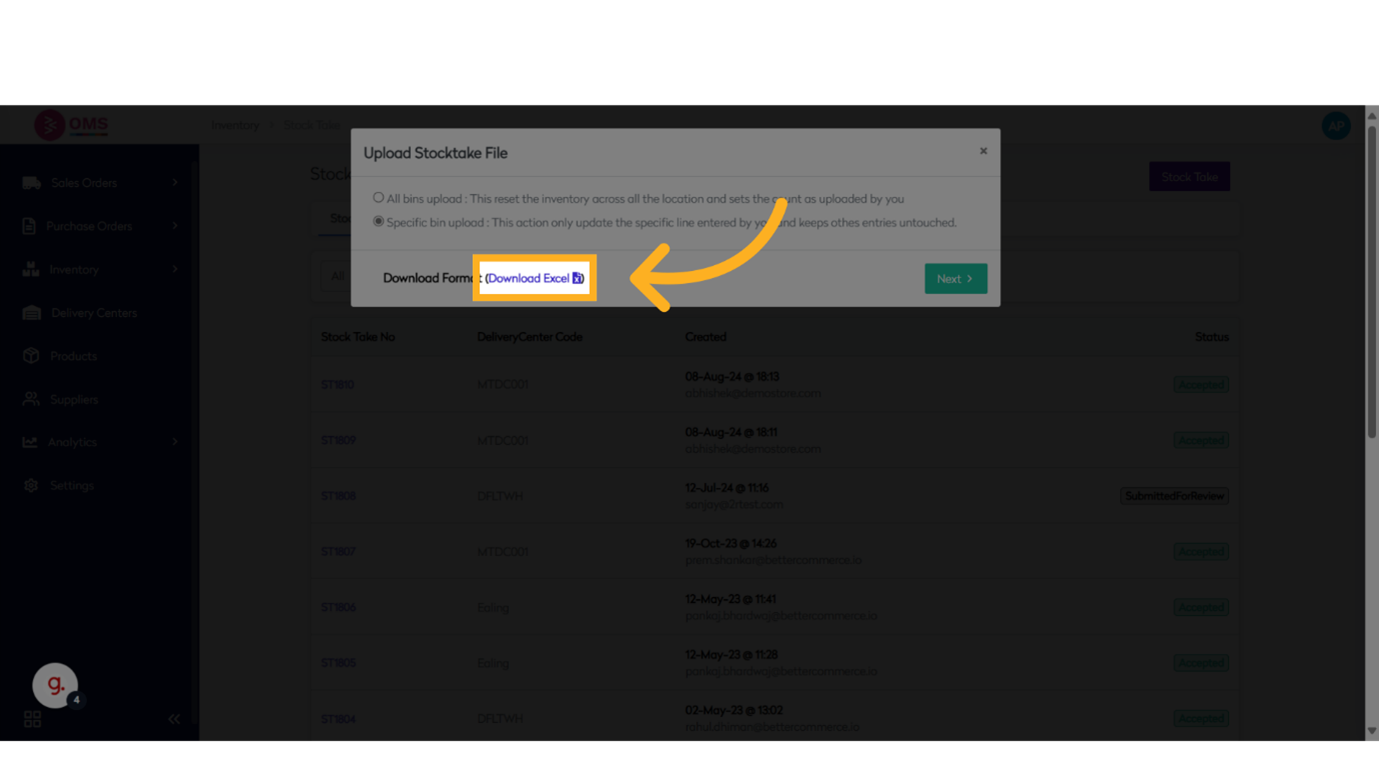
-
Click "Next"
Move to the next stage in the stock take workflow after downloading the Excel file.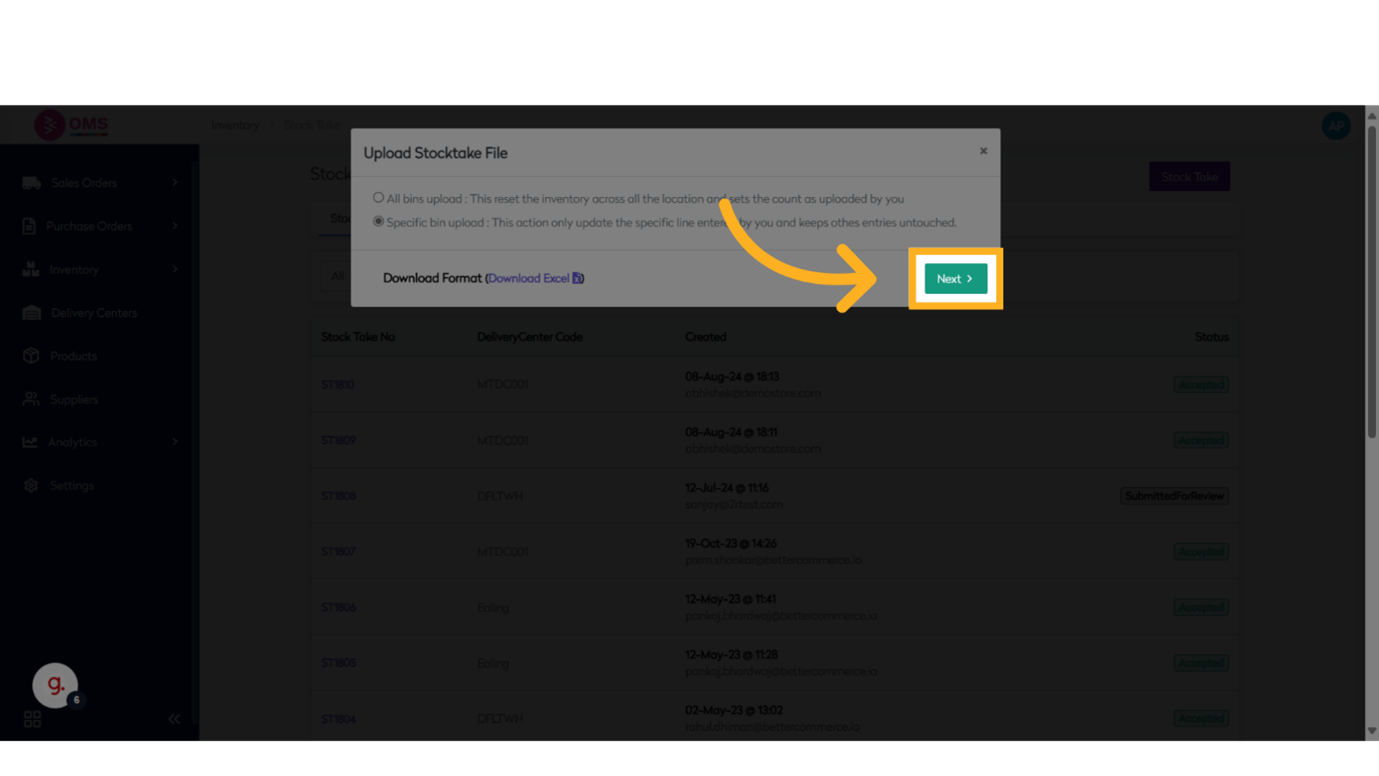
-
Click "Drop files here or click to upload"
Upload the updated Excel sheet containing counted stock data back into the system via Csvbox uploader.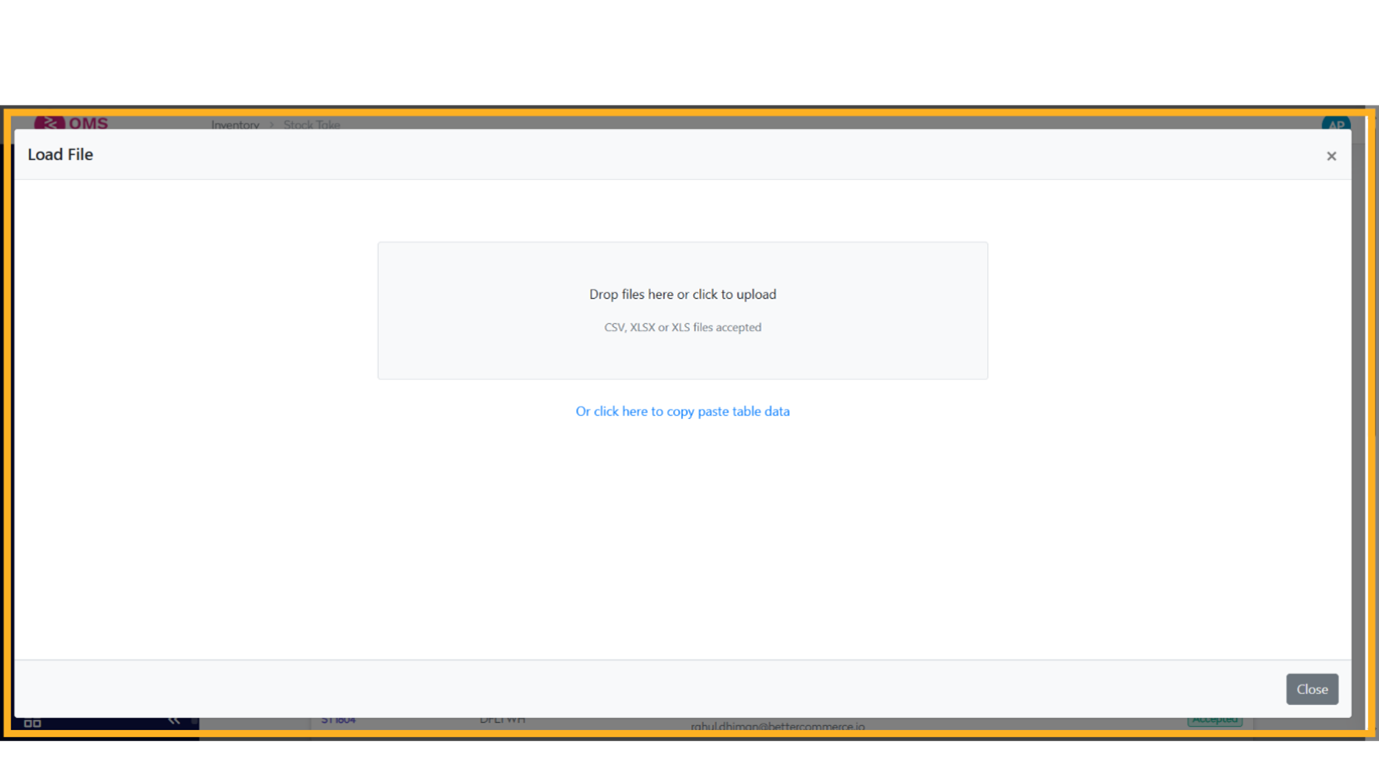
-
Click "Next"
Proceed to the review stage after uploading your file.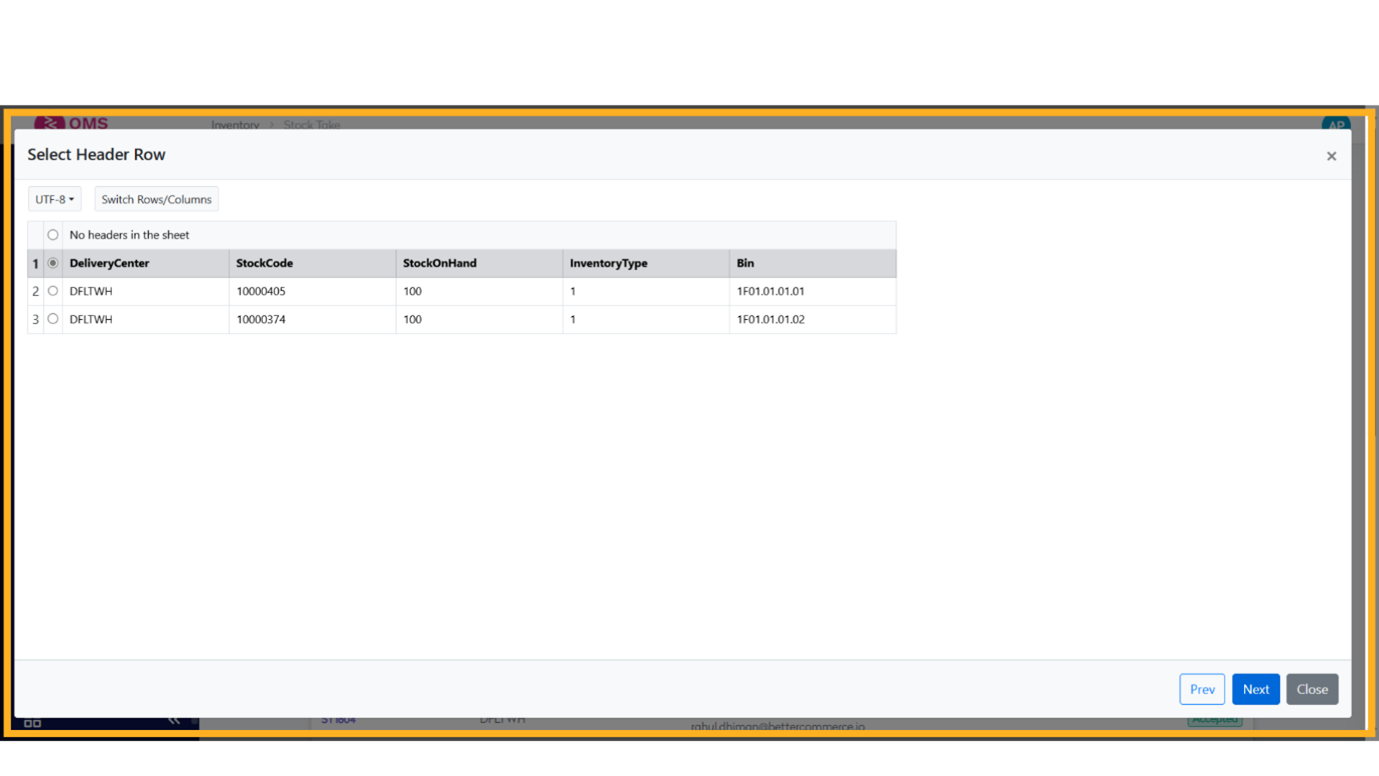
-
Click "Next"
Continue to the data validation or reconciliation step to review changes.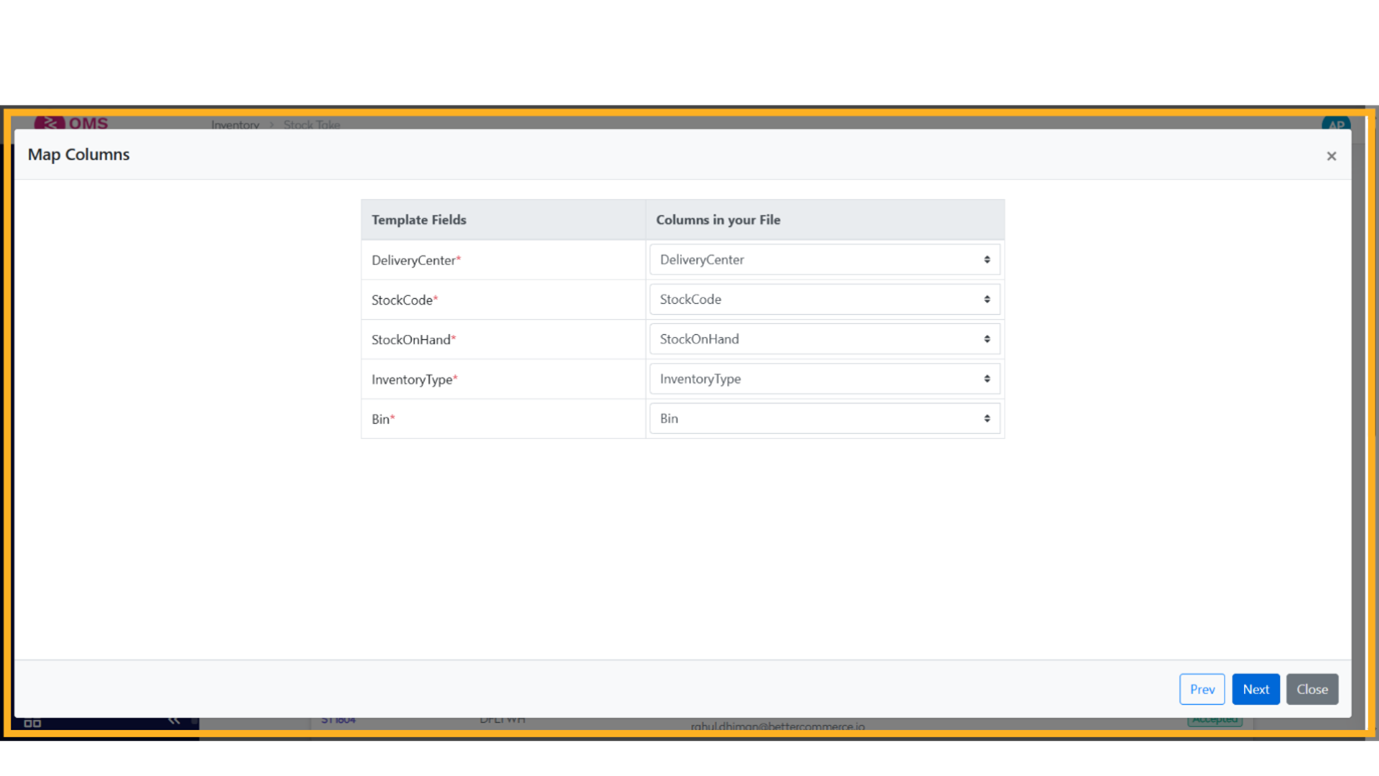
-
Click "Submit"
Finalize the stock take by clicking Submit. This will apply the updated counts and adjust inventory levels accordingly.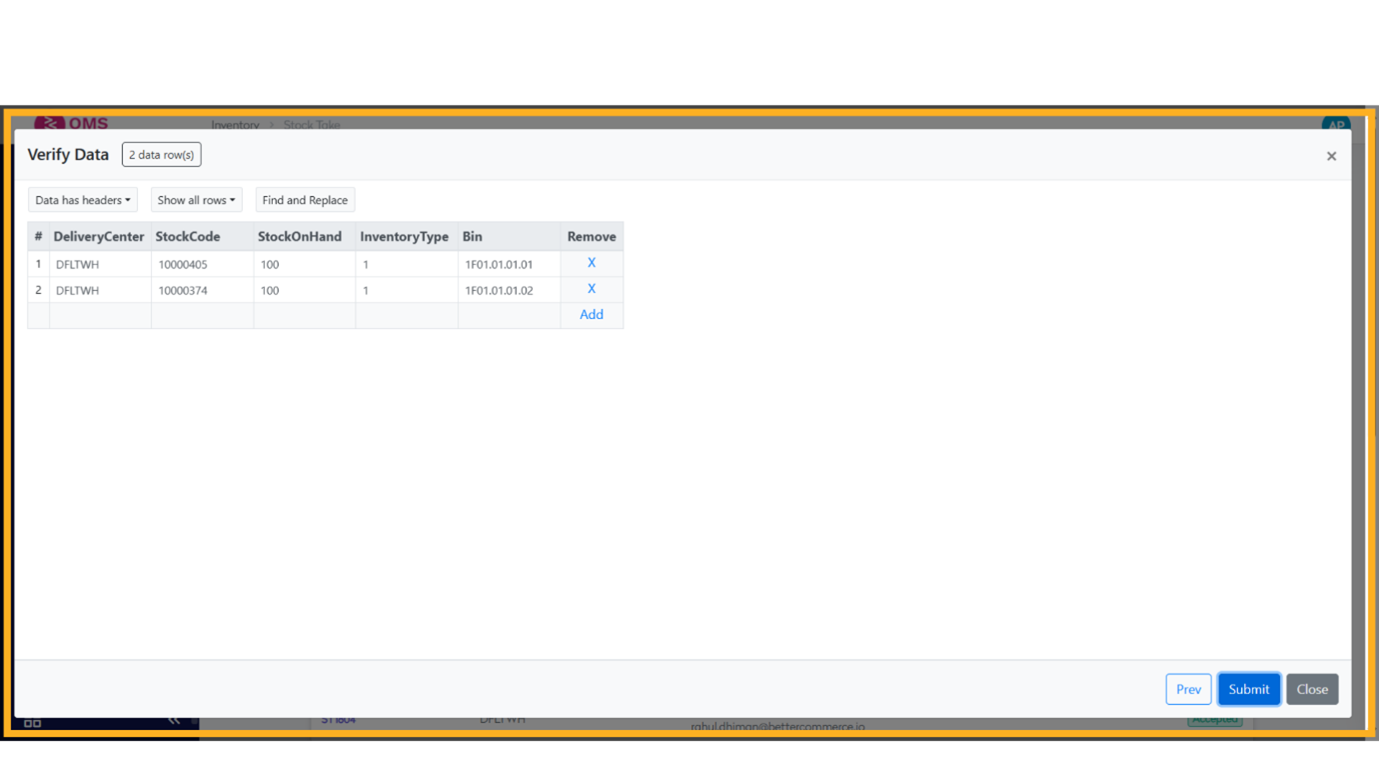
Reallocation Scenarios
Reallocation may be required when:
- Orders are cancelled or modified
- Stock levels are updated (e.g., after a return or GRN)
- A different warehouse is preferred
OMS supports reallocation either automatically or manually via user action.
Best Practices
- Keep inventory levels accurate to ensure correct allocations
- Use allocation rules to control warehouse preferences
- Monitor unallocated orders regularly
- Reallocate cancelled or failed orders to free up stock
- Use reports to analyze stock availability vs demand
Summary
Stock allocation in BetterCommerce OMS helps ensure that the right stock is reserved for the right order at the right time. With automatic allocation, configurable rules, and manual override options, businesses can maintain tight control over inventory usage and improve order fulfillment performance.
Allocate smart, fulfill faster — powered by BetterCommerce OMS.