
Picking Sales Orders in OMS
Efficient picking is a critical step in the order fulfillment process that ensures accuracy, speed, and customer satisfaction. In BetterCommerce OMS, the picking workflow is streamlined to help warehouse teams locate, scan, and prepare items for packing and dispatch with minimal errors.
What Is Picking?
Picking is the process of retrieving products from warehouse storage locations to fulfill customer orders. This step takes place after a sales order has been confirmed and a picklist is generated.
Picking Workflow in OMS
-
Order Review
Navigate to the Sales Orders section and identify orders ready for fulfillment. Orders typically appear under the New status. -
Create Picklist
Select one or more sales orders and click Create Picklist. This generates a structured list of items to be picked, grouped by warehouse location for efficiency. -
Assign Picker
Assign the picklist to a team member or picker using their email ID. The assigned picker will be responsible for executing the pick tasks. -
Start Picking
The picker opens the assigned picklist and begins locating items in the warehouse using:- Stock codes
- Bin locations
- Quantities to pick
-
Update Picking Status
As each item is picked, the picker confirms the quantity in the system. This can be done manually or by scanning product barcodes for greater accuracy. -
Partial Picks
If full quantities are not available, OMS allows partial picking. The remaining quantity stays in the pending state until restocked. -
Pick Confirmation
Once all available items are picked, the picker confirms the picklist. The order status is updated to Picked, and the order moves to the packing stage.
Steps
-
Click Sales Orders
Navigate to the Sales Orders section to begin managing open orders.
-
Click View
Open the list of sales orders available for picking and packing.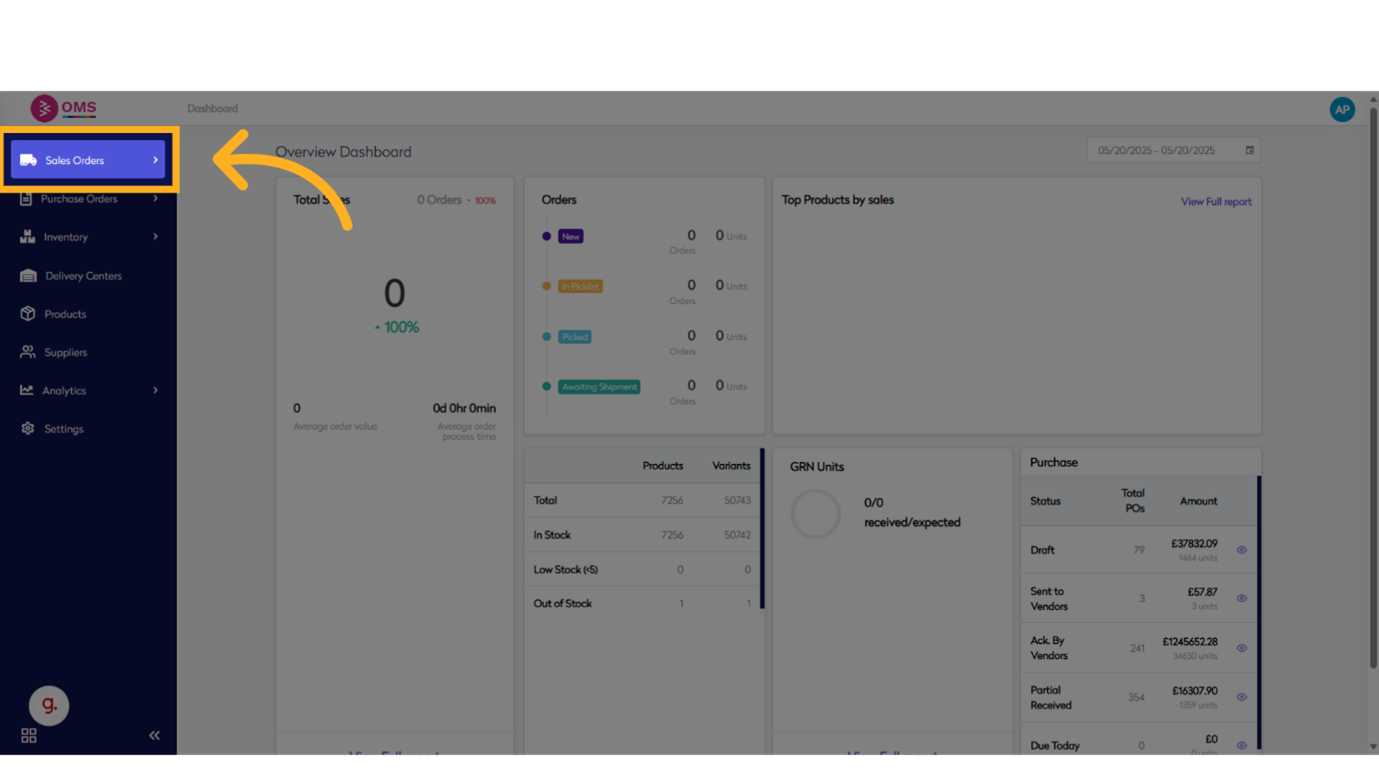
-
Click here
Navigate to the order group or section that contains the relevant orders.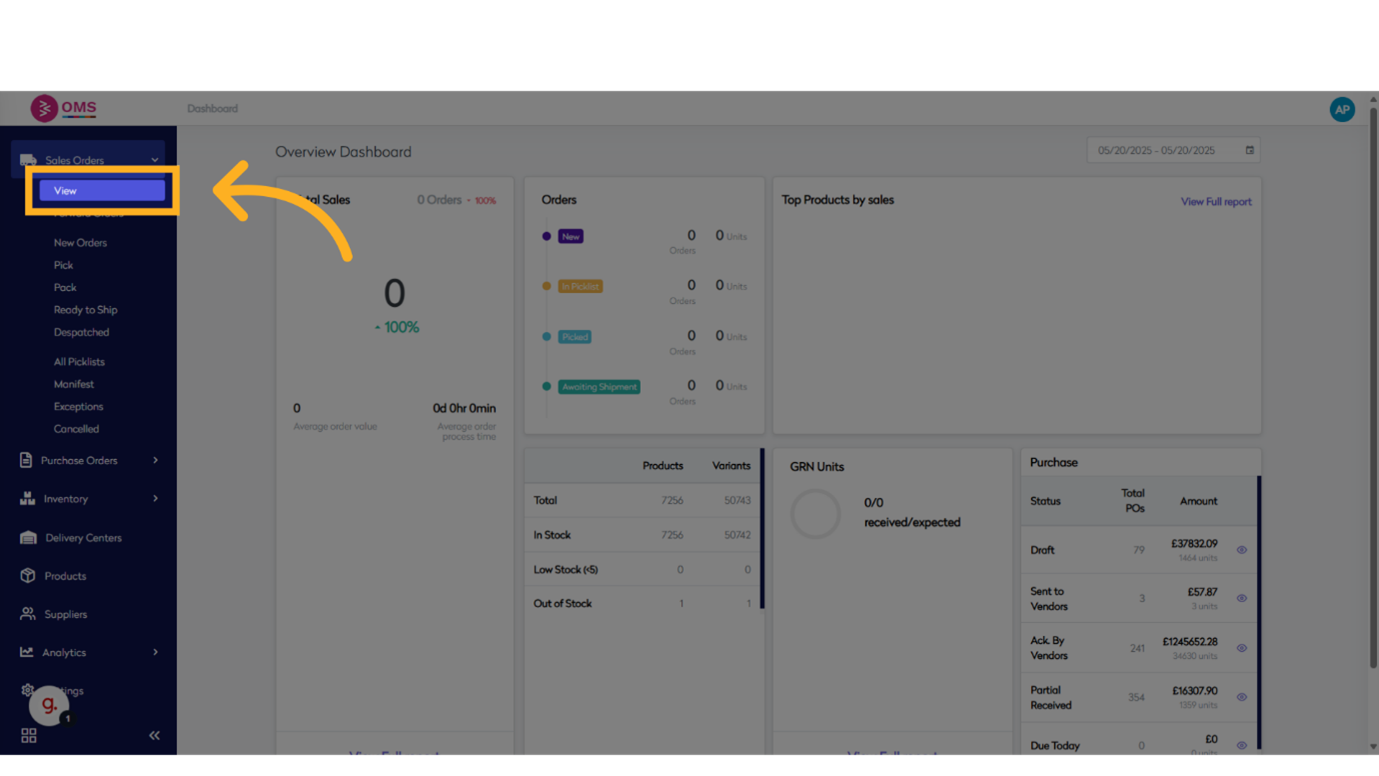
-
Click on Standard (Stock)
Select the "Standard (Stock)" order group to begin processing.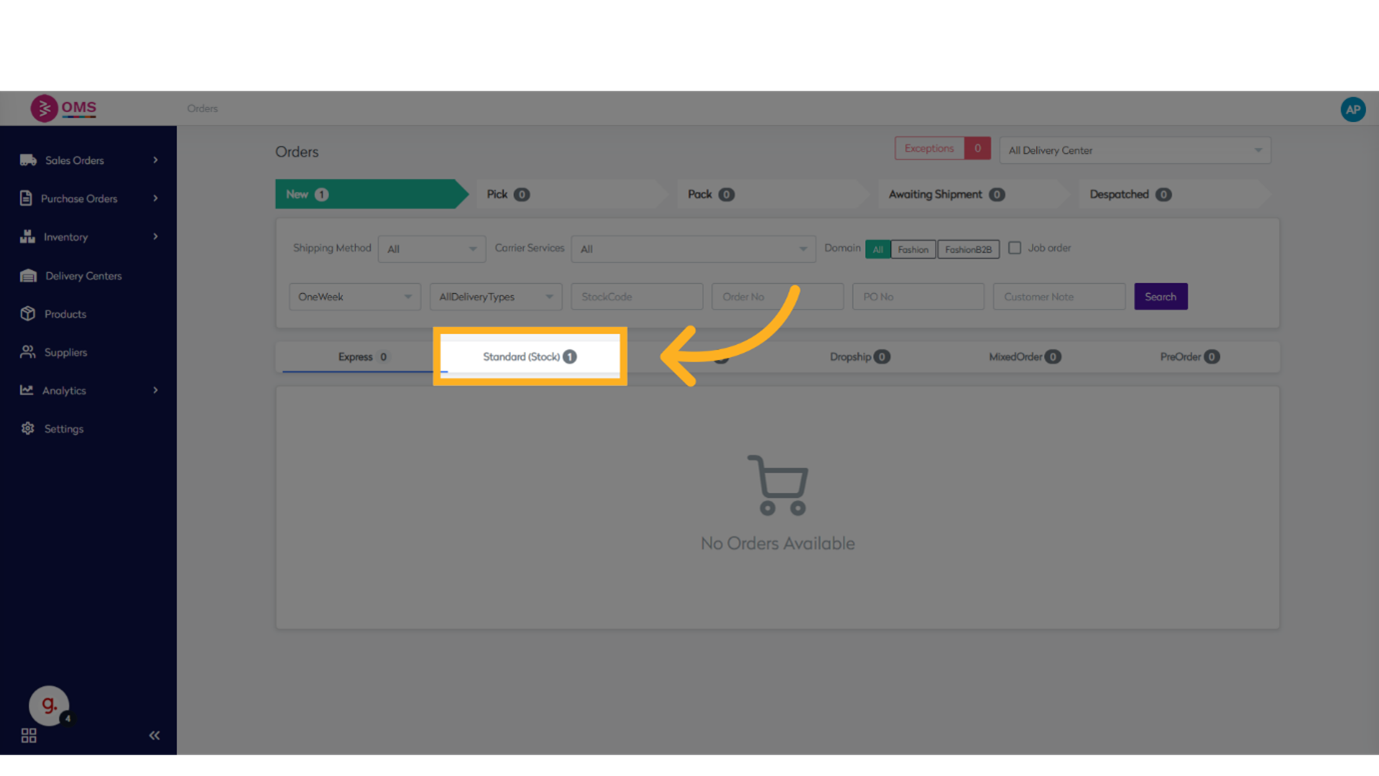
-
Click on check box
Enable the order or toggle a setting to make it selectable.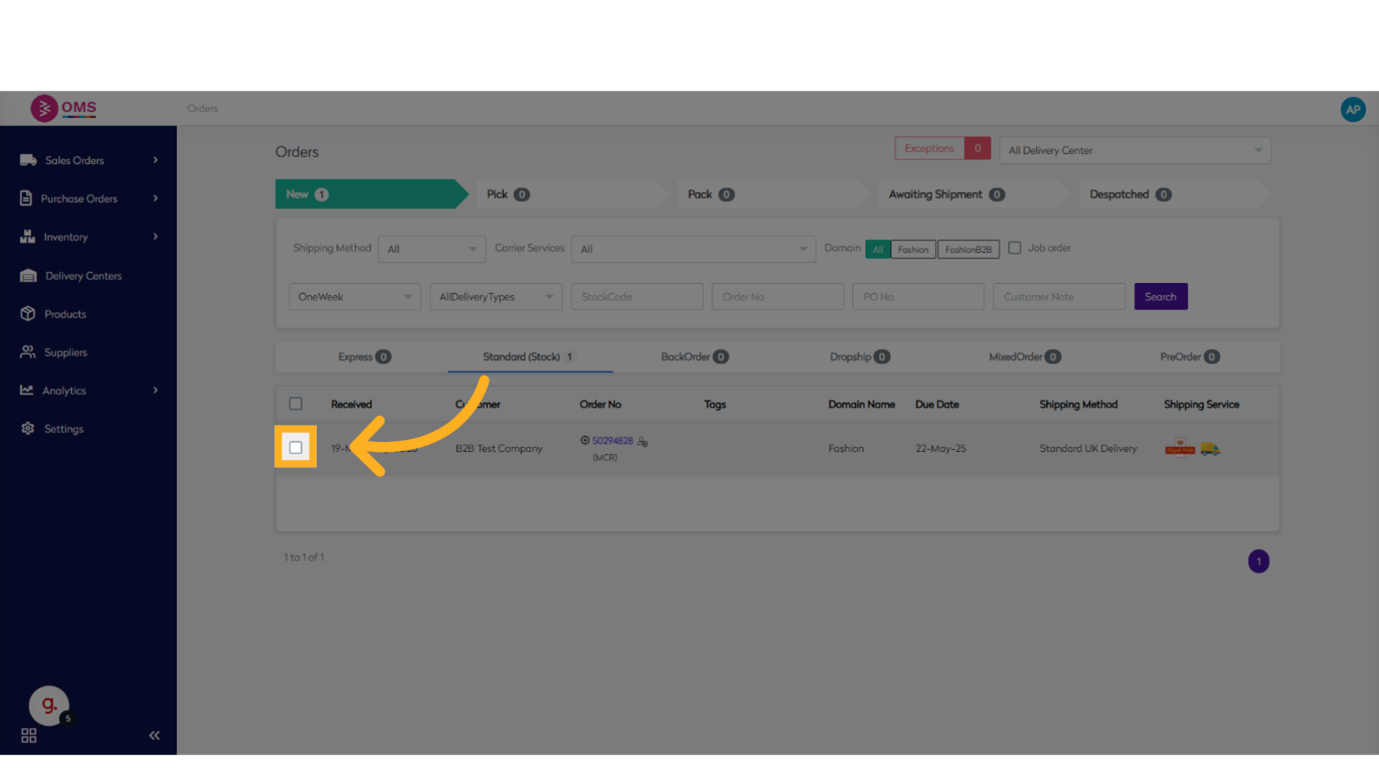
-
Click on Create Picklist
Start the picklist creation process for the selected orders.
-
Click to Select the order
Confirm the toggle or setting is enabled.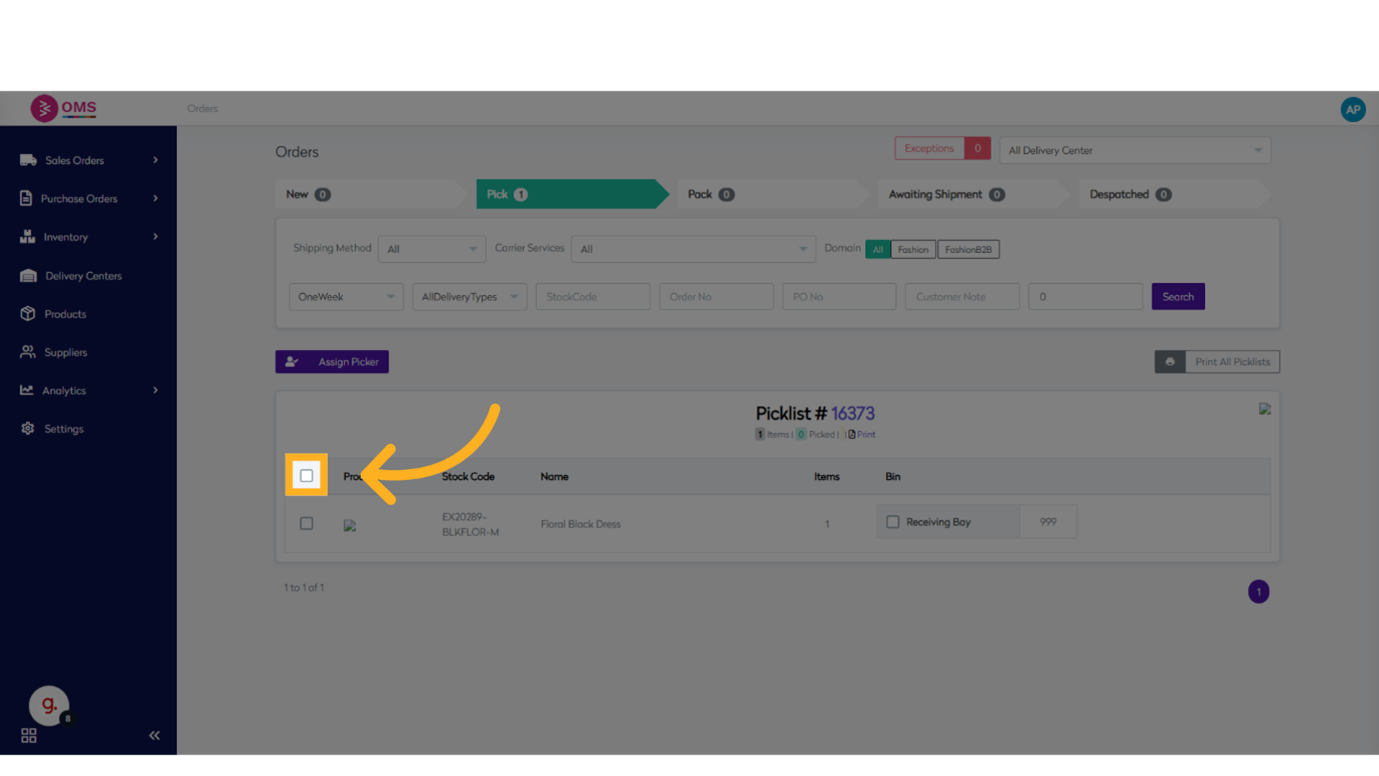
-
Click on Assign Picker
Choose the person or team responsible for picking the order.
-
Click to Select the picker
Select pickers by their email addresses from the list.
-
Click Save
Save the picker assignments to proceed.
-
Click Pick
Begin the picking process for the assigned orders.
Benefits of Streamlined Picking
- Reduces shipping delays
- Minimizes picking errors and returns
- Increases warehouse productivity
- Ensures accurate inventory tracking
- Enhances customer satisfaction
Final Thoughts
Picking may seem like a routine task, but it plays a pivotal role in ensuring the right products reach the right customers on time. With BetterCommerce OMS, businesses can automate and optimize the picking process to support scalable, high-performance order fulfillment operations.
Fast, accurate, and efficient—OMS makes sales order picking seamless.