
Managing Stock Requests in OMS
Stock requests are an essential part of inventory management that allow teams to request stock movement between warehouses or delivery centers. Whether you’re restocking a low-inventory location or preparing for an upcoming sales event, the Stock Request feature in BetterCommerce OMS helps you plan and fulfill internal stock needs with efficiency and visibility.
What Is a Stock Request?
A stock request is a formal request raised by a delivery center or warehouse to move inventory from another location. It typically involves:
- Identifying a product shortage
- Requesting a specific quantity
- Getting internal approval
- Converting the request into a stock transfer
- Fulfilling and receiving the requested stock
How to Create and Manage Stock Requests in OMS
-
Click "Inventory"
Go to the Inventory section from the main menu to begin creating a stock request.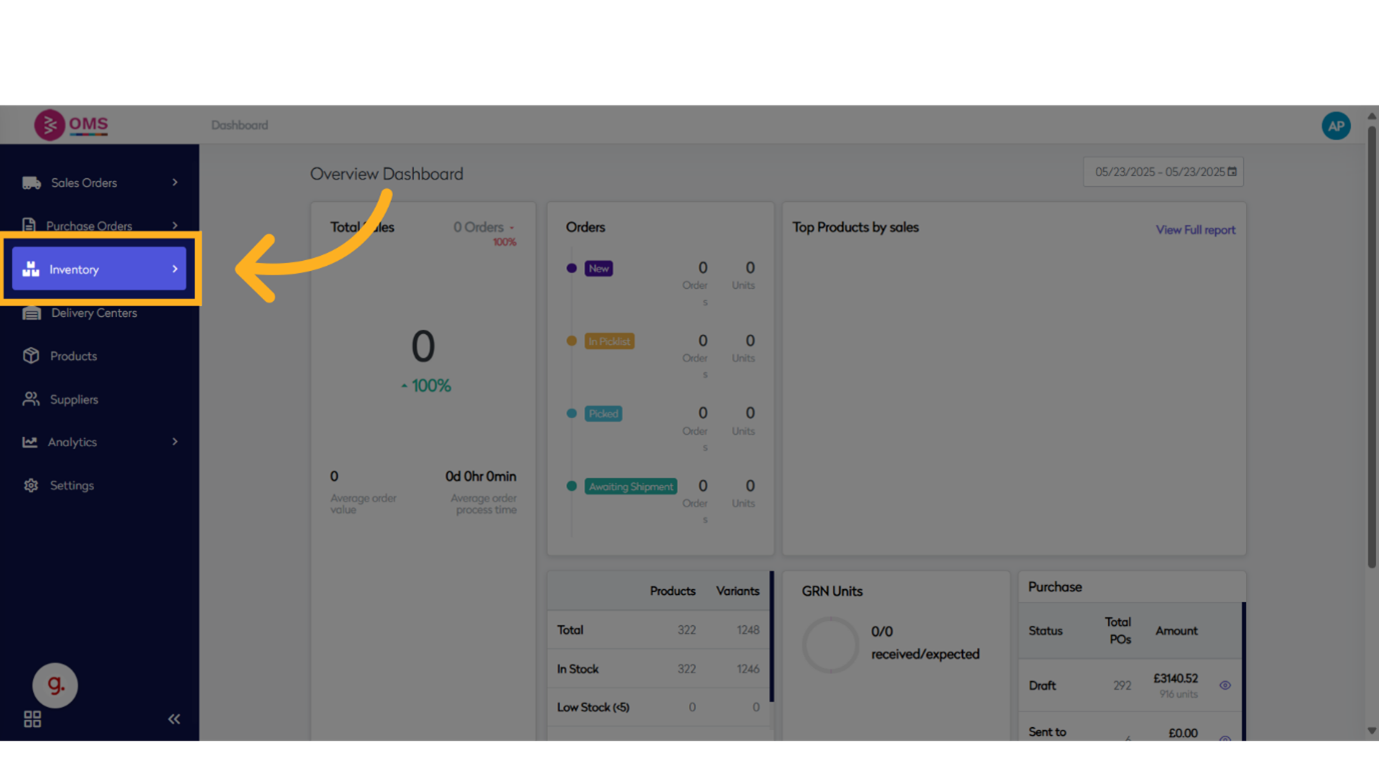
-
Click "Stock Request"
Open the Stock Request section to view or create a new request.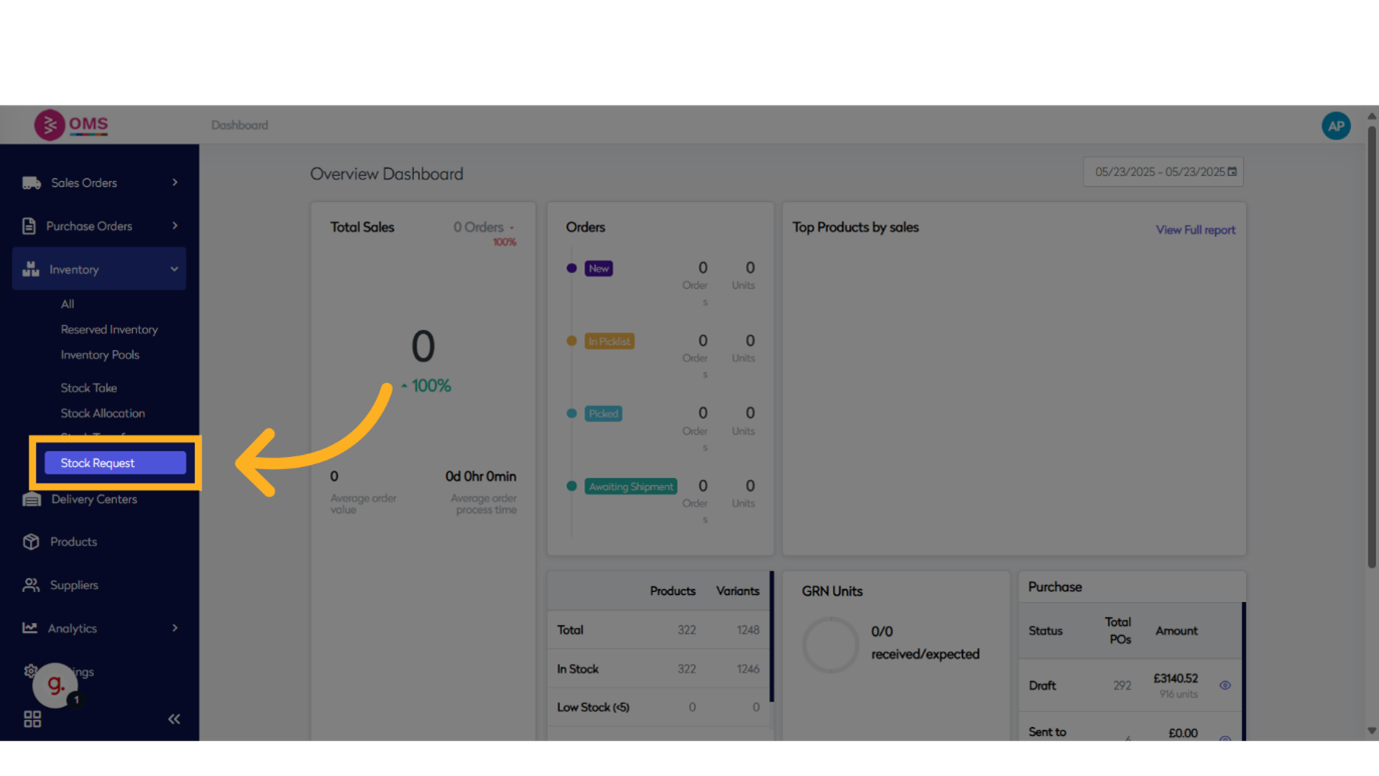
-
Click "Stock Request"
Navigate into the stock request form to begin entering the required details.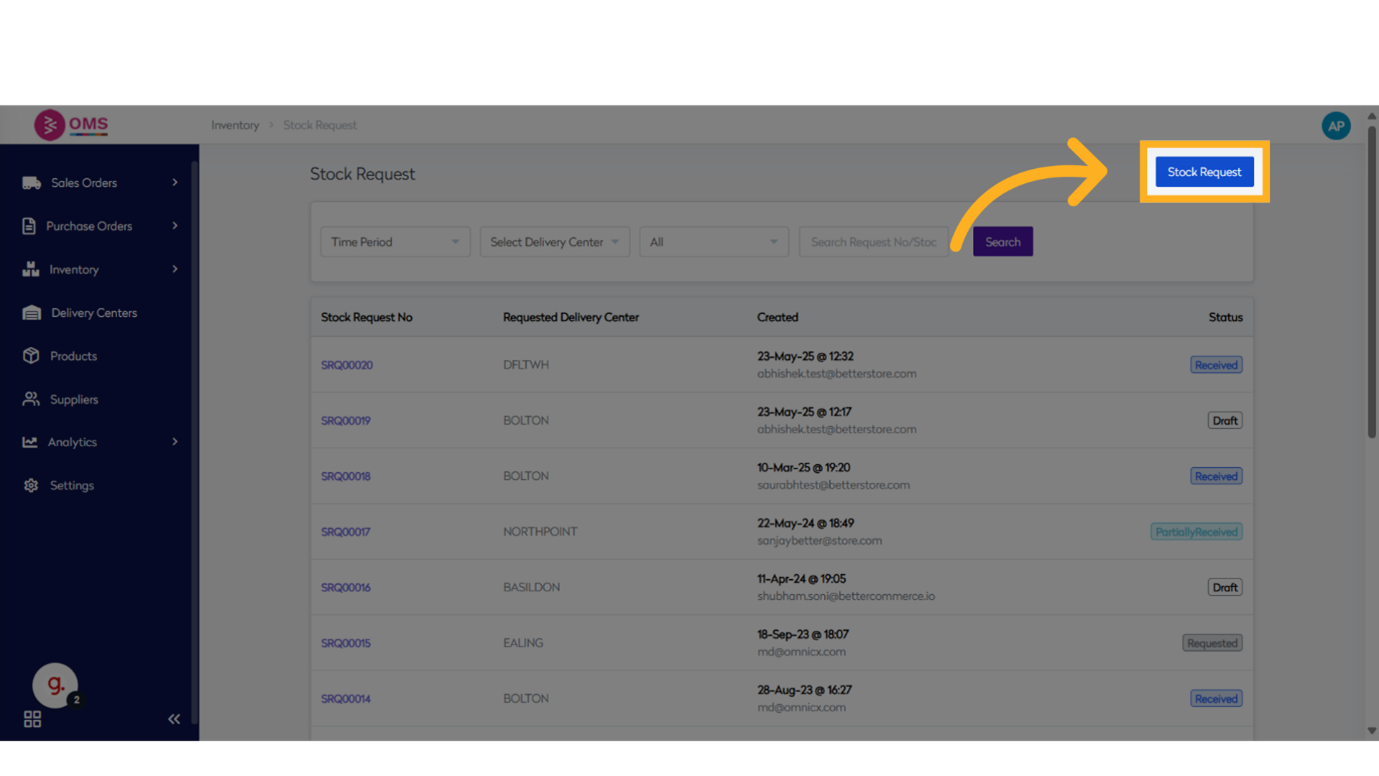
-
Click "Select Delivery Center..."
Choose the delivery center where stock is needed.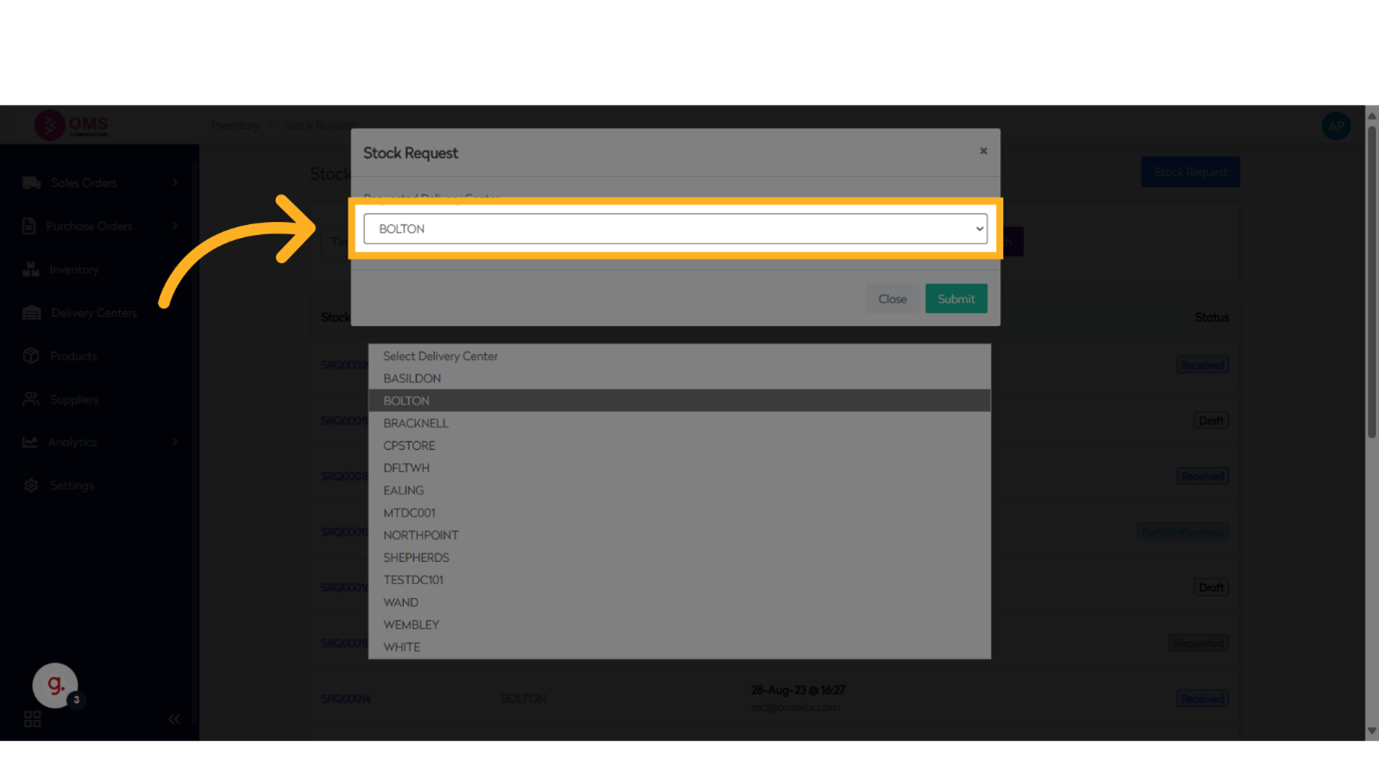
-
Click "Submit"
Click Submit to proceed to the next step in creating the request.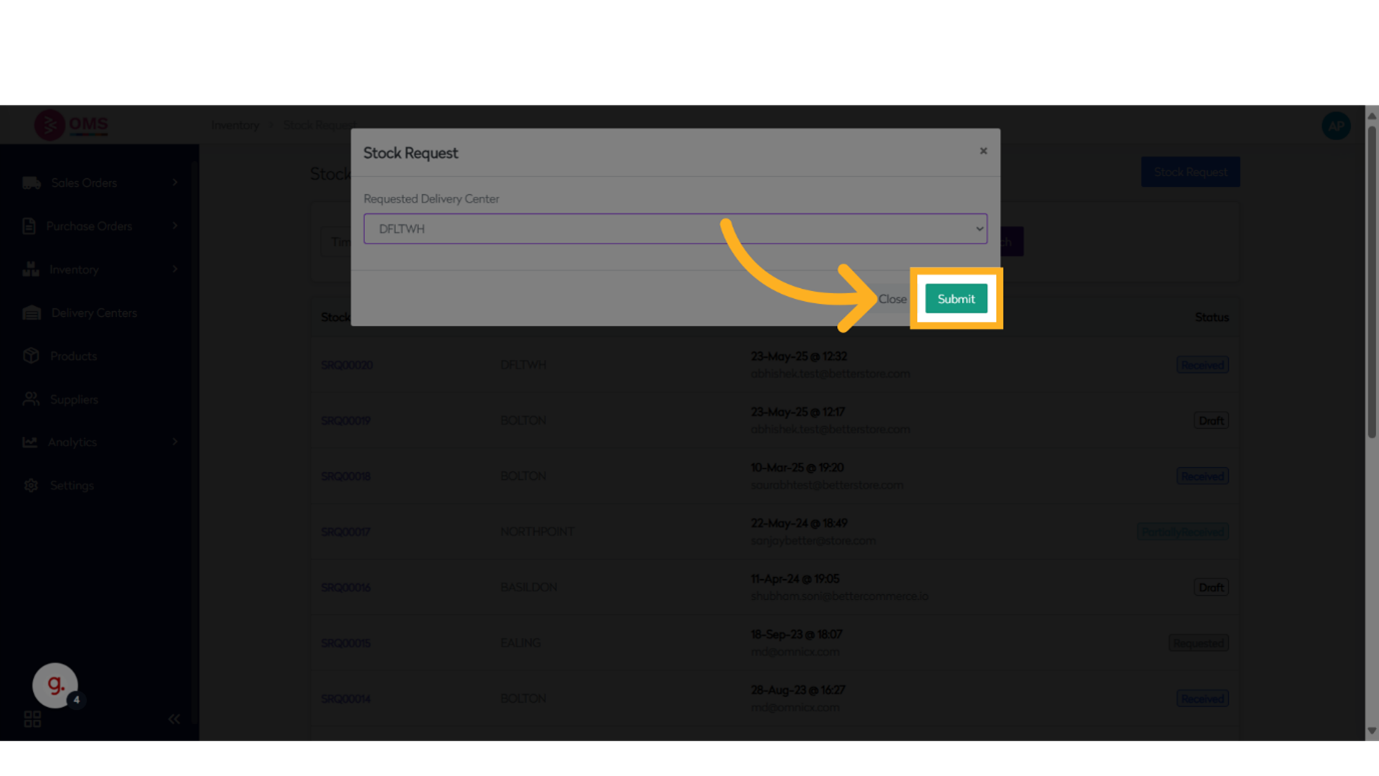
-
Click "Search products"
Use the product search bar to find the item you want to request. Select the specific product to include in the stock request.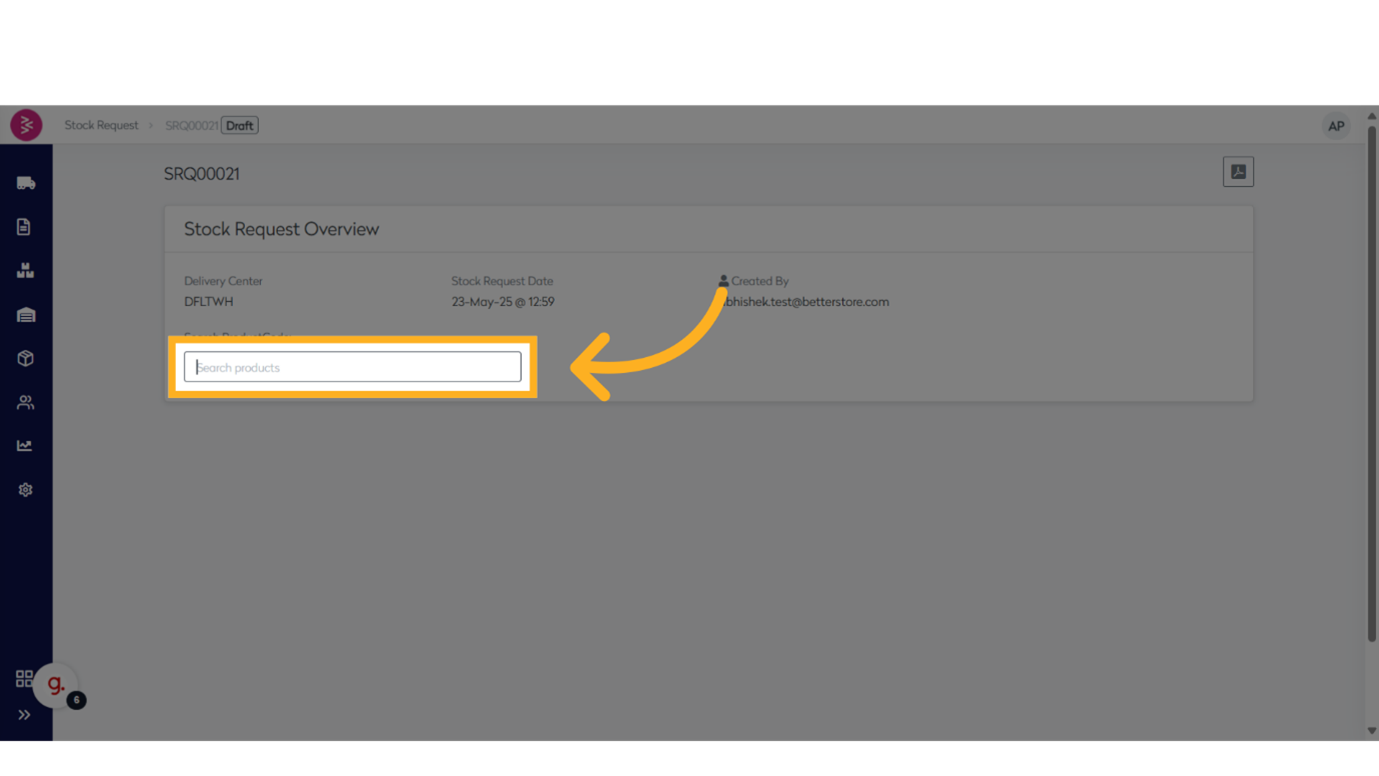
-
Click to "Enter Quantity"
Click the quantity field to enter how many units are required.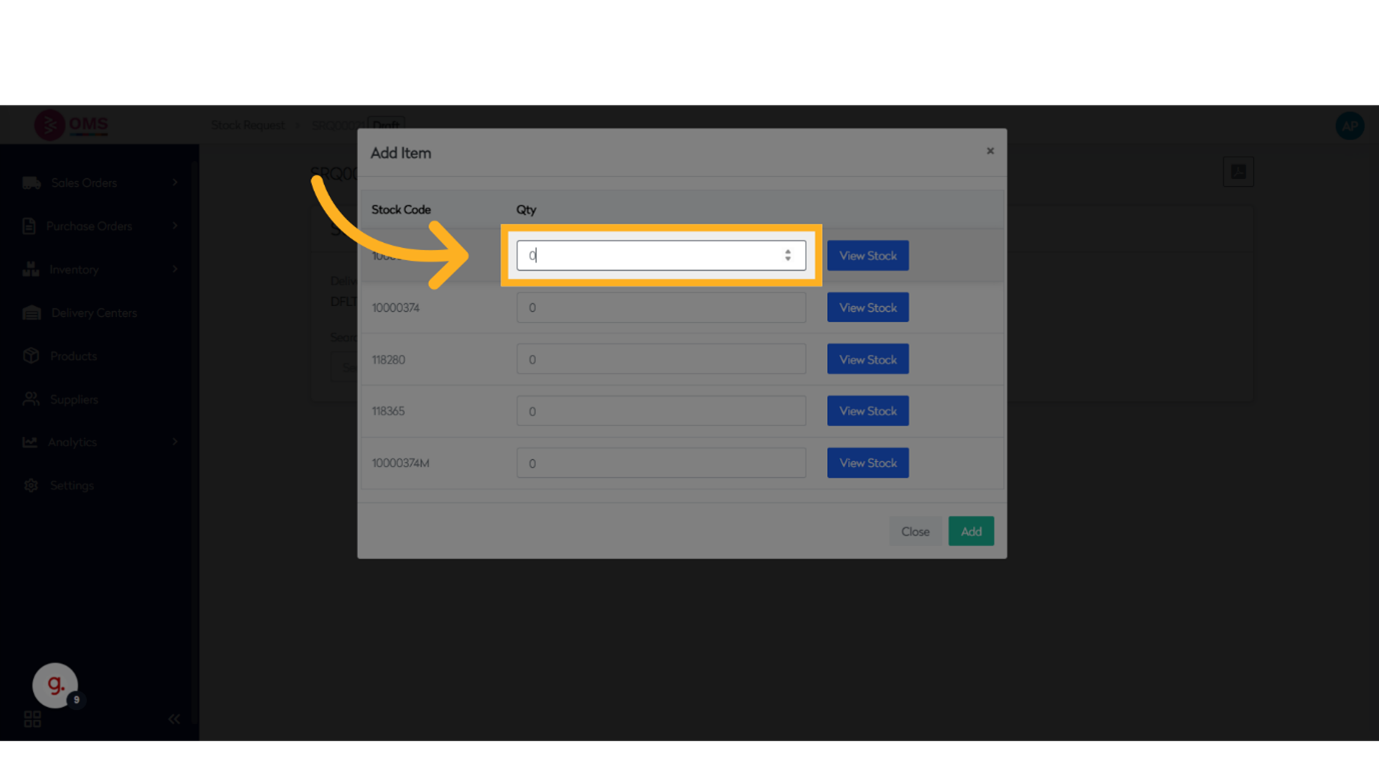
-
Click "Add"
Click Add to include the product in the stock request.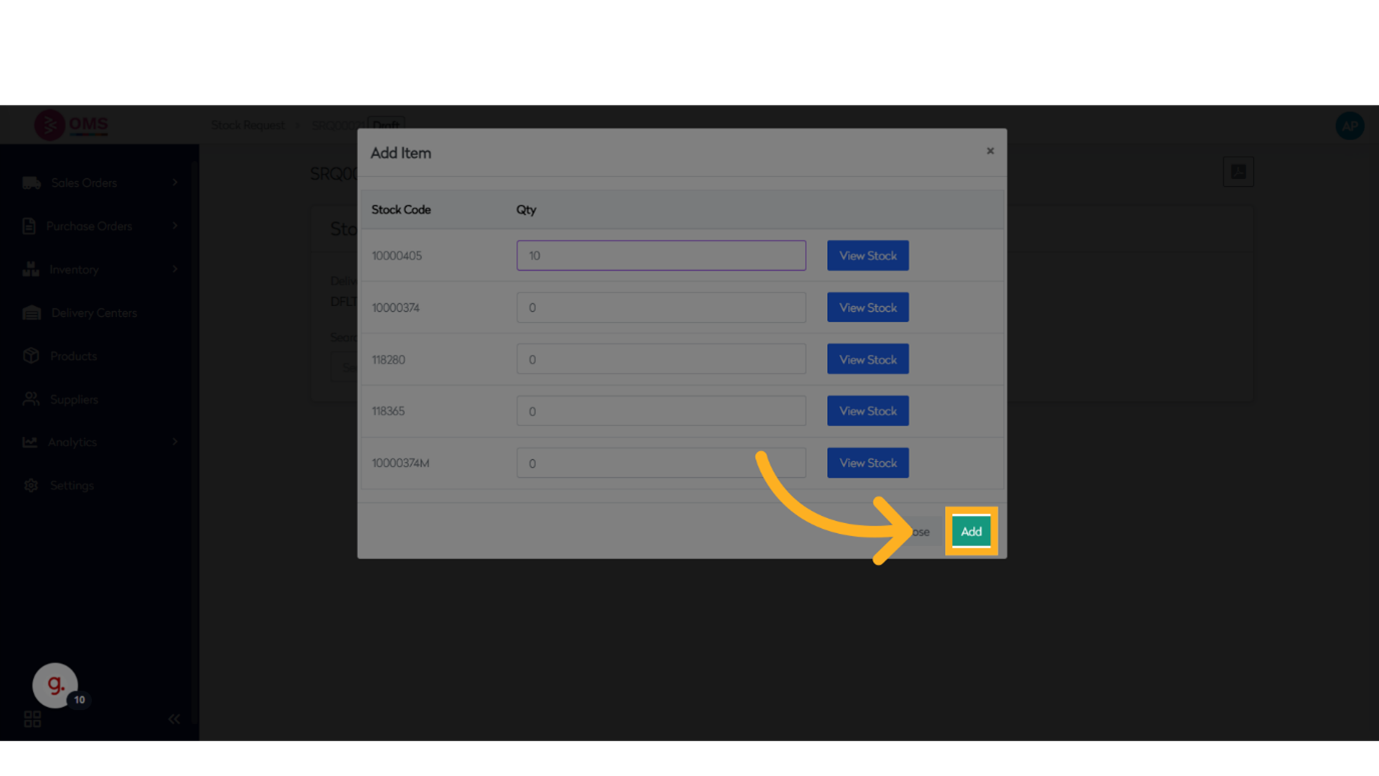
-
Click "Submit Request"
Submit the request for review or approval.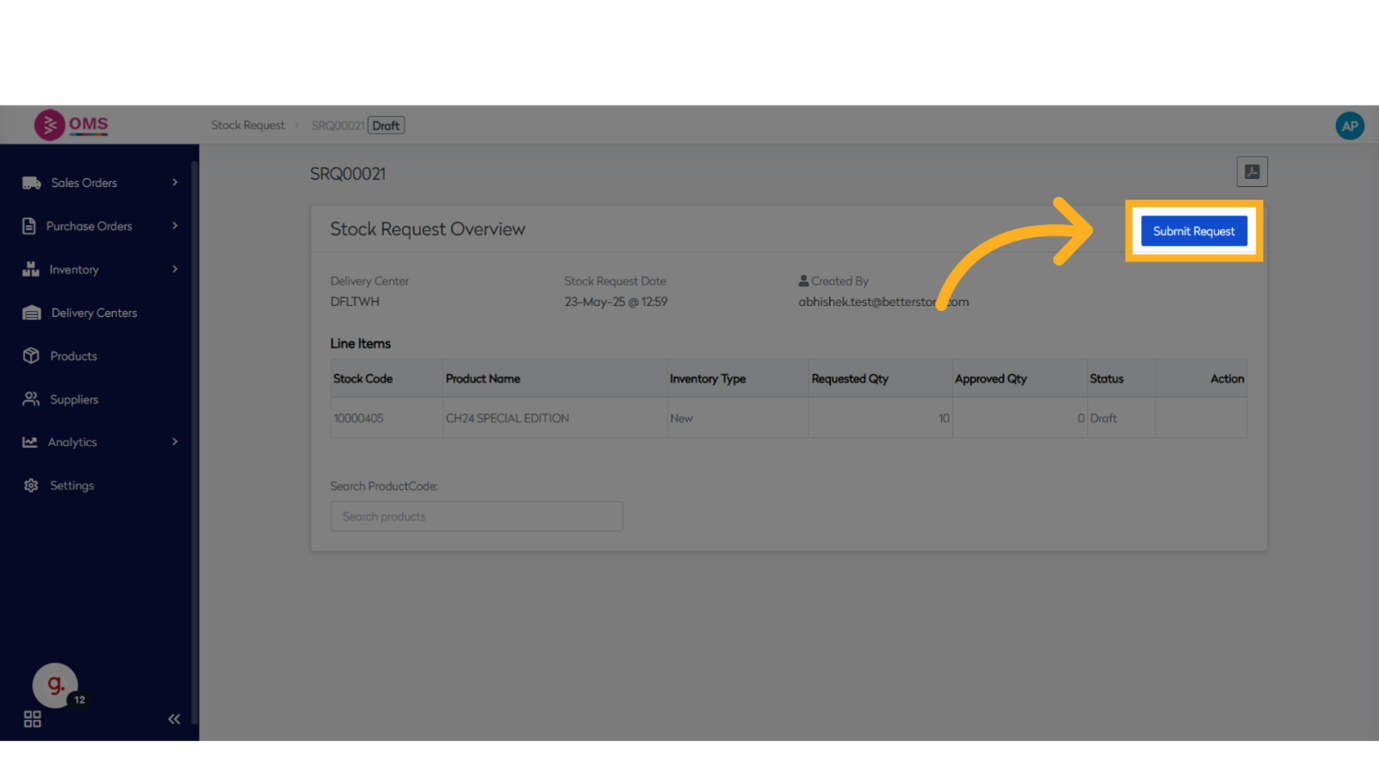
-
Click "Approve"
If you have permission, approve the stock request directly.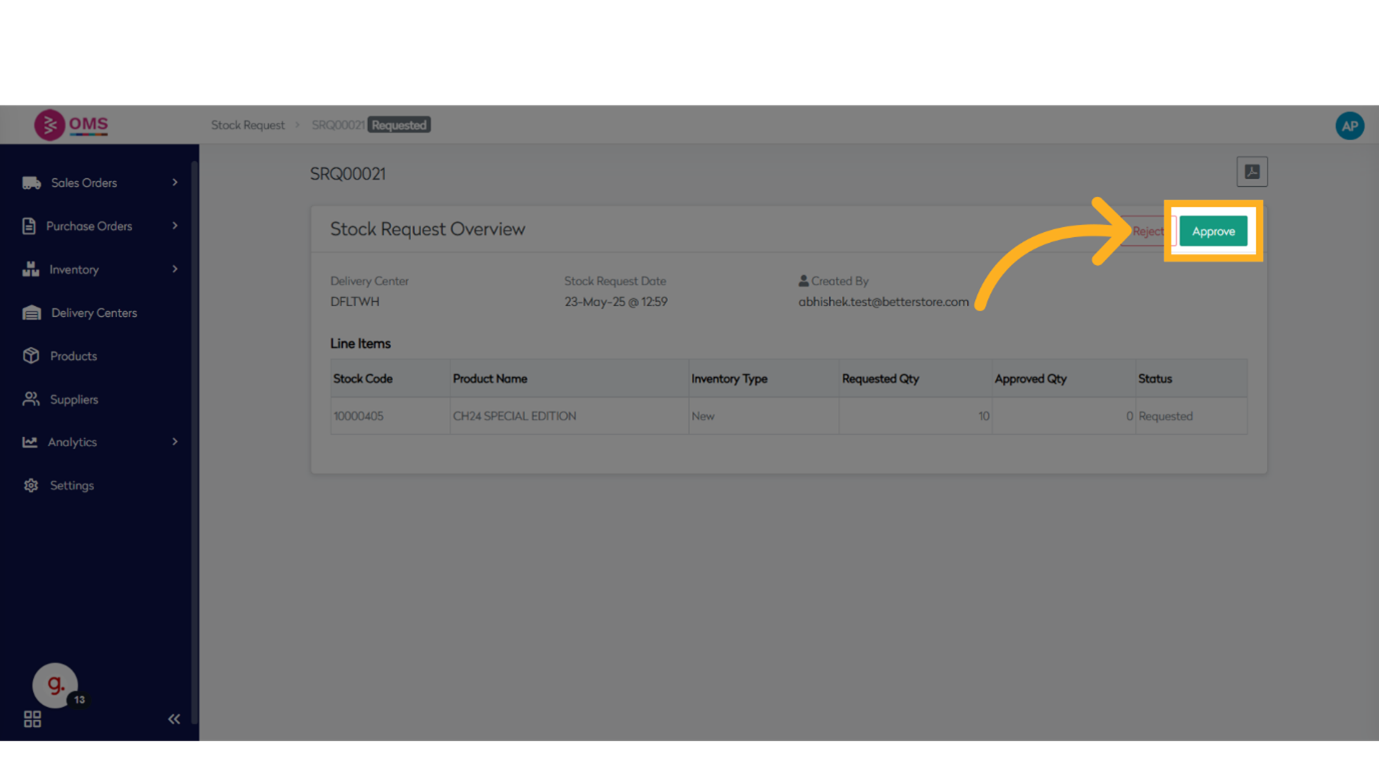
-
Click "Select Delivery Center..."
Choose the destination delivery center for fulfilling the request.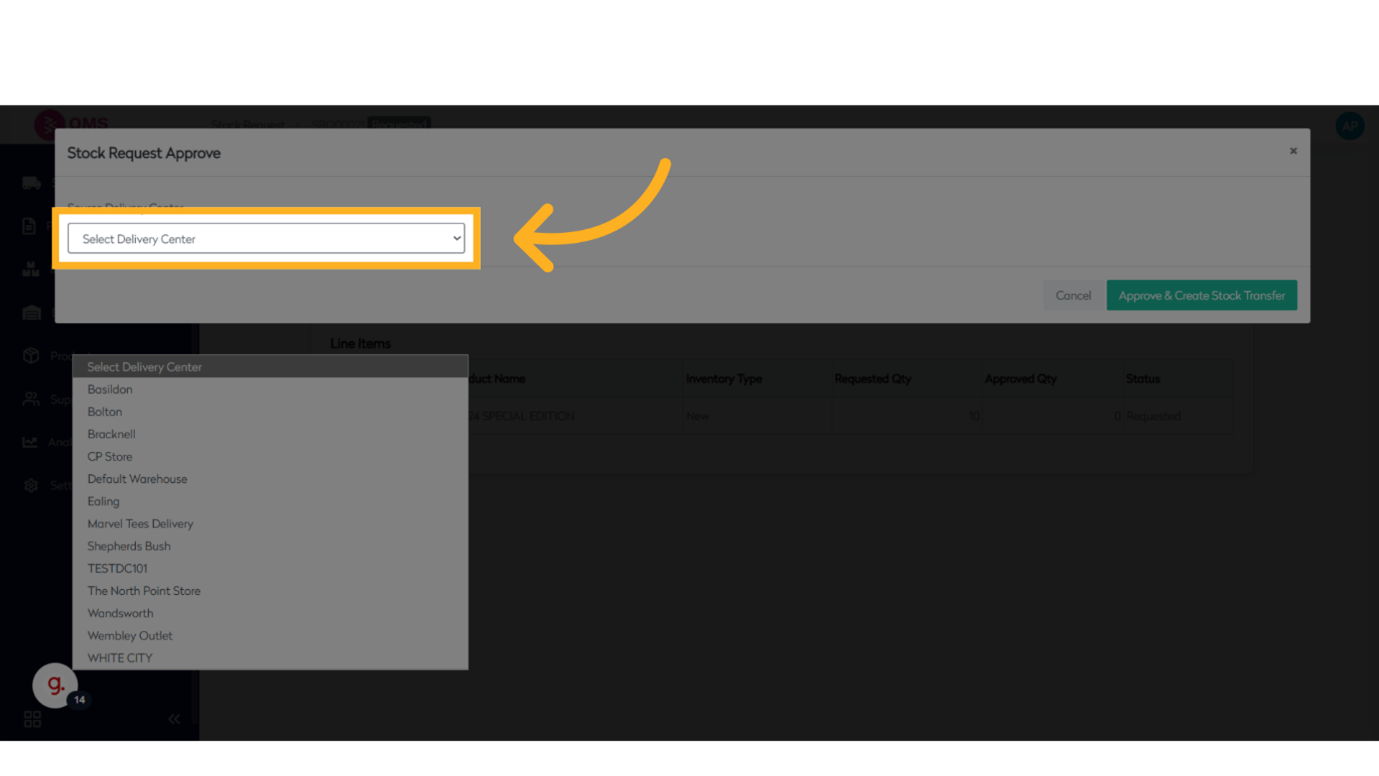
-
Approve the Request
If you have the required permissions, you can approve the request and optionally initiate a stock transfer at the same time.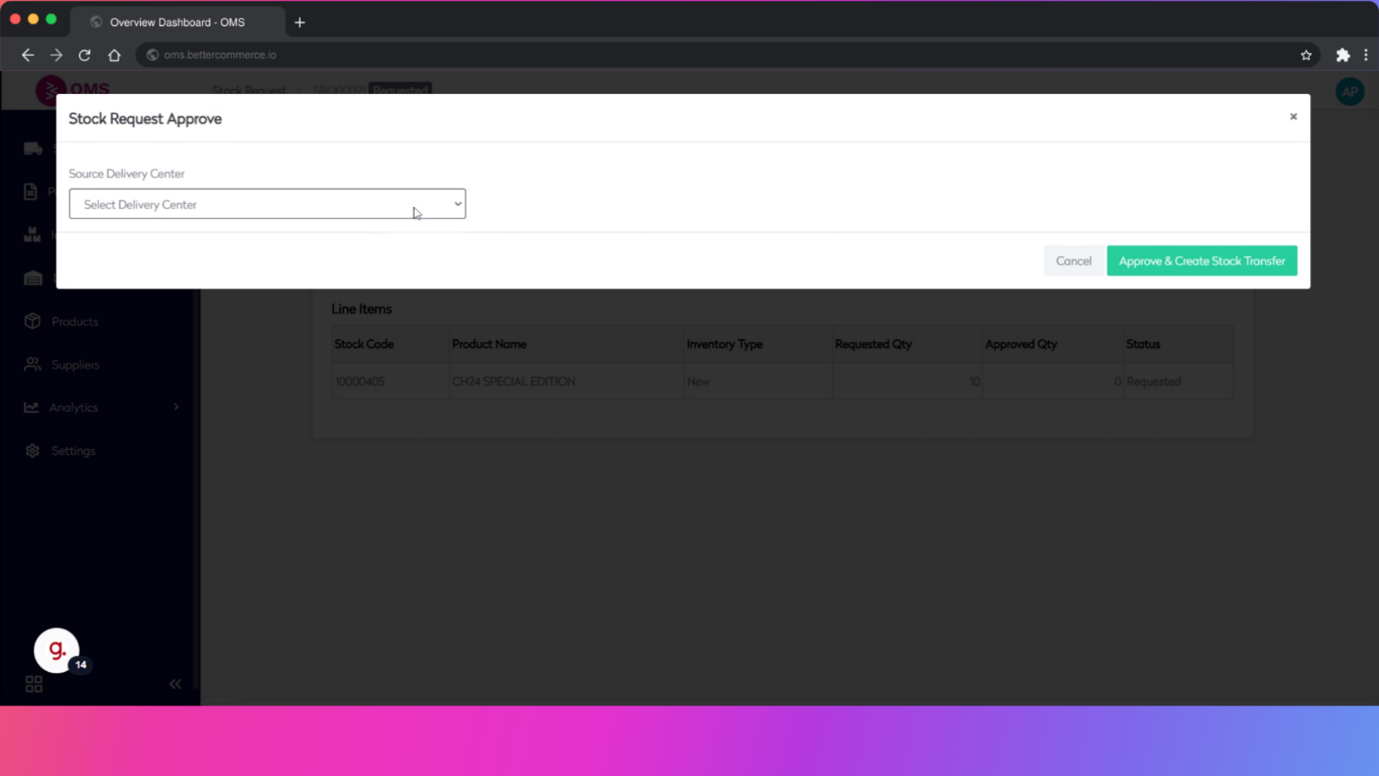
-
Auto-Create Stock Transfer
Approved requests can be directly converted into a Stock Transfer transaction.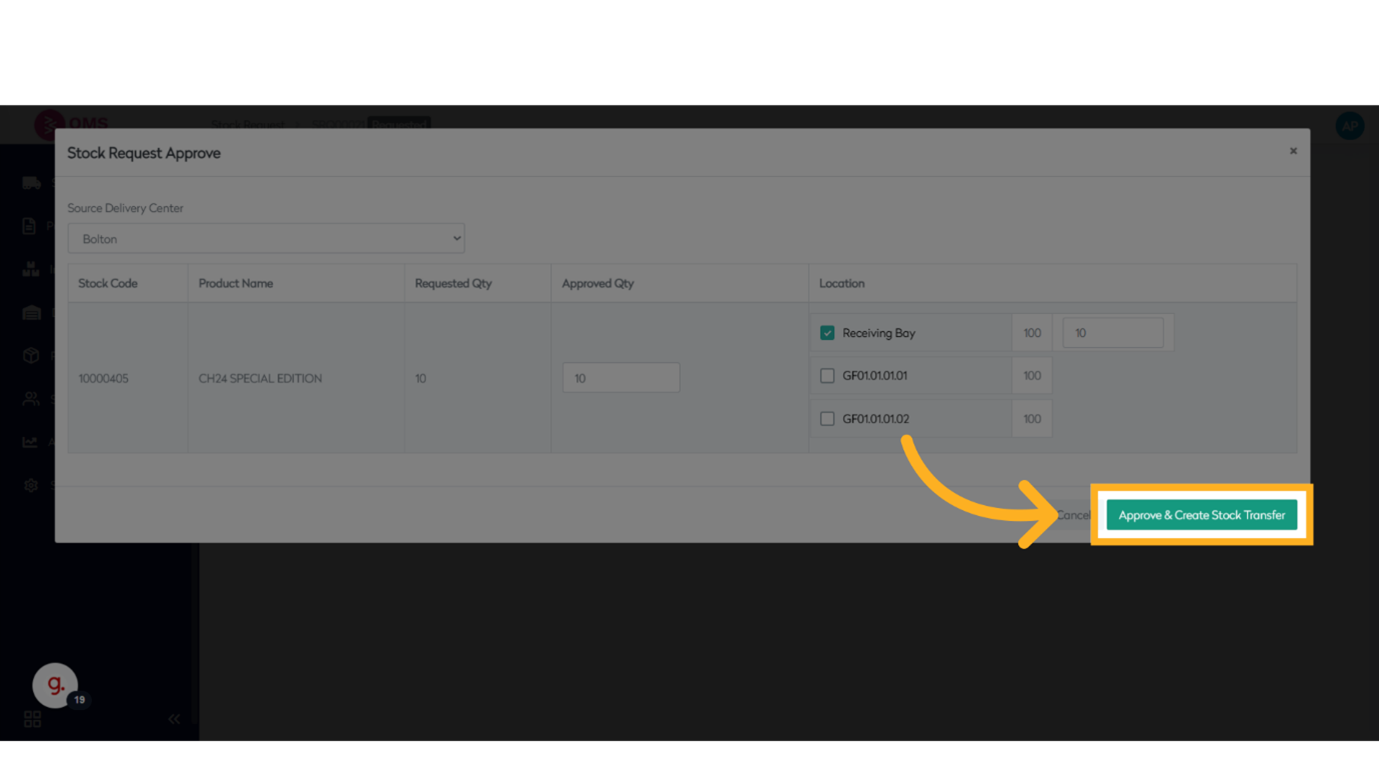
-
Receive the Stock
Once the transfer is complete and items have arrived, update the status to Received to finalize the request.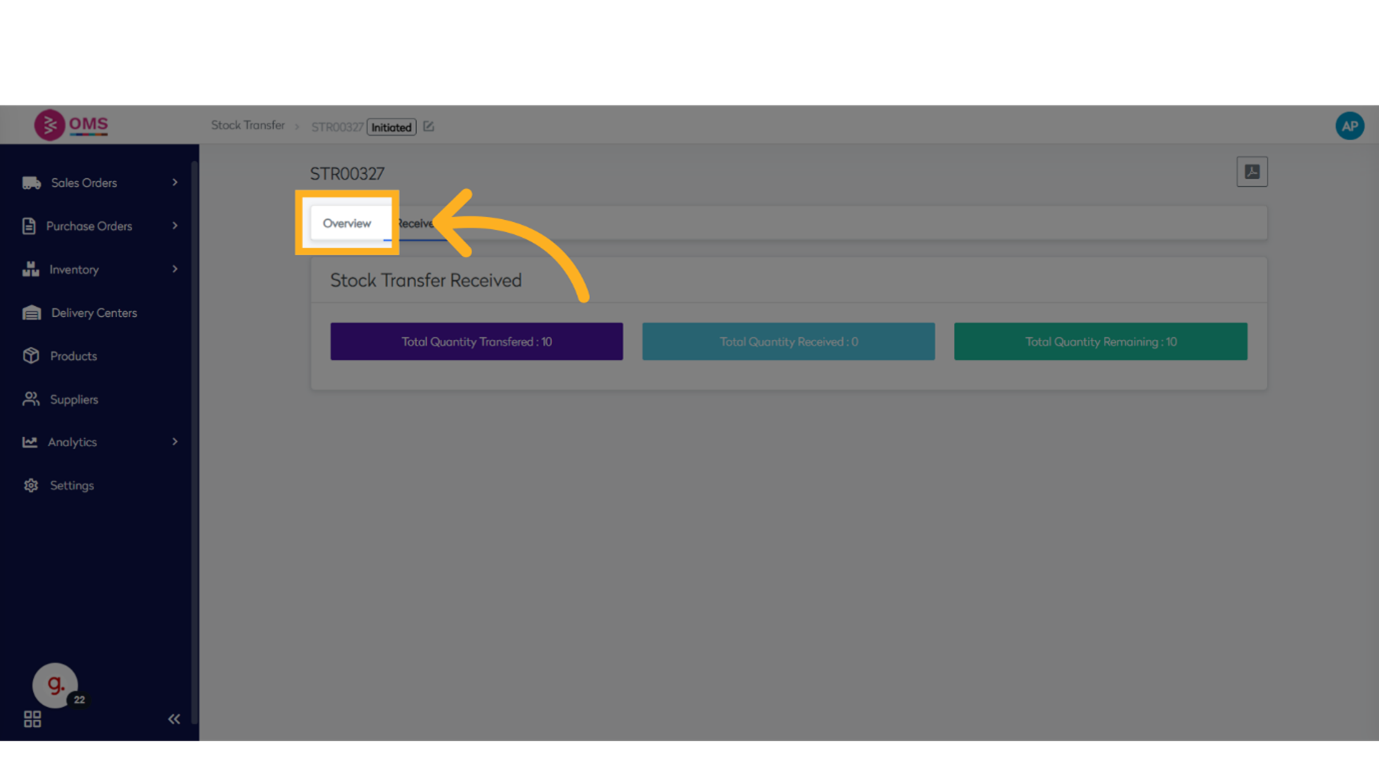
Benefits of Using Stock Requests in OMS
- Keeps inventory levels balanced across locations
- Reduces manual coordination via email or spreadsheets
- Links request directly with transfer and receiving
- Provides full audit trail of who requested, approved, and fulfilled the stock
- Improves internal planning and fulfillment workflows
Use Cases
- Replenishing fast-selling SKUs at specific stores
- Redistributing overstocked inventory
- Preparing for a flash sale or promotional event
- Managing new store openings with planned stock allocation
Summary
The Stock Request feature in BetterCommerce OMS makes internal stock movement streamlined, accountable, and efficient. It provides structure to a critical operation that, when managed well, ensures product availability and smooth business operations across all your locations.
Keep every warehouse in sync — manage internal inventory needs with Stock Requests in OMS.