
Shipping Rules Management Documentation
Overview
The Shipping Rules section in the OMS (Order Management System) allows you to manage shipping rules that determine what shipping labels are generated for your orders. The system is accessible at https://oms.bettercommerce.io/Setting/ShippingRule.
Editing Shipping Rules
How to Edit a Shipping Rule:
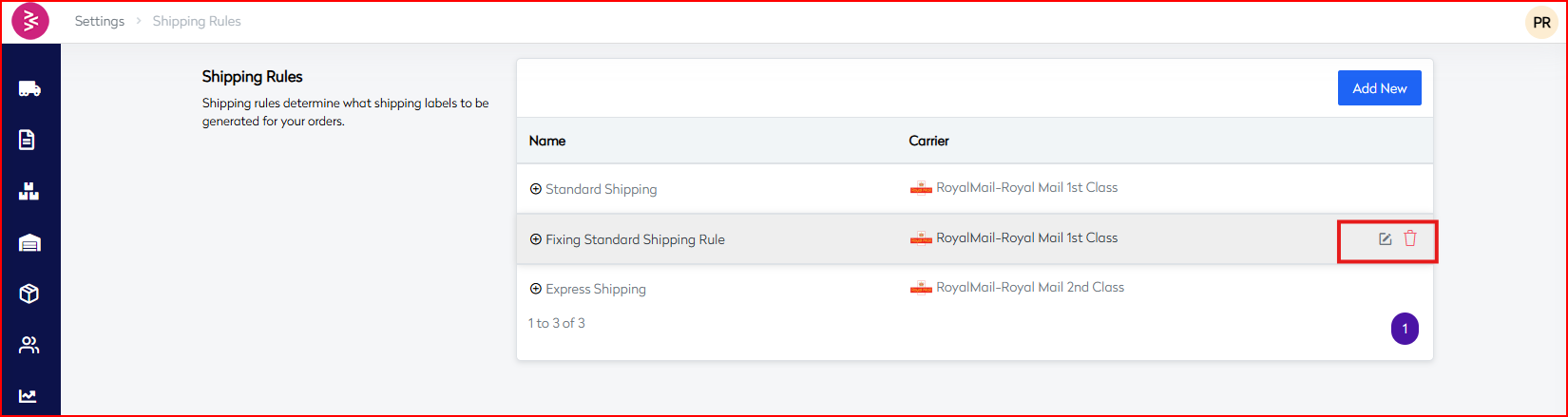
- Access the Rule: Click on the rule name or the edit icon next to the shipping rule you want to modify
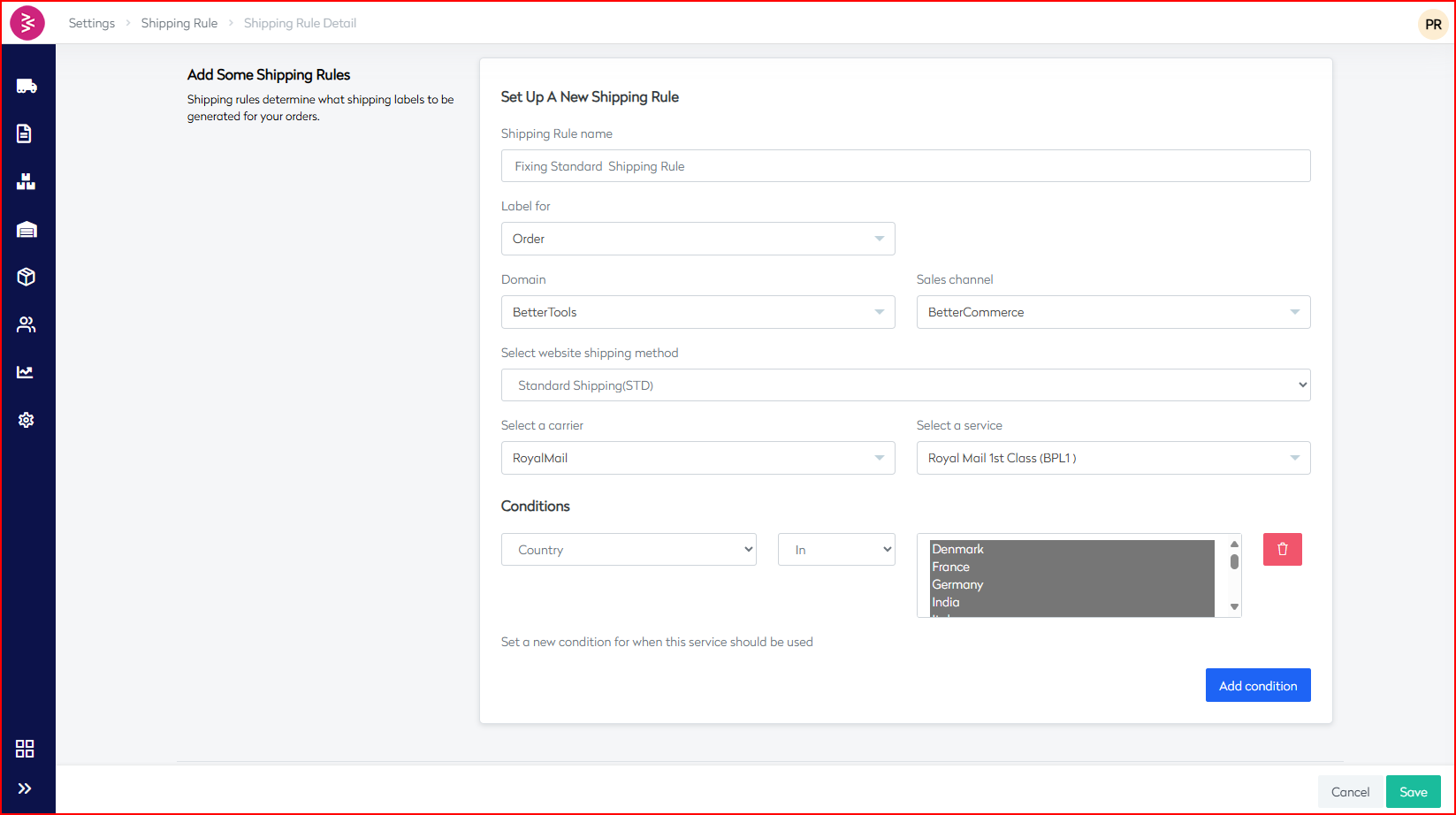
- Rule Detail Page: You'll be redirected to the shipping rule detail page (URL format:
/Setting/ShippingRuleDetail/{rule-id})
Editable Rule Components:
Each shipping rule contains conditions with the following structure:
- Field name: The order attribute to evaluate (e.g., Country, ShippingMethod, OrderValue)
- Operand: The comparison operator (e.g., In, Equals, GreaterThan)
- Field value: The value(s) to compare against
Common Field Types and Examples:
- Country: Uses "In" operand with comma-separated country codes
- Example:
DK,FR,DE,IN,IT,AT,NL,BE,ES,SE,GB,RW,BG,CZ,FI,GR,HU,IE,PL,PT,RO,SK,SI,LT,GG,EE,LV,LU,AU,CY,RU,CH,US,MC,AE,CA,CN,GI,HR,JP,KW,MT,NO,NZ,SA,TR,ROW
- Example:
- ShippingMethod: Uses "Equals" operand with method code
- Example:
STD
- Example:
- OrderValue: Uses "GreaterThan" operand with numeric value
- Example:
1
- Example:
Editing Process:
- Navigate to the specific rule detail page
- Modify the field conditions as needed
- Update carrier selection if required
- Save the changes
Deleting Shipping Rules
Important Considerations:
- Ensure the rule is not actively being used by pending orders
- Consider the impact on order processing before deletion
- Have alternative rules in place if needed
Deletion Process:
- Access Rule Management: From the main Shipping Rules page
- Select Rule: Identify the rule you want to delete
- Delete Action: Look for delete option (typically available in the rule detail page or through a context menu)
Note: The exact delete button/option location may vary based on the interface design, but it's typically found either:
- In the rule detail page
- As a context menu option on the main rules list
- As an action button next to each rule
Adding New Shipping Rules
The system provides an "Add New" button in the top-right corner of the Shipping Rules page, which redirects to /Setting/AddShippingRule for creating new shipping rules.
Rule Validation and Testing
Before Making Changes:
- Review Current Orders: Check if any pending orders depend on the rule
- Test Conditions: Ensure your rule conditions are logically sound
- Carrier Configuration: Verify the selected carrier is properly configured
After Making Changes:
- Test with Sample Orders: Create test orders to verify rule behavior
- Monitor Order Processing: Watch for any issues in order fulfillment
- Check Label Generation: Ensure shipping labels generate correctly
Best Practices
- Backup Strategy: Document current rule configurations before making changes
- Gradual Changes: Make incremental changes rather than major overhauls
- Rule Naming: Use clear, descriptive names for easy identification
- Country Codes: Use standard ISO country codes for consistency
- Order Value Rules: Consider currency and decimal handling for value-based rules
Troubleshooting
Common Issues:
- Rule Conflicts: Multiple rules matching the same conditions
- Invalid Country Codes: Using incorrect or outdated country codes
- Carrier Misconfiguration: Selected carrier not properly set up
- Order Value Precision: Decimal handling in value comparisons
Support Resources:
- Help Center: Available through the top navigation
- Knowledge Base: Accessible from the help menu
- Support Tickets: Can be created through the ticketing system
This documentation provides a comprehensive guide for managing shipping rules in the OMS system. Always test changes in a staging environment when possible before applying to production.