
Add new Picklist – OMS
Overview
The Add New Auto Picklist feature in the Order Management System (OMS) enables automatic picklist generation at the warehouse level. It streamlines the fulfillment process by automatically grouping orders into picklists based on warehouse-specific parameters.
Create a Picklist
To configure a new auto picklist setup for a specific warehouse, enabling the automated generation of picklists as per defined criteria.
Steps to Create a Picklist
-
Navigate to Auto Picklist Settings
- Go to
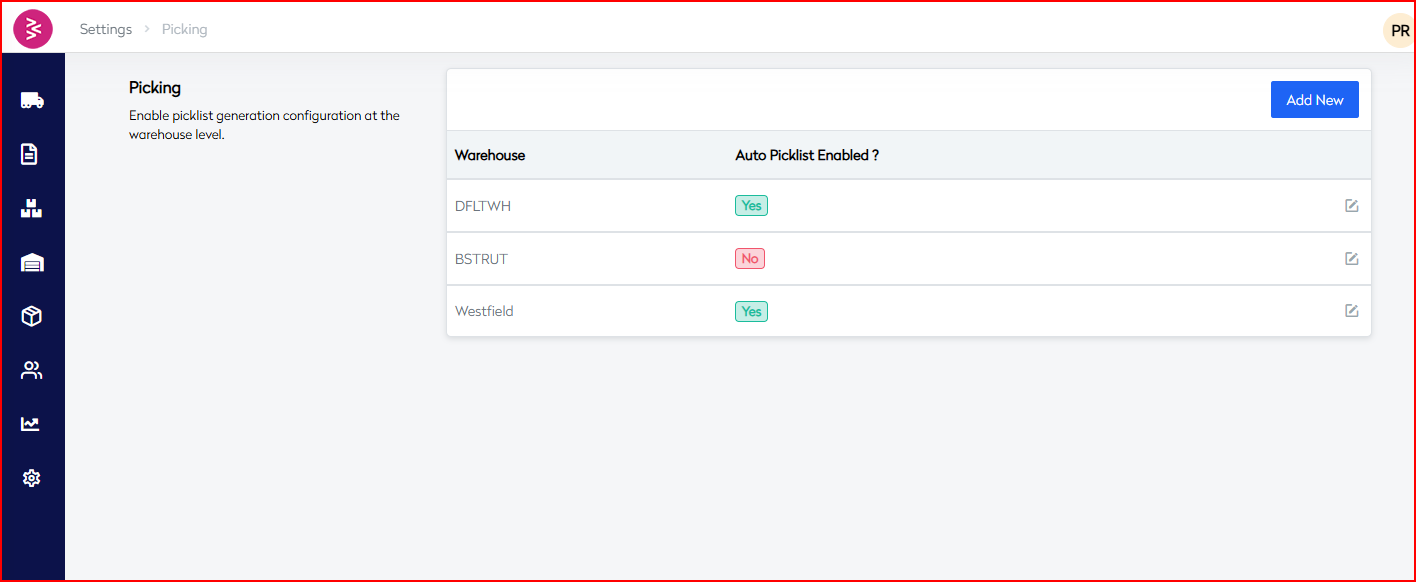
Settings → Pickingin the main navigation menu. - You will arrive at the Auto Picklist configuration page.
- Go to
-
Add New Configuration
- Click on the "Add New" button (blue button at the top-right corner).
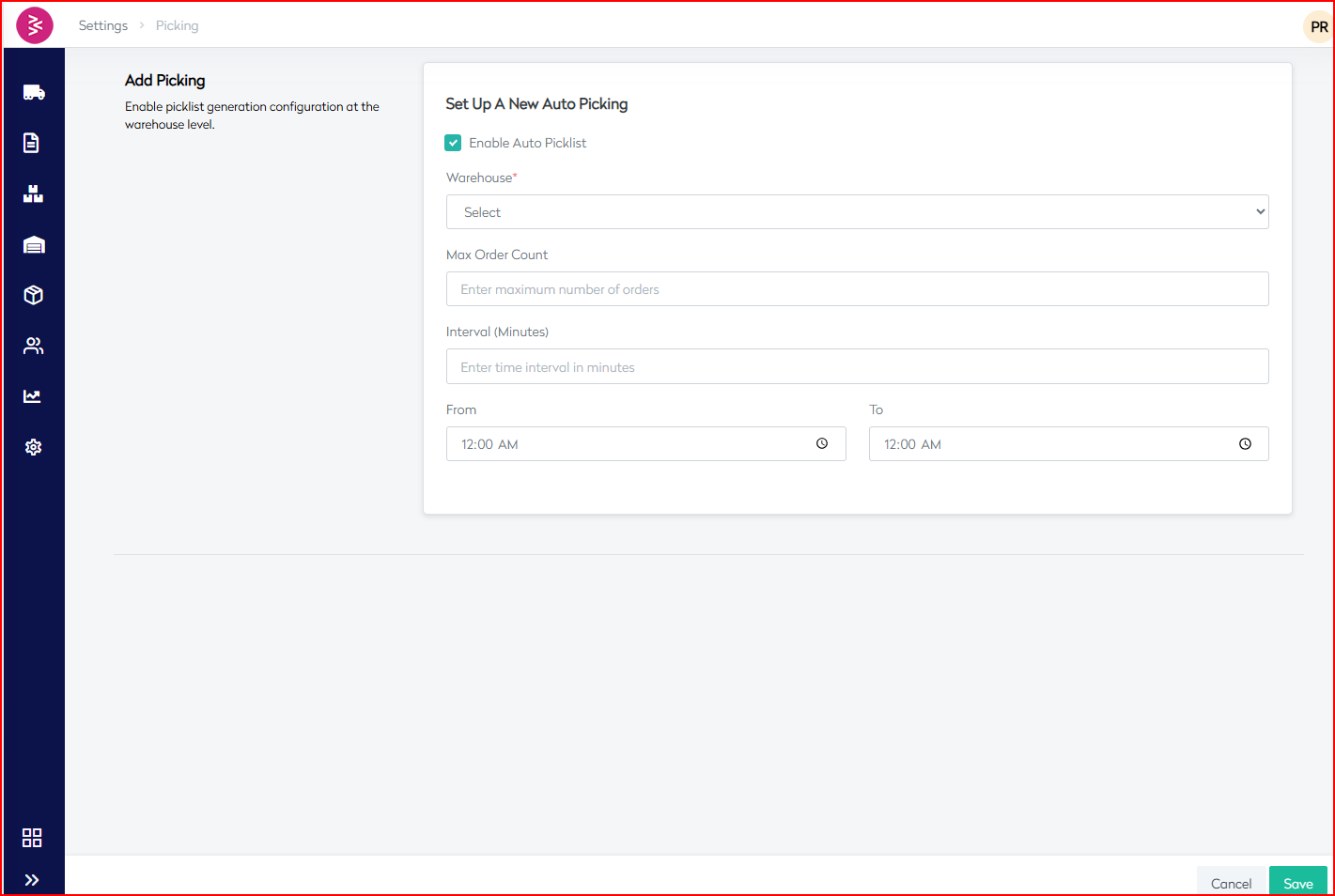
- You will be redirected to the Picklist Creation Form.
-
Configure Picklist Settings
- Select the Warehouse for which the Auto Picklist is to be enabled.
- Configure the required picklist generation parameters.
Basic Information
| Field Name | Type | Description |
|---|---|---|
| Enable Auto Picklist | Checkbox | Activates auto picklist generation. If unchecked, automation is disabled. |
| Warehouse | Dropdown (Required) | Mandatory selection of the warehouse for enabling auto picklist. |
| Max Order Count | Input Field | Maximum number of orders grouped in a single auto-generated picklist. |
| Interval (Minutes) | Input Field | Frequency (in minutes) for auto-generation of picklists. |
| From | Time Picker | Start time of the daily window for auto-generation. |
| To | Time Picker | End time of the daily window for auto picklist generation. |
- Save Configuration
- Review the configured settings.
- Click Save to activate the Auto Picklist feature for the selected warehouse.
Result
After configuration:
- The selected warehouse will be listed in the Auto Picklist Table.
- The table will display the current enabled/disabled status of auto picklist for each warehouse.